BTClock — Handbook¶
The complete user reference. Read QUICKSTART.md first
if your BTClock isn't yet on the network.
This handbook focuses on the two production variants:
- Rev A — 4 MB flash, 2 MB PSRAM, 7 e-paper panels, no frontlight, no ambient sensor.
- Rev B — 8 MB flash, 2 MB PSRAM, 7 e-paper panels, PCA9685 frontlight, BH1750 ambient sensor.
The 8-panel V8 board and the 2.9" Rev A panel build are prototype / unsupported and are mentioned only where they materially change a behaviour.
All screen images in this handbook are rendered off-device by the WASM screen pipeline (
tools/wasm/render_doc_screens.mjs) and composited inside the BTClock acrylic outline. Real-device photos (which capture the e-paper micro-texture and frontlight halo) are tracked indocs/img/PHOTOS_NEEDED.md.
Table of contents¶
- 1. Glossary
- 2. Hardware tour
- 3. On-device controls
- 4. WebUI tour
- 5. Screen catalogue
- 6. Fonts
- 7. Mining-pool guide
- 8. Bitaxe integration
- 9. Nostr zap and Wallet Connect setup
- 10. LEDs & frontlight
- 11. Do Not Disturb
- 12. HTTP API quick reference
- 13. Home Assistant integration
- 14. Web flasher
- 15. Firmware updates
- 16. Troubleshooting
1. Glossary¶
- Panel — one e-paper module. The BTClock has 7 of them on Rev A / Rev B (8 on V8), each rendered independently. The first panel is usually a label ("BLOCK / HEIGHT", "BTC / USD", a pickaxe icon, etc.).
- Screen — a logical layout that paints all panels together. See the Screen catalogue.
- Rotation — the timer-driven cycle through your enabled screens.
- Frontlight (Rev B only) — soft white LEDs aimed at the panel faces. E-paper has no backlight; this is what makes the BTClock readable in the dark.
- NeoPixel strip / LEDs — RGB pixels along the back/top of the enclosure. They flash on new blocks, on Nostr zaps, and during boot.
- DND — Do Not Disturb: a flag (manual or scheduled) that mutes the LEDs and frontlight without touching the e-paper content.
- Data source — where the BTClock pulls block / price data from.
Defaults to the BTClock relay (
btclock.dev); can be swapped to mempool.space + Kraken, a custom WebSocket, or a Nostr feed.
2. Hardware tour¶
| Feature | Rev A | Rev B |
|---|---|---|
| MCU | ESP32-S3 (Lolin S3 Mini, N4R2) | ESP32-S3 (custom, N8R2) |
| Flash | 4 MB | 8 MB |
| PSRAM | 2 MB | 2 MB |
| EPDs | 7 × 2.13" GDEY0213B74 | 7 × 2.13" GDEY0213B74 |
| Buttons | 4 × tactile | 4 × tactile |
| NeoPixel strip | yes | yes |
| Frontlight (PCA9685, soft white) | no | yes (7 × 3 = 21 LEDs) |
| BH1750 ambient sensor | no | yes |
| Default panel build | BTCLOCK_PANEL=2_13 |
BTCLOCK_PANEL=2_13 |
| Power supply (5 V, USB-C) | 500 mA | 1 A |
Power budget¶
| Load | Per-unit | Count (Rev B) | Subtotal at 100 % |
|---|---|---|---|
| WS2812B pixel (full white = R+G+B) | ~60 mA | 4 | ~240 mA |
| Frontlight warm-white SMD LED | ~20 mA | 21 (3 × 7 panels) | ~420 mA |
| ESP32-S3 + Wi-Fi (avg, with TX bursts) | ~100 mA avg | 1 | ~100 mA |
| MCP23017 + PCA9685 + BH1750 | ~5 mA | 1 each | ~5 mA |
| e-ink refresh (burst, ~1 s per panel) | ~30 mA | 1 panel active | ~30 mA |
Worst-case Rev B sum (full-white pixel ring + frontlight at 100 % + Wi-Fi TX) is around 800 mA. In practice the LED ring is rarely at full white and the frontlight sits below 100 %, so 500–600 mA is the realistic steady-state draw — which is why the spec is 1 A and not 500 mA: it leaves headroom for the Wi-Fi-TX pulses and the occasional frontlight flash on a new block. Rev A and V8 don't have the frontlight stage at all and stay below 250 mA average / ~400 mA peak, so a 500 mA supply is fine for them.
Front of the device:
- One acrylic faceplate, four corner screws, seven panel cutouts.
- A subtle "BTClock" wordmark below the panels.
Back / sides:
- USB-C for power + serial.
- Four push-buttons (described below).
- Reset and BOOT pin headers (only matter when recovering a bricked flash; see Firmware updates).
3. On-device controls¶
Four physical buttons, numbered left-to-right when looking at the back. Most actions fire on release (a falling edge); button 1 also has long-press and boot-hold behaviours described below.
| Button | Click (release) | Long-press (≥ 800 ms) |
|---|---|---|
| Button 1 | Pause / resume the rotation timer. The current screen stays up. | Toggle Do Not Disturb (manual override). LED plays a soft purple fade-pulse on ON and a warm amber fade-pulse on OFF. |
| Button 2 | Next screen (same as the auto-rotate step; the timer restarts). | — |
| Button 3 | Previous screen. | — |
| Button 4 | Toggle the debug overlay. A second press exits back to whatever data screen was up. | — |
Boot-hold: WiFi-only reset (button 1, 3 s)¶
Hold button 1 while powering on or rebooting the device. As soon
as the firmware detects the held button it lights the NeoPixel ring
red (kFlashError); keep holding for 3 seconds to wipe the WiFi
credentials (net/ssid, net/pw, and wifiConfigured) and reboot
straight into the provisioning AP. Release earlier to fall through to
a normal boot — no settings are touched.
This is a targeted partial reset, not a full factory wipe:
- Wiped: STA SSID, STA password, the "WiFi already configured" flag.
- Kept: every other user setting — timezone, currencies, screen order, font, LED colours, frontlight, NWC, Nostr, DND schedule, mining-pool / Bitaxe config.
Use it when the WiFi password changed or the device is on the wrong
SSID and you don't want to lose the rest of your configuration. For a
full reset, use the WebUI Factory reset button (or the
/api/factory_reset endpoint) — see §15 Firmware updates.
Inverse buttons¶
Settings → Light & LEDs → Inverse buttons reverses the button order end-to-end (physical 1 ↔ 4, 2 ↔ 3). Useful if you mount the BTClock upside-down or on the opposite side of a desk. The pref is honoured by both the runtime click / long-press router AND the boot-hold WiFi reset, so the same physical button keeps the same meaning regardless of orientation.
The debug overlay is for diagnostics: it shows free heap, current IP, current screen id, build SHA, current data-source state, and a partial-refresh tick counter. It's a full-refresh repaint with no e-paper ghosting.
4. WebUI tour¶
The WebUI is a single-page Svelte app served from the LittleFS
partition. Three columns, each backed by a card on a wide screen and
stacked vertically on mobile. The screenshot below shows the layout —
yours will match once you open http://btclock-xxxxxx.local/.
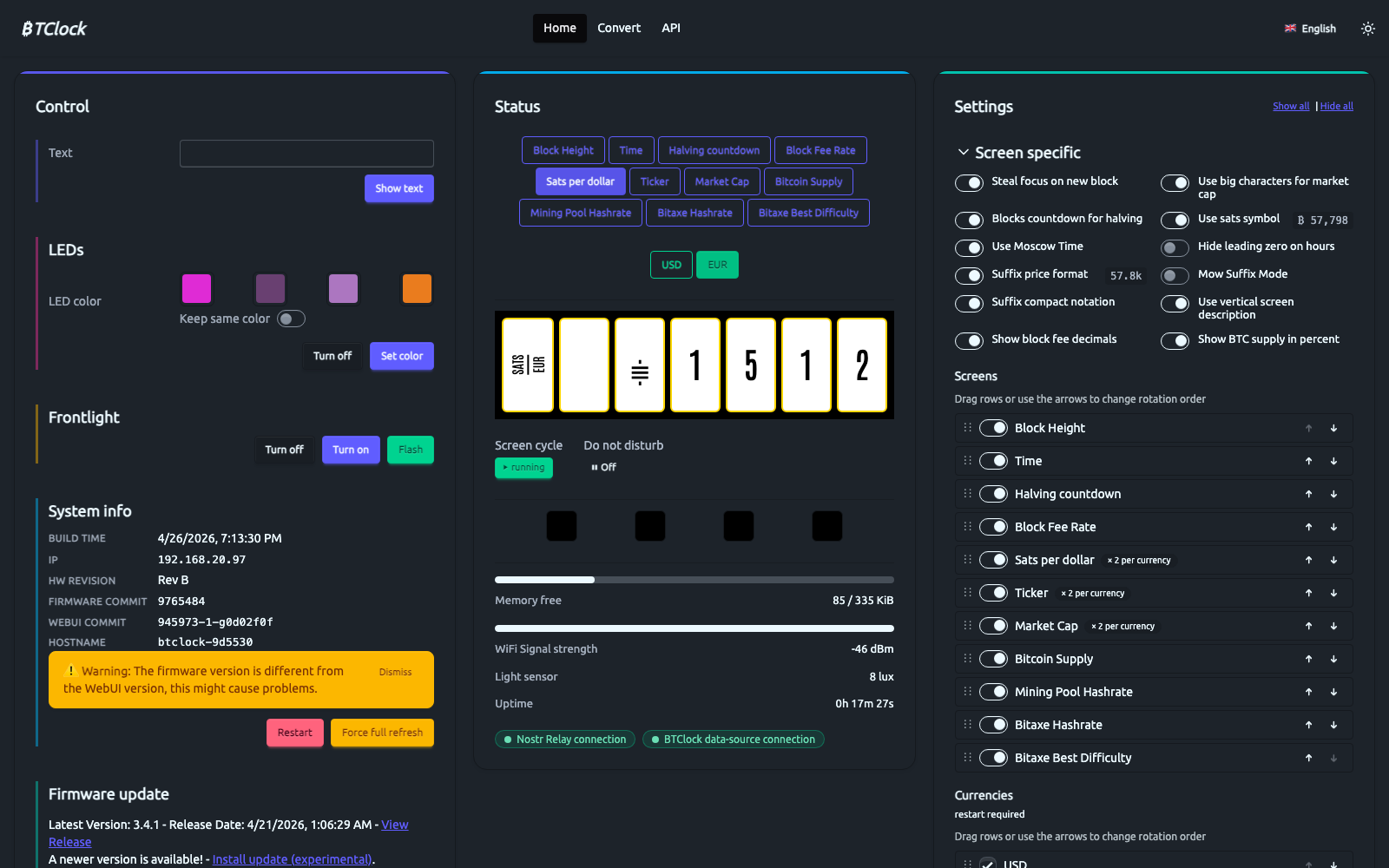
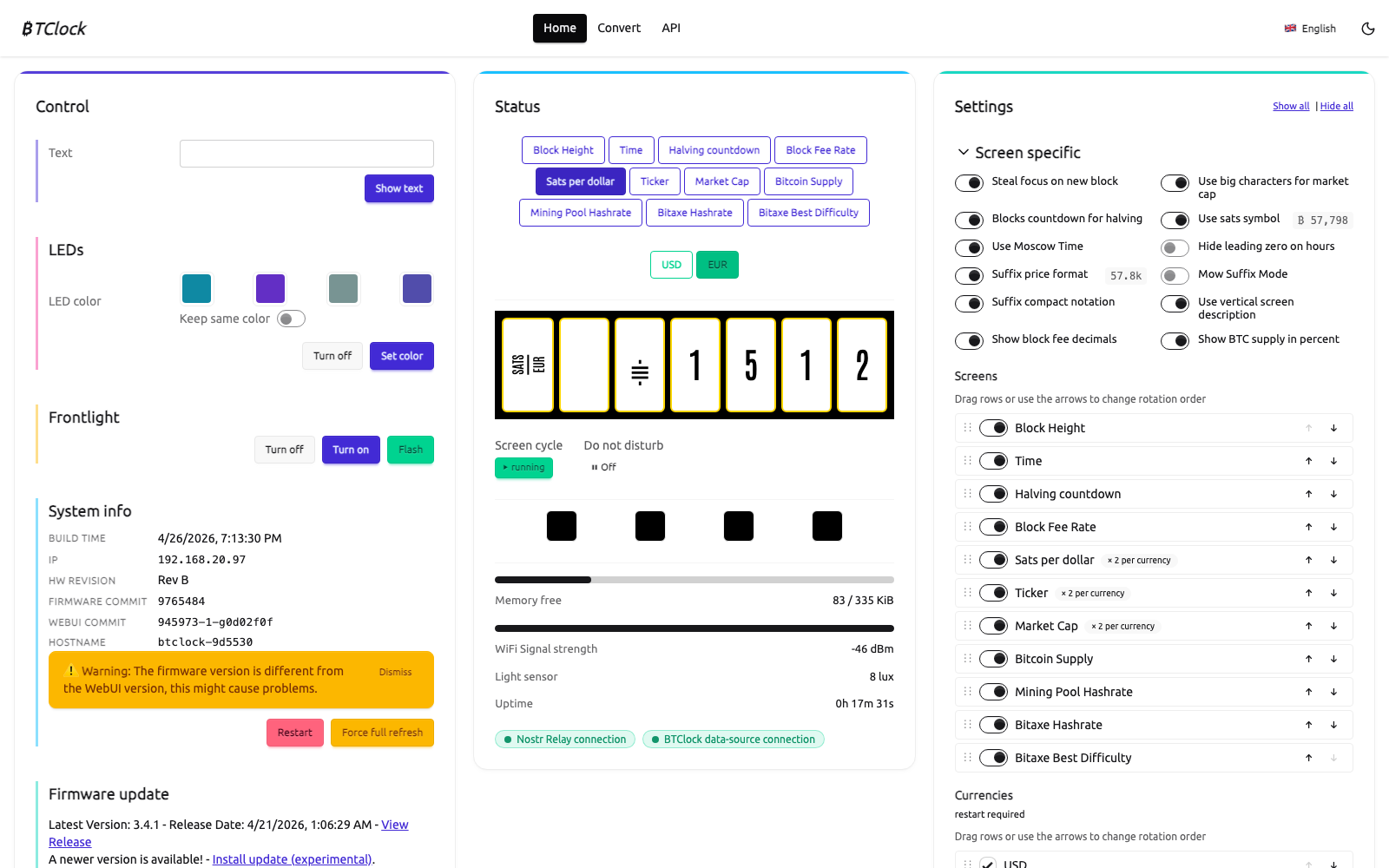
The same view in light theme:
The theme toggle and the language picker live at the right edge of the navbar. The picker covers English, Nederlands, Español and Deutsch:

4.1 Control card (left)¶
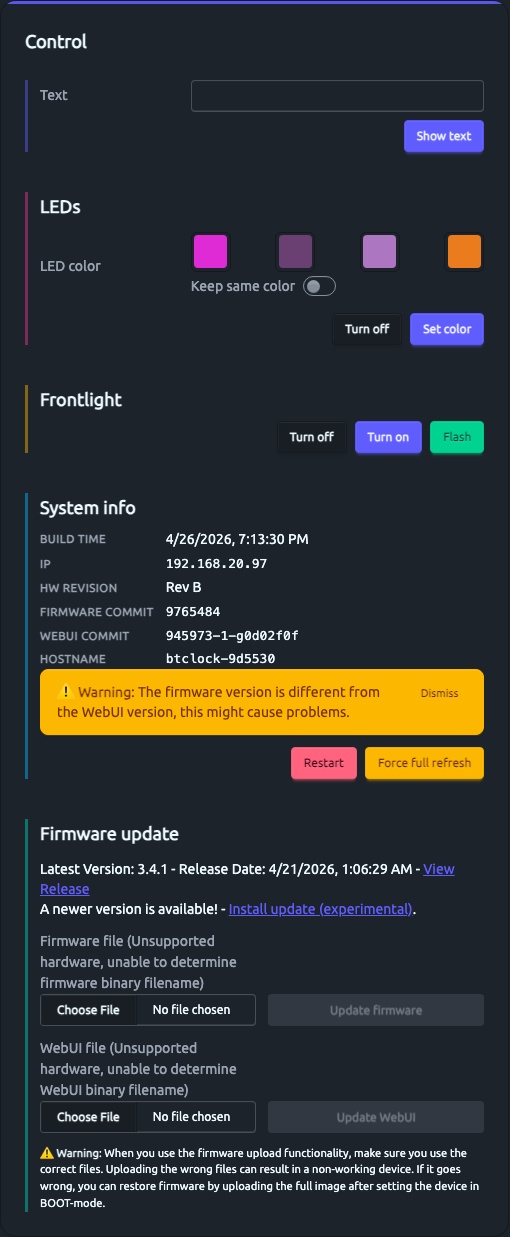
- Text — push up to 7 (or 8 on V8) characters, one per panel (each
non‑ASCII symbol counts as one character when it fits in one Unicode
scalar value).
POST /api/show/textunder the hood. Bundled fonts subset printable ASCII (including lowercasea–z) plus £ ¥ € ₿, so case is preserved end‑to‑end. Truncation tonumScreenshappens via the input'smaxlength. Press "Show text" and the panels paint immediately; any subsequent rotation tick or button press restores the rotation. - LEDs — pick a colour for each pixel (or "keep same colour" for a
uniform strip). "Set color" pushes via
POST /api/lights/set. "Turn off" mutes the strip. The whole row is hidden whendisableLedsis set in settings. - Frontlight — Turn on / off / flash. The Flash button drives a
single block-flash pulse (the same pattern that fires on a new
block). The card is capability-gated on the
hasFrontlight && !flDisablesettings pair — Rev B exposes it today; Rev A and V8 hide it because their boards have no PWM channel wired. - System info — Build time, IP, hardware revision, firmware commit,
WebUI commit, hostname. If firmware-commit and webui-commit ever
drift across a partial OTA, you'll see a yellow warning here. If the
running firmware
gitRevis strictly older than theminFirmwaresemver declared in this WebUI's bundledmanifest.json(seedata/src/lib/manifest.jsonin the repo — bumped when/api/settingsshapes change incompatibly), a separate warning banner appears prompting you to upgrade firmware or flash a matching LittleFS bundle. The drift warning has a Dismiss button — dismissal is keyed on the (gitRev, fsRev) pair and stored insessionStorage, so a fresh build of either side re-prompts and closing the tab clears the silence. Closing the tab also clears any "I don't care" state, so a later genuine compatibility issue can't be hidden by yesterday's click. - Restart / Force full refresh — soft-reboot, or force a full-EPD
redraw (clears any ghosting from prior frames). Force-full-refresh
is also fired automatically every
fullRefreshMinminutes. - Firmware update — "Check for update" hits
POST
  /api/firmware/auto_update
, which follows thegitReleaseUrlpref (default: the v4 Forgejo release feed) to find thebtclock_<variant>_ota.binasset matching this board × panel, verifies the sibling.sha256, and reboots into the new partition. Manual upload is viaPOST /upload/firmware— see Firmware updates.
4.2 Status card (centre)¶
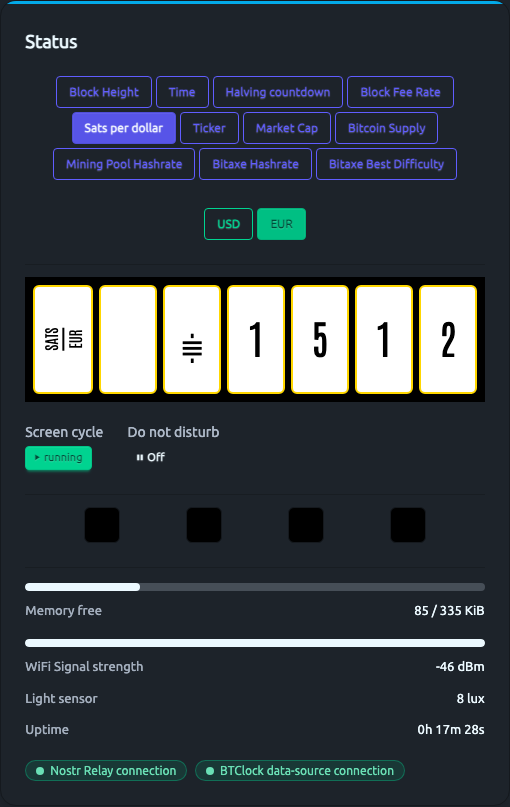
- Screen tiles — a live preview of what each panel is showing.
The WebUI fetches a single
GET /api/statussnapshot on cold-start and from then on relies entirely on the SSE stream at/eventsfor updates — it does not poll/api/status. If the SSE socket drops the WebUI reconnects with exponential backoff (1 s → 30 s cap), and adata: closingserver frame triggers a flat 5 s clean reconnect. - Screen quick-jump — buttons to jump straight to any rotation
screen (
Block Height,Time, …). Clicks fire optimistically: the highlight flips immediately, then reconciles on the next SSE frame; on a slow link this hides 200–800 ms of round-trip delay. - Currency selector — when a price-bearing screen is active, click USD / EUR / etc. to flip currencies without waiting for the next rotation tick.
- Screen cycle (running / paused) and Do not disturb — clicks apply optimistically as well; if the API call rejects the toggle snaps back to server truth and a toast surfaces the error.
- Connection-lost overlay — when SSE drops, an overlay paints over the panel preview. The text reads "Updating firmware…" if an OTA upload is in progress (the WebUI sets this flag on upload start and clears it on the first frame after reconnect), otherwise the generic "Trying to reconnect…". So users don't read a deliberate OTA reboot as a crash.
- Sensors — memory free, WiFi signal strength (linear -100 dBm
→ 0 %, -50 dBm → 100 %, clamped outside), ambient lux (Rev B
only), uptime, queue drops (per-task event-send failure
counters:
buttons/led/frontlight; monotonic since boot; growing values point to a wedged consumer task —frontlightalways reads 0 on Rev A, which has no frontlight hardware). - BTClock data-source connection — green when the configured data source has produced a fresh tick recently.
- Wallet badge — appears only when NWC is enabled
(
nwcEnabled=true) and pairs surfaceconnectionStatus.nwcfrom the firmware. Green = the NIP-47 relay socket is up and the wallet's INFO event was received. See Nostr Wallet Connect (NWC). - LED indicators — read-only colour swatches that mirror the live
LED state. They are deliberately rendered as plain styled
<div>s withrole="img"(not<input type="color" disabled>); native colour inputs still pop the OS picker on click even when disabled.
4.3 Settings card (right)¶
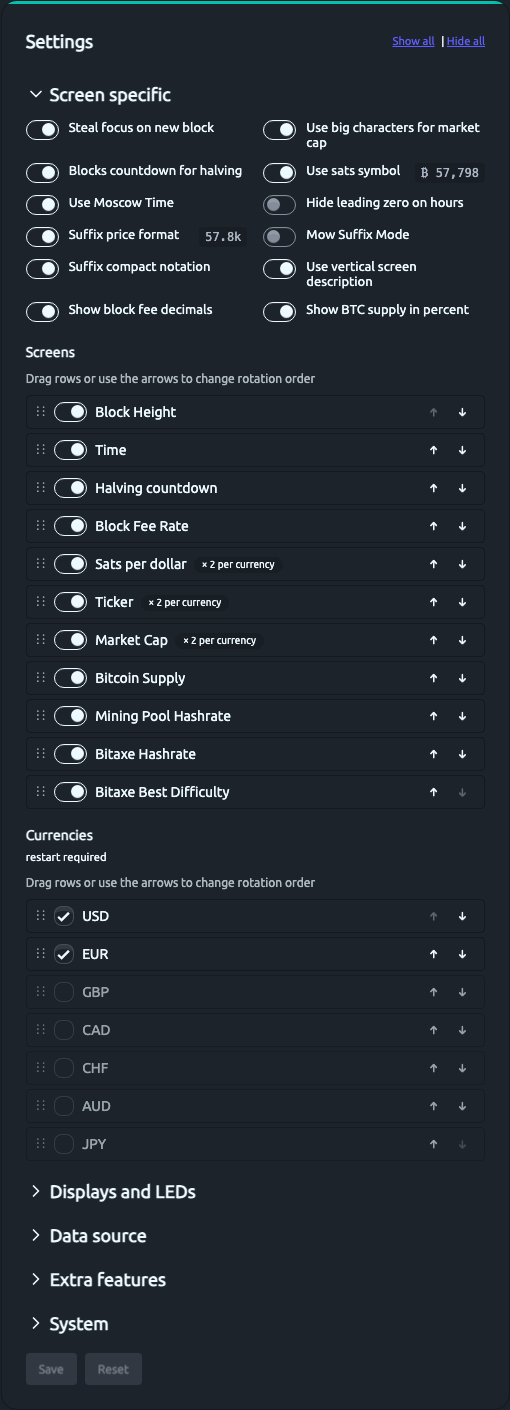
The Settings card is the long form of /api/settings. The full
reference (every key, default, NVS storage, validation rule) is in
SETTINGS.md. What follows is what each WebUI section
does in user-facing terms.
A few cross-cutting behaviours worth knowing before you go field by field:
- Per-field dirty tracking. The Save button lights up only when at least one field differs from the last successful load or save. An "Unsaved changes" badge appears next to the section title.
- Cmd / Ctrl + S submits the form when it's dirty. The shortcut also unconditionally suppresses the browser's "Save Page As…" prompt while the settings card is mounted, even on a clean form.
- Validation summary. When at least one field fails inline validation (today: nostr pubkeys), an aggregate alert renders at the top of the form with anchor links — clicking one pops the relevant section open, scrolls the input into view, and focuses it.
- Field-level save errors. If the firmware rejects a PATCH with
{"error":"<field>:<reason>"}, the WebUI splits that into a human-readable toast and opens + scrolls to the offending input. Validation vocabulary (bad_type,unknown,bad_scheme,range,dup_id, …) is documented inSETTINGS.md. - Drift detection. When the tab regains focus, the WebUI re-fetches
/api/settingsand compares it to the pristine baseline. If a field the user hasn't locally edited has drifted on the device (another tab saved, factory reset, firmware reboot), a dismissible "settings changed on the device" banner offers a one-click reload. - Boot-only fields. Fields whose
boot_onlyflag is set in the firmware'skFieldstable are tagged "(restart required)" in the WebUI label. The list comes from a generated metadata module (src/lib/types/settings.generated.tsin the WebUI repo, produced byscripts/generate-settings-meta.pyfromschema.hpp); a unit test cross-checks UI labels against the metadata so the two can't silently drift.
Screen specific¶
- Steal focus on new block — when a fresh block height arrives, jump straight to the Block Height screen so you see the new value immediately. Default off (you may not want it stealing focus from the screen you were watching).
- Use big characters for market cap — large-glyph "$1.56T" form on the Market Cap screen. Off = small-character 3-digit-group form.
- Blocks countdown for halving — count halving in blocks (default) vs. days/hours.
- Use sats symbol — render price suffixes ("k", "M") with the custom sats-glyph font instead of plain text.
- Use Moscow Time — show "sats per dollar" rather than dollars per BTC for the inverse-price screen.
- Hide leading zero on hours — clock screen drops the leading zero
on single-digit hours (
07:00→7:00). Minutes always keep the leading zero. v4-only — the WebUI hides the toggle on v3 firmware. - Suffix price format — use k/M suffixes on the BTC ticker (so $67.9k instead of $67890).
- Mow Suffix Mode — "Mow mode" price formatting variant. Named
after Samson Mow, who popularised quoting Bitcoin in millions; the
toggle renders the BTC/fiat price as
$X.XM(millions of fiat per BTC) instead of the raw integer. - Suffix compact notation — when a price suffix takes its own panel, fold the dot into the preceding digit cell to free a panel for one more digit.
- Use vertical screen description — rotate label panels 90° so "BLOCK / HEIGHT" reads top-to-bottom along the panel's long axis (default on; the layout the synthetic renders show).
- Show BTC supply in percent — toggle the Bitcoin Supply screen between "19.9 M" absolute form and "93.48 %" of the 21 M target.
- Show block fee decimals — show fractional sats/vB when the data source publishes a precise value, instead of rounding to the nearest integer.
The "use sats symbol" and "suffix price format" rows render a small
preview chip alongside the toggle (57,798 / ₿ 57,798 / 57.7k /
57k, depending on the flag combination), so the user can see what
each option emits without having to save and watch the device repaint.
Screens¶
Drag-reorder the rotation list, or use the arrows. Toggle each screen
on/off with the row's switch. Disabled screens skip in the rotation but
remain reachable via Button-2 / Button-3 / POST /api/show/screen.
Currencies¶
The set of currencies the price feed will pull. Drag-reorder is the
ticker / sats-per-dollar rotation order. Codes outside the
availableCurrencies list (USD, EUR, GBP, JPY, AUD, CAD …) are
ignored. Restart required after changes.
Network¶
- Hostname prefix — what
<prefix>-<mac>resolves to via mDNS and DHCP. Defaultbtclock. - mDNS — advertise on
_http._tcpand_btclock._tcp. Switch off if your network blocks multicast. - WiFi reboot timeout — reboot the device after this many consecutive minutes of disconnected STA, in case WiFi got wedged. Default 10 minutes; 0 disables.
- TX power — clamp the WiFi radio. Useful for wall-warts where the radio brown-outs at full power. Default leaves the chip's setting alone.
Data sources¶
- Source — which feed the BTClock listens to:
0BTClock WS (default,wss://ws.btclock.dev),1mempool.space + Kraken (independent block + price WSS clients),2Nostr (data-only; every kind 30078 + zap receipt is BIP-340 schnorr-verified before it touches the snapshot).- mempool.space instance — host of the mempool.space deployment for
source
1(defaultmempool.space; flip secure if you self-host over plainws://). - Custom endpoint — when source
=1, the BTClock-protocol custom WS host (ws-staging.btclock.devis the staging relay). Disable SSL for plainws://. - Min seconds between price updates — throttle EPD price-write
cadence. The price WS may push every second; e-paper does not need
more than ~30 s.
0disables the throttle.
Light & LEDs¶
- Brightness — NeoPixel master brightness (0..255).
- Block flash colour — the colour the strip pulses on a new block
(default BTClock orange
#E04300). - Disable LEDs / Flash on update / Flash on Nostr zap — master mute, plus per-event flash toggles.
- LED test on power — run the rainbow boot test. Off = the strip goes straight to idle.
- Frontlight — capability-gated on the firmware's
hasFrontlightflag (Rev B today; Rev A and V8 boards have no frontlight channel wired): - Always on — bypass the ambient-driven dimming.
- Disable — master mute for the frontlight channel.
- Effect delay — fade-step time in ms.
- Flash on update / Flash on zap.
- Maximum brightness — PWM duty at "100 %". Range 0..65535.
- Off when dark — turn the frontlight off when ambient lux drops below the threshold below. Useful in a dark bedroom.
- Lux toggle threshold — the lux level that flips between "room bright" and "room dim". Hysteresis is ±1 lux.
- Inverse buttons — see On-device controls.
Do Not Disturb¶
- Manual — force the LED + frontlight strip off right now.
- Scheduled — start/end hour+minute window. Honors local time (the configured timezone).
Time zone¶
IANA name (e.g. Europe/Amsterdam). Drives clock-screen rendering and
the DND schedule. Live — setenv("TZ", ...) + tzset() is called on
PATCH.
Mining pool¶
See Mining-pool guide below — the field labels
shift per pool because each pool means something different by
"miningPoolUser".
Bitaxe¶
See Bitaxe integration.
Nostr / zap¶
See Nostr zap and Wallet Connect setup.
Nostr Wallet Connect (NWC)¶
Pair the device with a NIP-47 wallet so it can render the live wallet balance on the (opt-in) NWC balance screen and pop a payment overlay on every incoming/outgoing payment. See Nostr zap and Wallet Connect setup for the pairing flow and screenshots.
HTTP auth / OTA¶
- Require HTTP basic auth — gate every
/api/*endpoint behind user/password. Static assets stay open so the WebUI itself can load. - Username / Password — the credentials. Empty password is rejected (locks itself out).
- Enable OTA — gate the firmware-upload path. Independent password for OTA pushes.
- Auto-update URL — the releases endpoint the (currently stubbed) auto-update path would pull from.
Diagnostics¶
- Enable debug log — boost ESP-IDF log levels to DEBUG. Reboot required.
5. Screen catalogue¶
Every screen below is rendered live by the firmware against the same
data the WebUI shows. The synthetic preview images are produced via
tools/wasm/render_doc_screens.mjs; the layouts are pixel-identical
to what the device paints, modulo the e-paper texture.
The first panel of every screen is the label — by default rotated 90° so it reads top-to-bottom along the panel's long edge. Disable "Use vertical screen description" to read labels horizontally instead (useful at higher zoom levels).
Provisioning (first boot)¶
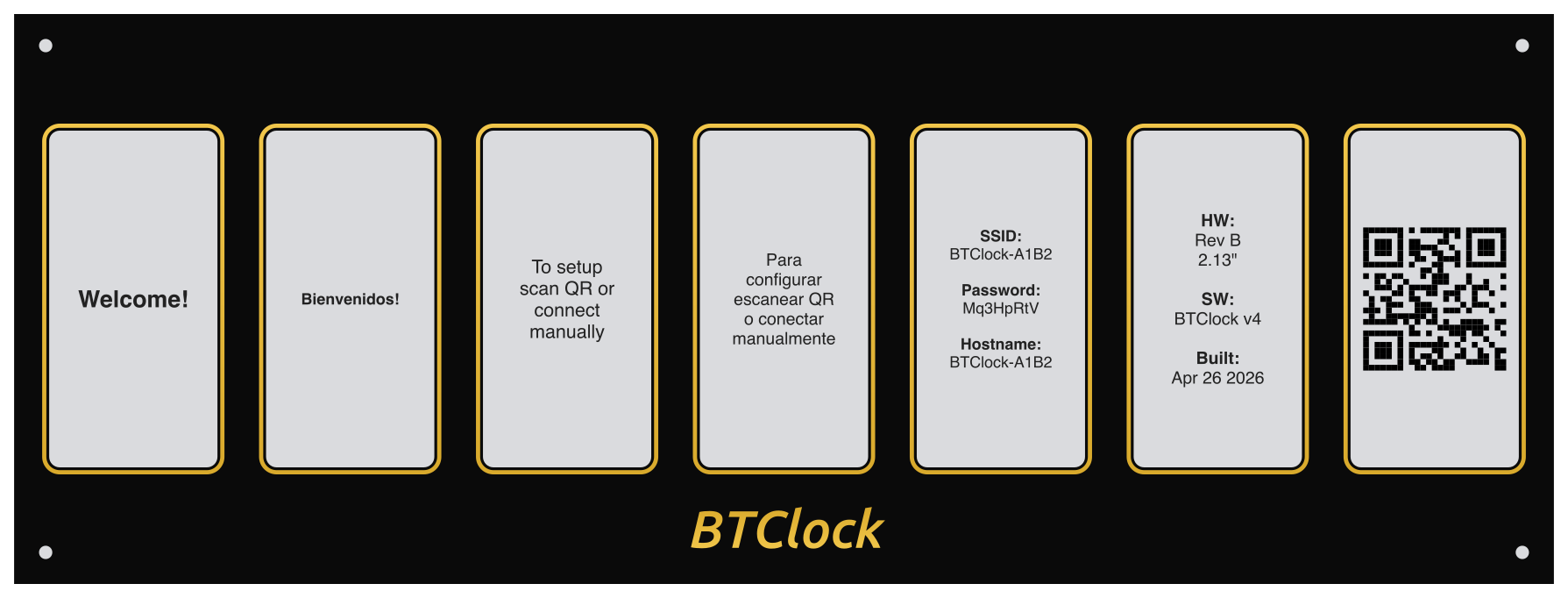
Painted on first boot, after a factory reset, or when no Wi-Fi
credentials are saved yet. Panel 0/1 carry the welcome (English /
Spanish), panels 2/3 the join instructions, panels 4/5 the live SSID +
password + hostname + hardware/firmware metadata, and panel 6 a
WiFi-join QR. The QR encodes
WIFI:T:WPA;S:BTClock-XXXX;P:<password>;; so most phones will offer to
join the AP automatically when scanned.
The synthetic preview above is rendered by tools/wasm/render_doc_screens.mjs
using SVG (the on-device renderer uses the firmware's Atkinson font +
qrcodegen). The QR pattern in the doc image is a placeholder — your
device's QR is generated live from its own SSID/password.
Block height¶
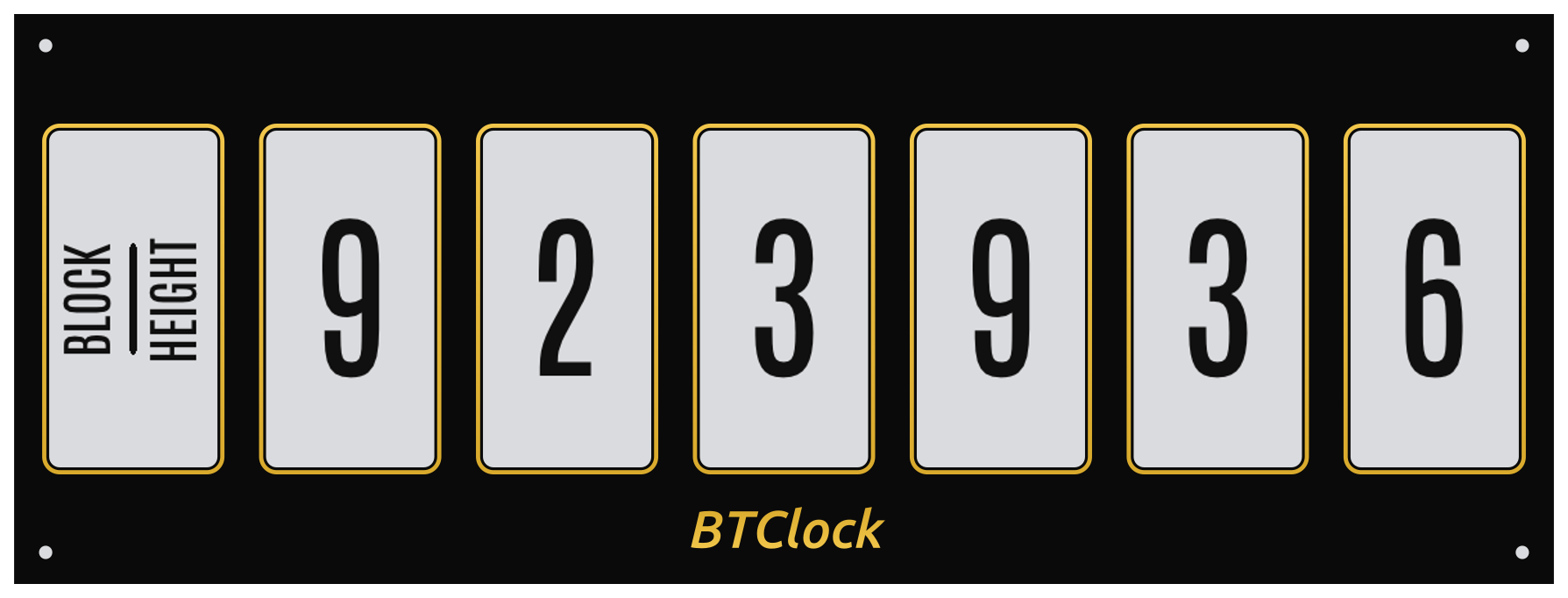
Latest block height. Updates on every new block; with Steal focus on new block the device flips to this screen automatically.
Label orientation (verticalDesc)¶
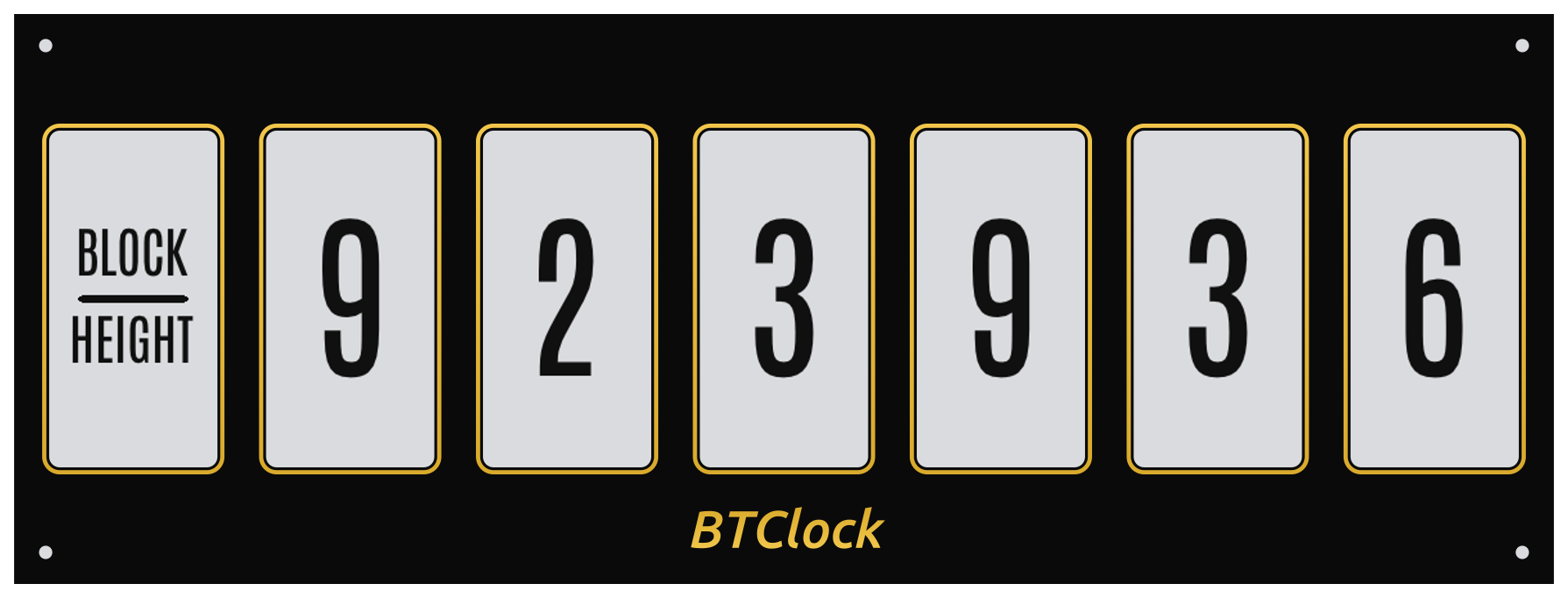
The first panel of nearly every screen carries a two-line label
("BLOCK / HEIGHT", "BTC / USD", "MSCW / TIME", etc.). verticalDesc
controls whether that label reads along the panel's long axis
(vertical, default) or along the short axis (horizontal):
verticalDesc=true (default) |
verticalDesc=false |
|---|---|
|
 |
Inverted colour (invertedColor / "Text colour")¶
The WebUI Text colour select maps to invertedColor. Default is
black-on-white (the e-paper paints black ink onto its white substrate);
flipping it gives white-on-black, which can read as a more
"display-like" look in dim rooms but draws a touch more current
during a full refresh:
| Black on white (default) | White on black (invertedColor=true) |
|---|---|
|
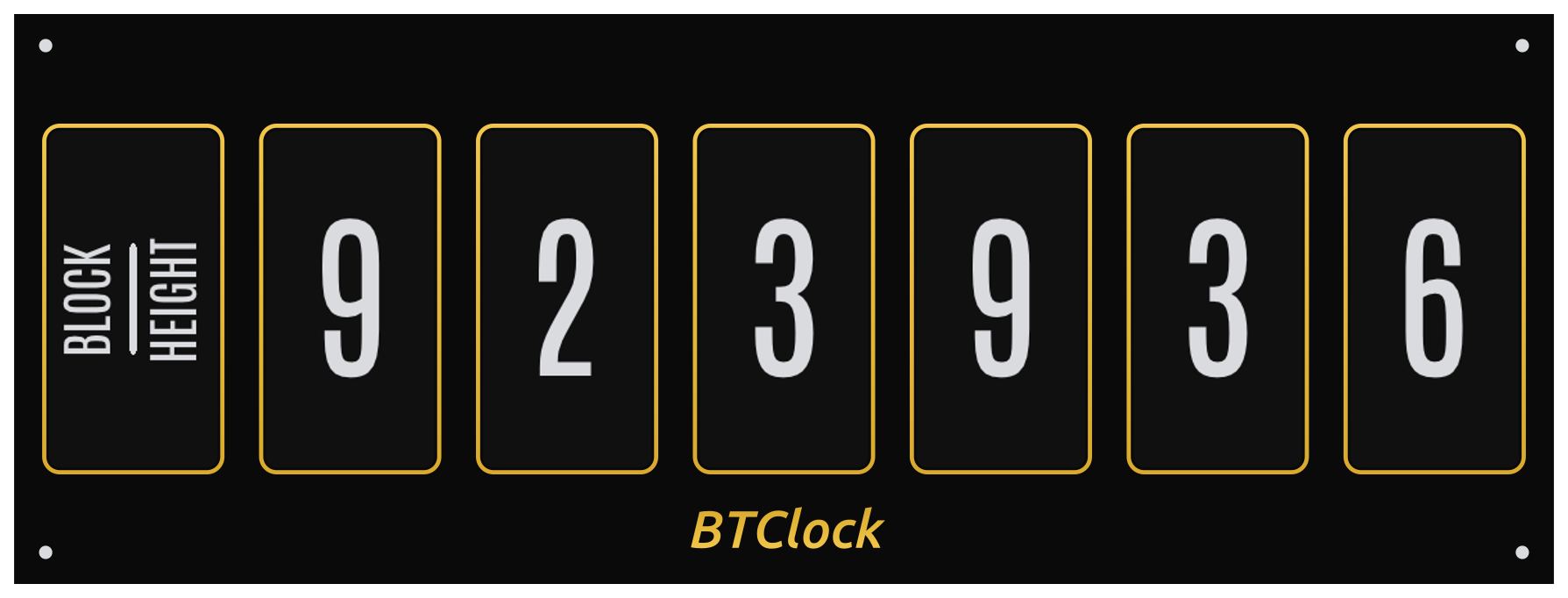 |
The inversion is applied at the framebuffer-byte level inside the EPD
driver (SSD1680Base::WriteVram XORs every byte before SPI DMA when
the global-invert flag is set), so every screen — not just block
height — picks up the swap automatically.
The vertical orientation matches the digit panels' rendering axis (the EPDs are mounted in portrait), so the whole row reads as one top-to-bottom unit. The horizontal orientation makes labels easier to spot at a glance from across the room. Pick whichever reads better in your environment — the toggle is live, no reboot needed.
Internally this flips the rotation of the label slot 90° CCW relative to the digit slots; the digit cells are unaffected. The label panel sees a 250×122 region (instead of 122×250), which is why the type sets differently.
Affected by: stealFocus, verticalDesc.
Time¶
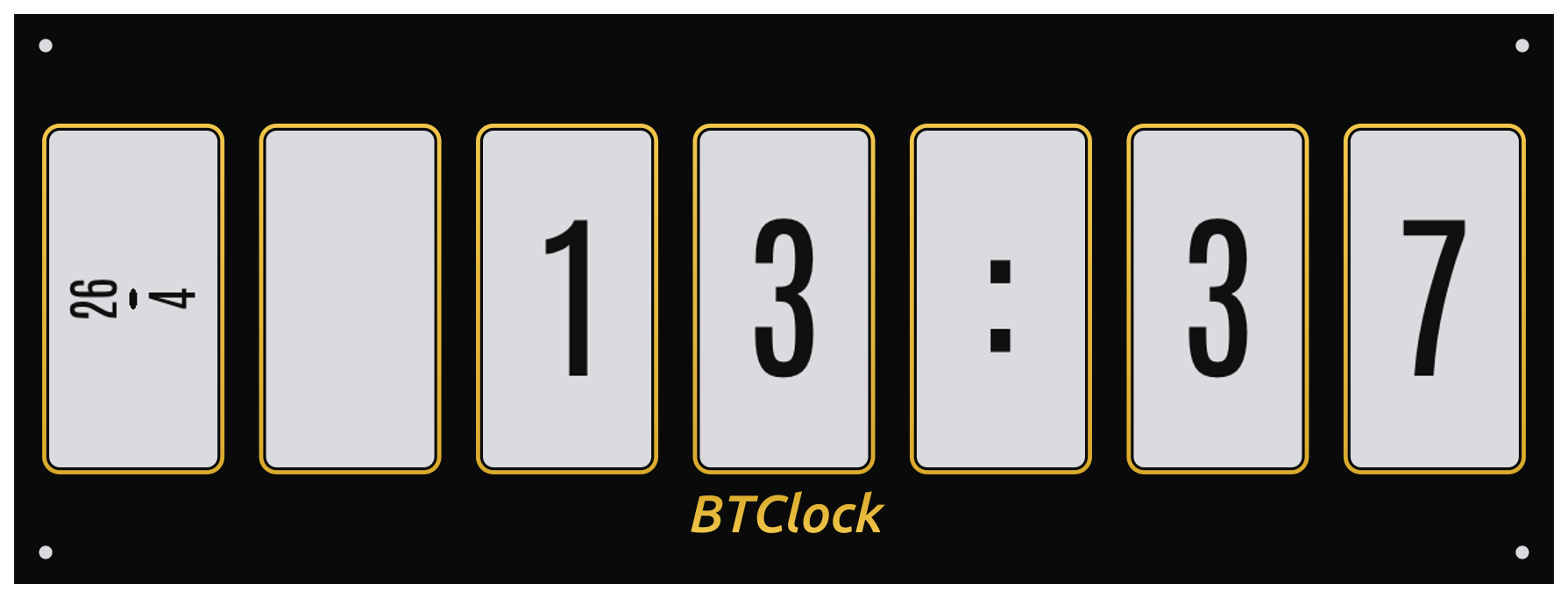
The wall-clock time, rendered with the configured font on the digit
panels. The label panel shows the date as dd/mm (split-text);
panels 1..N-1 paint HH:MM right-justified with : in the slot
between hours and minutes. Minutes always have leading zeros; hours
can drop the leading zero (hideLeadZero). Until SNTP returns the
first plausible epoch the digit panels stay blank rather than
flashing an obviously-wrong epoch.
Time zones (tzString)¶
The clock screen, halving countdown, and the Do-Not-Disturb scheduler
all read local time, so the device needs to know which IANA zone you
live in. The setting is tzString, default "Europe/Amsterdam".
- The format is the standard IANA zone name (e.g.
"Europe/Amsterdam","America/New_York","Asia/Tokyo","Australia/Sydney","UTC"). A full list lives in data/src/lib/timezones.json — the WebUI populates the dropdown from that file. - DST transitions are applied automatically — the firmware bundles the
IANA tz database, so e.g.
"Europe/Amsterdam"flips between CET and CEST on its own. - PATCHing a new zone is live: the change takes effect on the next
clock-screen paint. No reboot. Internally
setenv("TZ", ...) +
  tzset()
runs inline. - The zone affects display only — the device's RTC is synced via SNTP
in UTC and converted at render time. Changing
tzStringwon't shift any timestamps already stored in NVS. - Set the wrong zone? Both the clock screen and the DND start/end hour-minute window slide by your zone offset. If DND fires at the wrong time, that's the first thing to check.
Affected by: tzString, hideLeadZero, verticalDesc, fontName.
Halving countdown¶
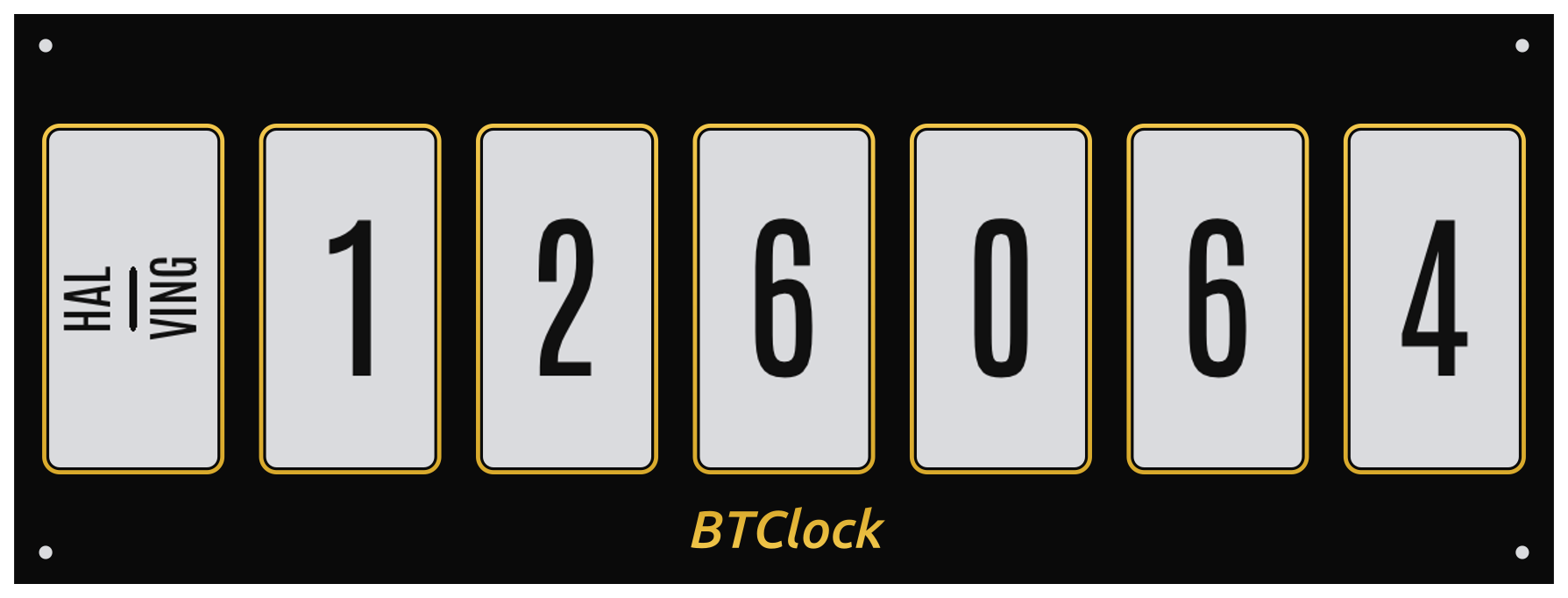
Blocks remaining until the next halving. The default form fills the digit panels with a plain integer block count (~210k blocks per halving epoch, so the count shrinks to zero over ~4 years).
Time-remaining form (useBlkCountdown=false)¶
Set useBlkCountdown=false to swap the layout from blocks-remaining
to a human-readable years / days / hours / minutes breakdown computed
against the average ~10-minute inter-block interval:
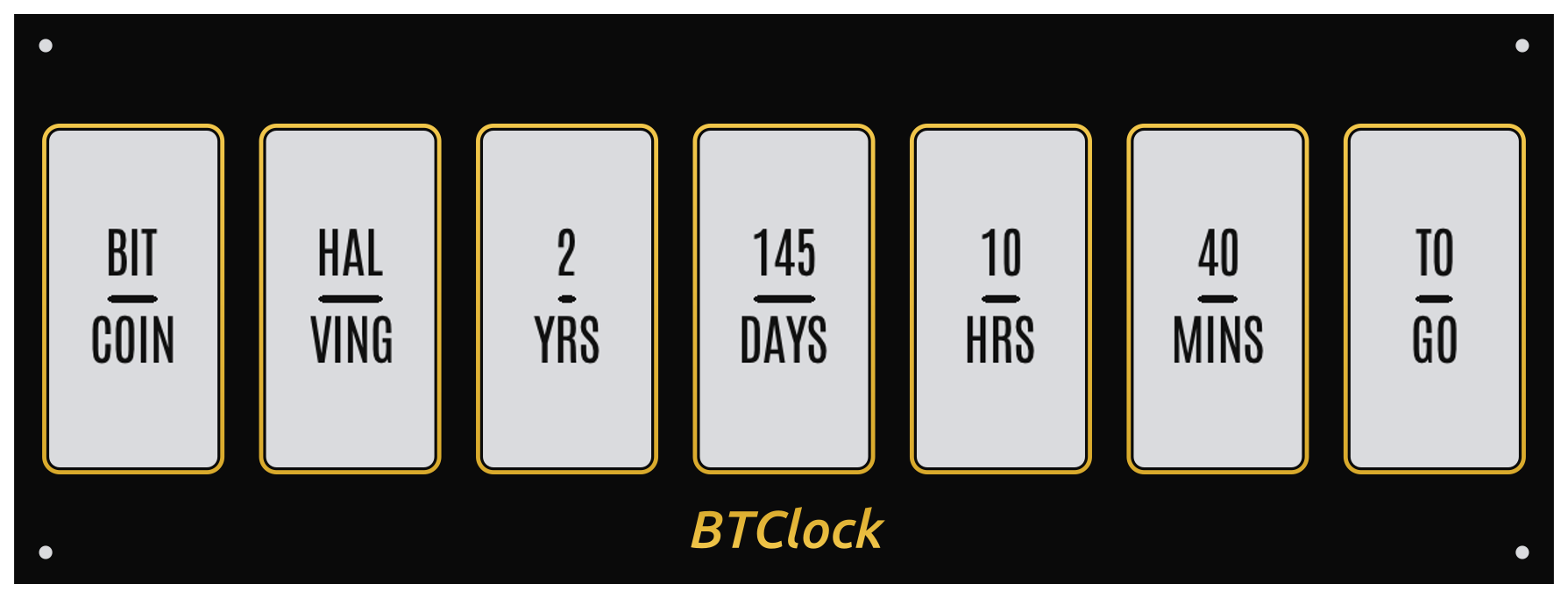
The label slot turns into "BIT / COIN" + "HAL / VING" across the first
two panels, and the digit cells get unit suffixes (YRS, DAYS,
HRS, MINS) plus a closing "TO / GO" panel. The blocks form is
more accurate (blocks land deterministically every halving epoch); the
time form reads more naturally for non-developers.
Affected by: useBlkCountdown, verticalDesc, fontName.
Block fee rate¶
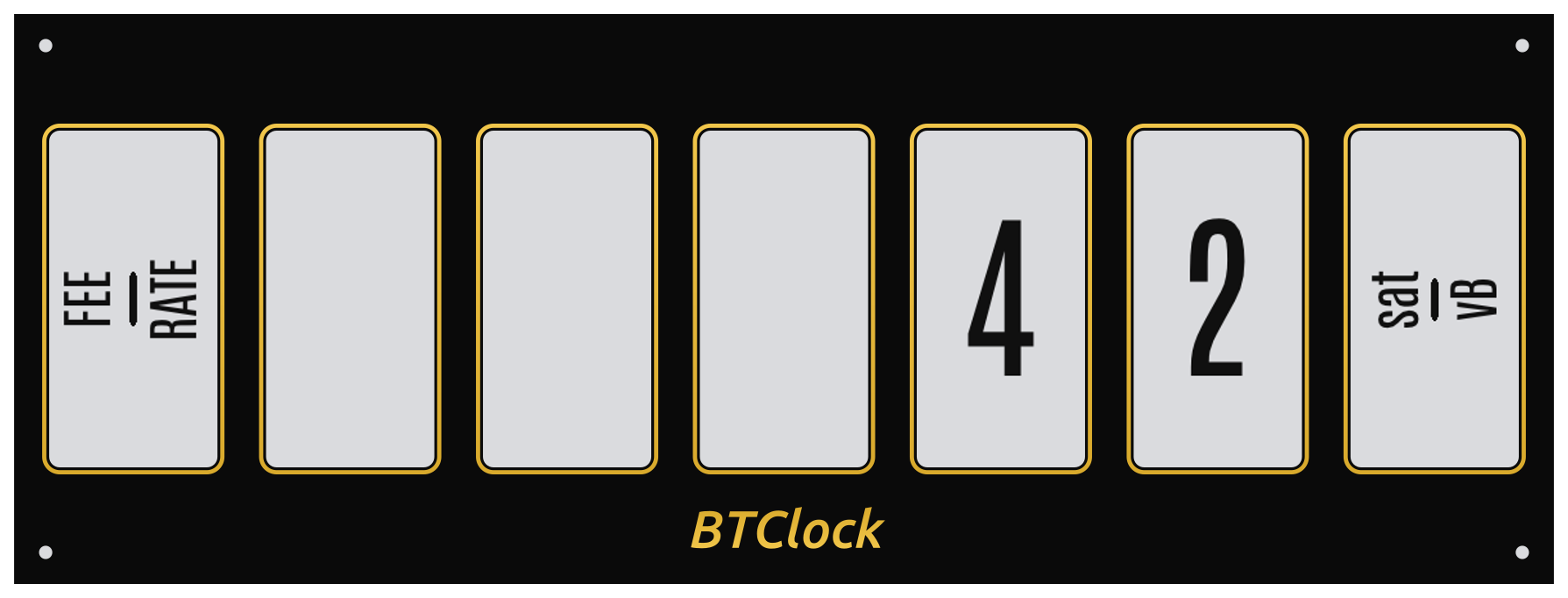
Fee rate of the latest mined block, in sats/vB. The final panel is a "sat / vB" unit-glyph cell.
Decimal-form (blockFeeDec=true)¶
When blockFeeDec=true and the upstream data source publishes a
fractional fee, the layout engine paints a X.Y form using one of
the digit cells for the decimal point. Below: 4.7 sats/vB rendered
with the dot on its own panel:
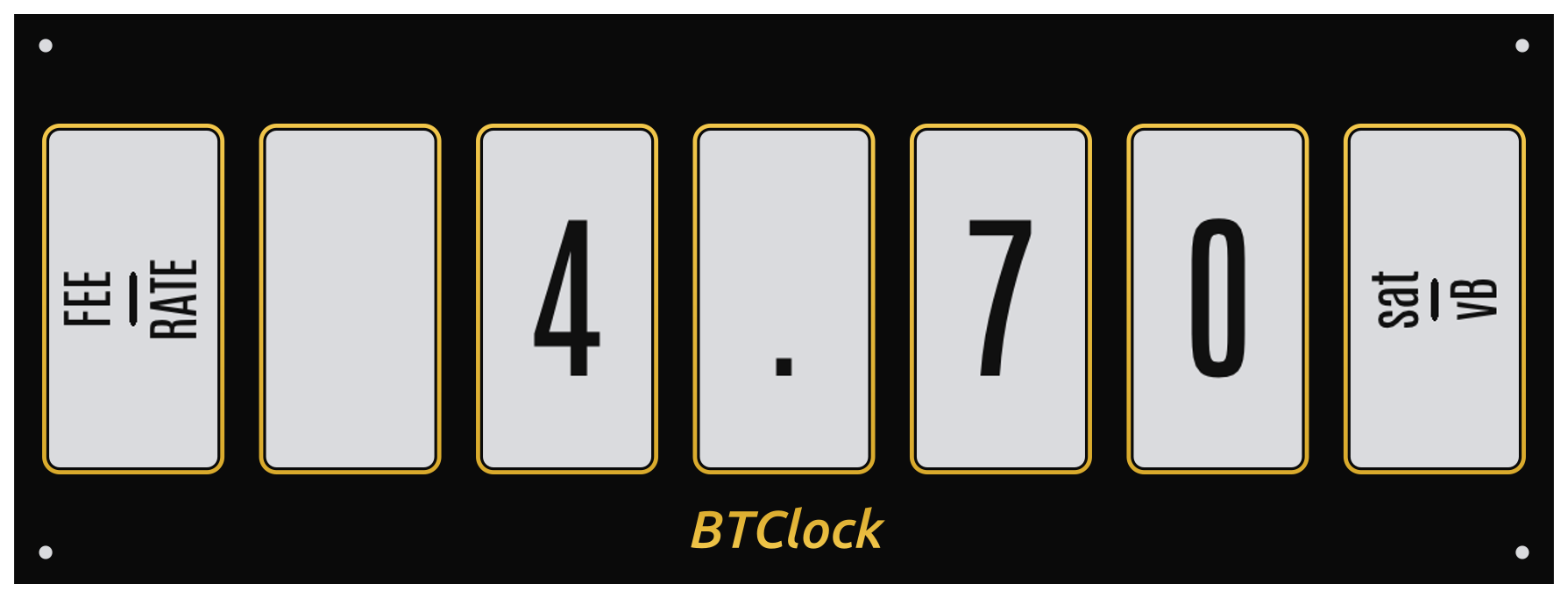
Decimal mode silently downshifts to integer when the fractional value doesn't fit the available digit budget — there's no panel-overflow penalty for leaving the toggle on.
Affected by: blockFeeDec, verticalDesc, fontName.
Sats per dollar (Moscow Time)¶
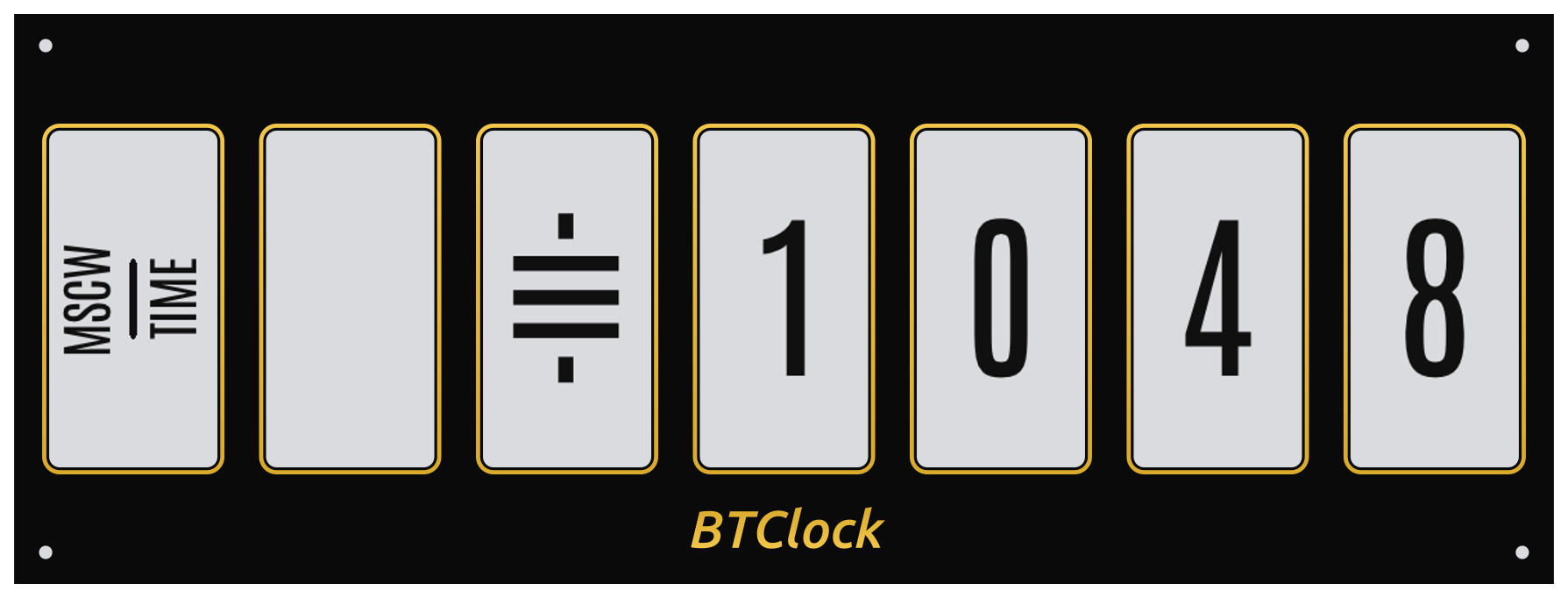
The inverse of the BTC price — how many sats one US dollar buys. Shown
when useMscwTime=true. The = glyph between the label and the digits
is the sats prefix (priceSymMode === 1).
What "Moscow Time" actually means¶
"Moscow Time" is the Bitcoin-community shorthand for how many sats one fiat unit buys (default: USD). The arithmetic is the inverse of the dollar-per-BTC price:
sats per dollar = 100,000,000 / btc_price_usd
Because 1 BTC = 100,000,000 satoshis, the readout moves opposite to the price ticker: as BTC climbs in dollar terms, the sats/dollar number falls (each dollar buys fewer sats), and vice versa. Most price displays show only the BTC→fiat direction, so flipping to the fiat→sats direction makes small percentage moves in BTC's price visually obvious.
The "Moscow" name comes from a 2021 Twitter video call featuring Jack Dorsey — viewers spotted what looked like a digital clock in the background reading "1952", and a brief debate broke out over whether that meant he was in Moscow (which uses a 24-hour digital clock convention). It turned out to be a sats-per-dollar display, not a clock, and the meme stuck. The name is tongue-in-cheek; the readout itself is just the inverse exchange rate.
Worked example at $95,432 / BTC:
100,000,000 / 95,432 ≈ 1,047 sats per USD
…which the screen renders as "1 047" across the digit panels (with the
= sats-symbol prefix when priceSymMode === 1).
Sats glyph on Moscow Time (priceSymMode)¶
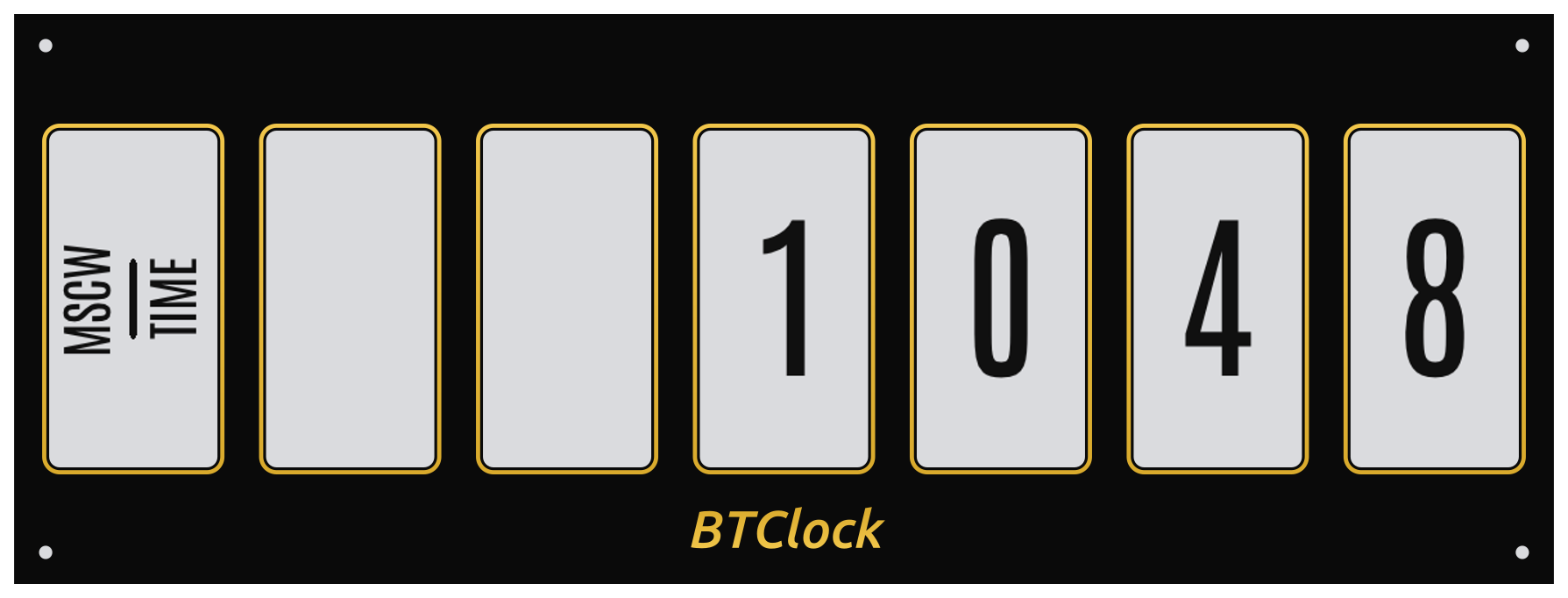
priceSymMode=1 prefixes the digit row with the
custom sats glyph (the =-flavoured cell from the BTClock font
stack) and uses the "MSCW / TIME" label slot. With priceSymMode=0
the glyph cell stays blank and the digits start one panel further
right:
With sats glyph (priceSymMode=1) |
Off (priceSymMode=0) |
|---|---|
|
 |
The toggle is purely cosmetic — the underlying sats-per-fiat number
is identical. Turn it off if you don't want the custom glyph or if
your audience reads the screen at a glance and the = symbol is
adding noise.
Sats-symbol variants (satsVariant)¶
The SatoshiSymbol font ships 16 glyph variants at codepoints
U+E000..U+E00F. The satsVariant setting (uint, 0..15, default
7) picks which one renders on the moscow-time screen and the
nostr-zap overlay when priceSymMode === 1:
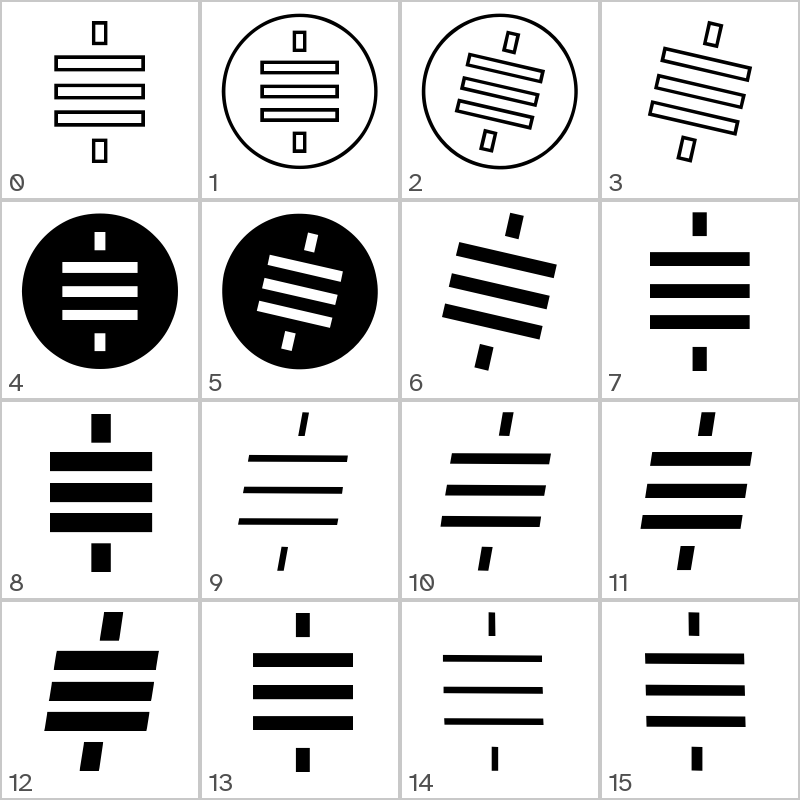
The WebUI exposes a visual picker on the Settings page — each of the
16 glyphs is rendered inline so you can click the one you want
without consulting the contact sheet. The selected index PATCHes
through /api/settings automatically. To set the value from the
command line:
curl -X PATCH -H 'Content-Type: application/json' \
  -d '{"satsVariant":5}' http://btclock-xxxxxx.local/api/settings
The runtime hook calls ScreenManager::SetSatsVariant + MarkDirty()
so the next render of moscow-time or nostr-zap paints the new glyph.
Out-of-range values are rejected at PATCH time (the schema declares
min=0, max=15).
Regenerate the contact sheet from the embedded TTF with
tools/fonts/render_sats_variants.py.
Affected by: useMscwTime, priceSymMode, satsVariant, active currency, fontName.
BTC ticker¶
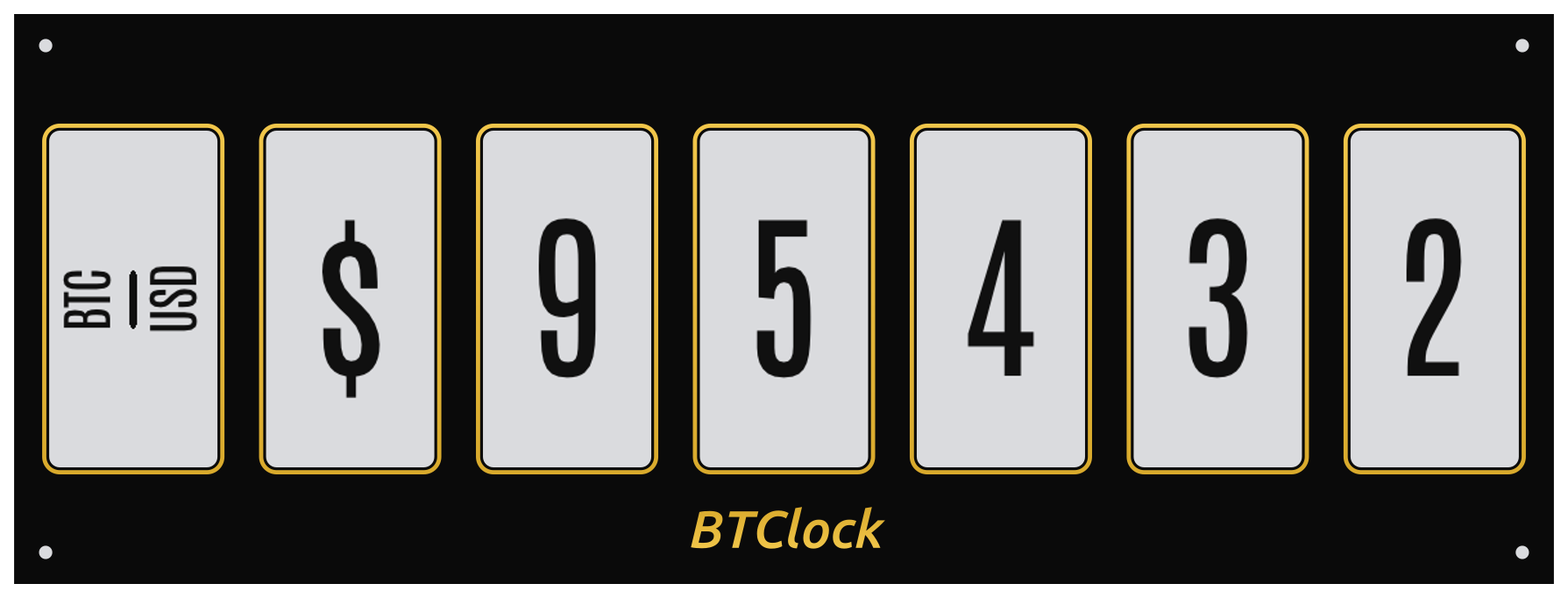
Whole-currency BTC price. Iterates through every code in actCurrencies
on each rotation tick.
Suffix mode (suffixPrice)¶
With suffixPrice=true the digits get a k/M suffix so prices fit in
fewer panels and round-tripping through 5/6-digit values doesn't
constantly reflow the layout:
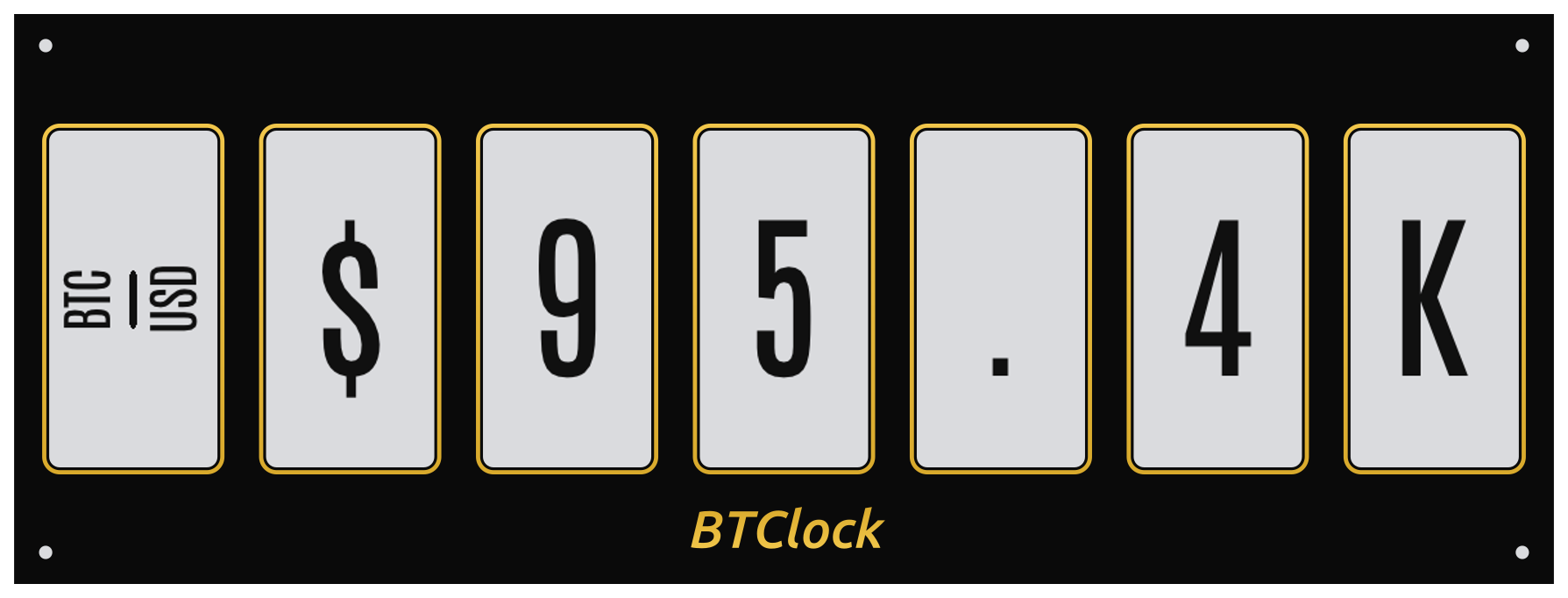
Above: $95,432 rendered as $95.43k with the BTC/USD label on the
first panel, the $ symbol on the second, the digits + decimal dot
filling the middle, and a k-suffix unit cell on the right.
suffixPrice=false is the default and preserves the full integer
form on the digit cells. Auto-suffix still fires past 7 digits to
prevent overflow, regardless of the flag.
Decimal compact notation (decimalShareDot)¶
The decimal dot normally takes its own panel cell. Toggling
decimalShareDot folds the dot into the preceding digit's cell so the
whole number gets one extra cell of width. Applies wherever the
layout includes a .:
- BTC-price suffix / MOW —
$95,432becomes$95.3Kinstead of$95.Kbecause the5.cell carries both a digit and the dot. - Market-cap big-chars — same trick on the cap form.
SATS/<CCY>for sub-1 sat-per-currency (weak-fiat codes like VND, IRR, LBP) —0.0392becomes0.03922because the0.cell collapses two cells into one and frees a slot for one more fractional digit.
decimalShareDot=false (default) |
decimalShareDot=true |
|---|---|
|
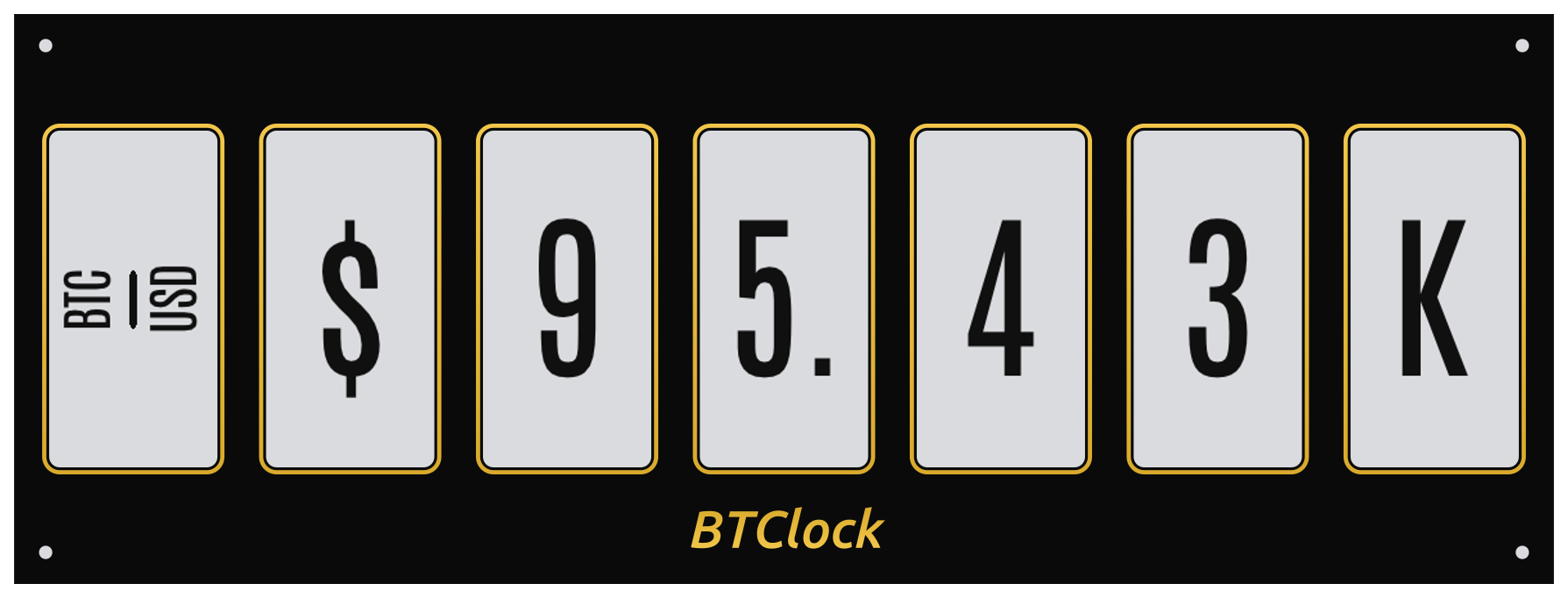 |
Both panels render the same $95,432 price with suffixPrice=true.
On the left the dot sits on its own panel and the layout fits two
digits (9, 5) plus the k suffix; on the right the dot folds
into the "5." cell and a third digit (3) lands on the freed panel.
Renamed 2026-05-05 from
suffixShareDot— the new name reflects that the same dot-folding now applies to every decimal layout the screens produce, not just the K/M suffix path. Legacy NVS values are migrated forward automatically on first boot.
Mow mode (mowMode)¶
Named after Samson Mow, the Jan3 CEO who routinely quotes the
Bitcoin price in millions of fiat ("$1M Bitcoin"). With mowMode=true
the BTC/fiat price renders in millions of fiat per BTC instead of
the raw integer; the label slot keeps the regular "BTC / M
suffix:
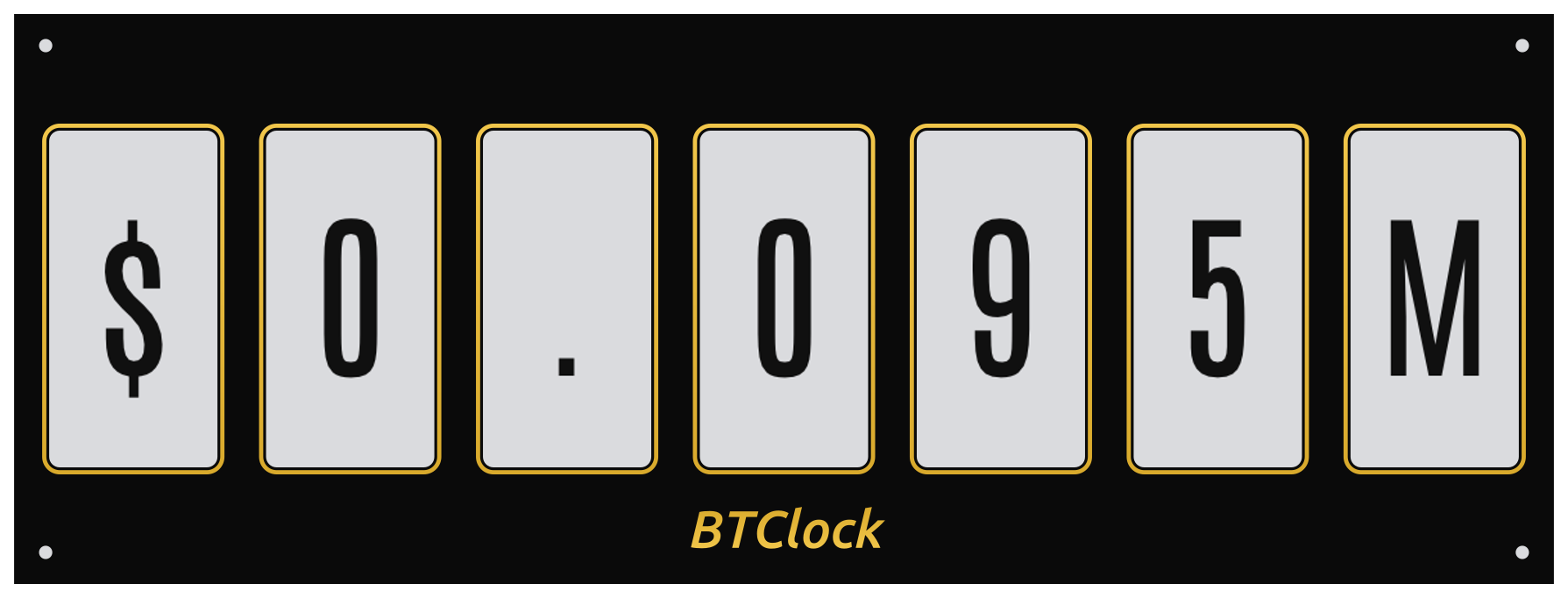
Above: $95,432 BTC price → $0.095M (≈ 0.1 millions of dollars
per BTC). The M cell on the right is the megaunit suffix; the price
body is a normal suffix-form layout. When the priceString plus M
suffix fits within Panels-1 cells, panel 0 paints the "BTC /
Affected by: actCurrencies, suffixPrice, decimalShareDot,
mowMode, priceSymMode, fontName.
Market cap¶
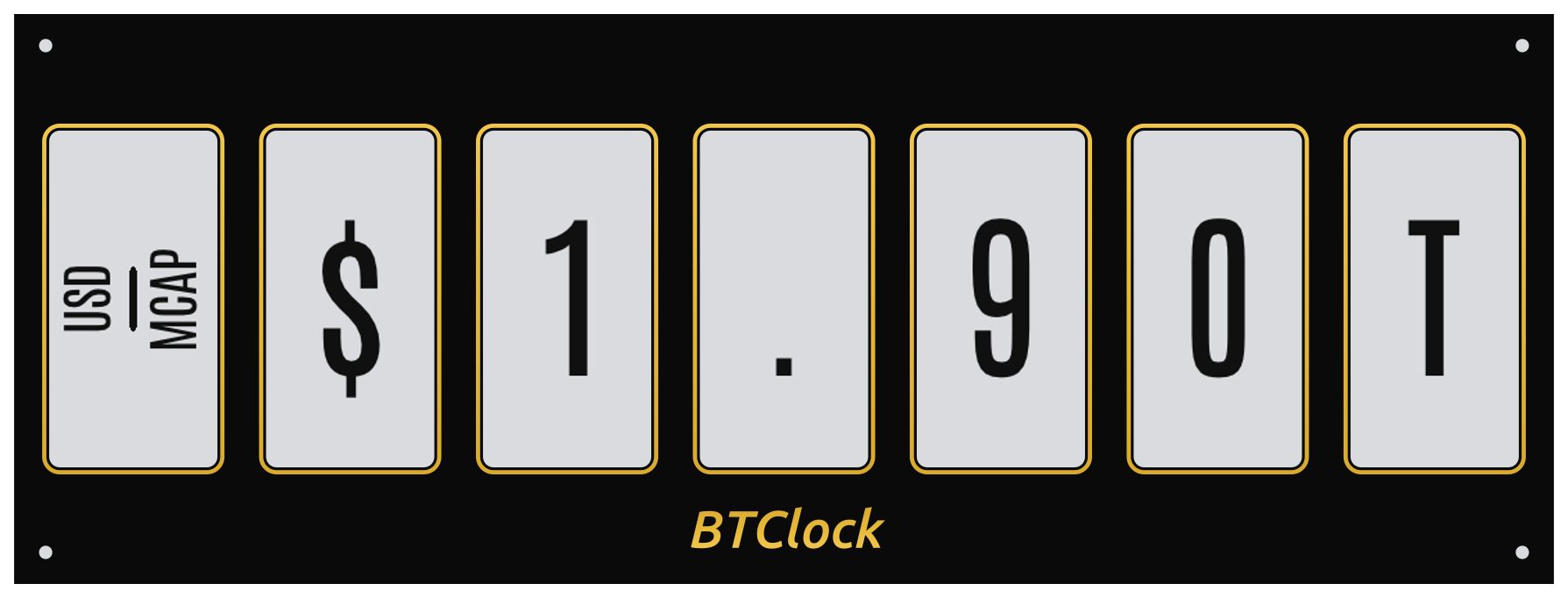
Bitcoin market cap = supply × price, rendered in the compact "$1.56T" form. The label slot reads "MCAP / USD" (or whichever currency).
The mcapBigChar setting and the small-character 3-digit-group form
are exposed via the JSON API for headless integrations, but the
on-device EPD renderer always paints the big-char form today — so
the WebUI toggle has no visible effect on a live device. Documented
here for completeness, not because it changes the rendered screen.
Affected by: active currency, fontName.
Bitcoin supply¶
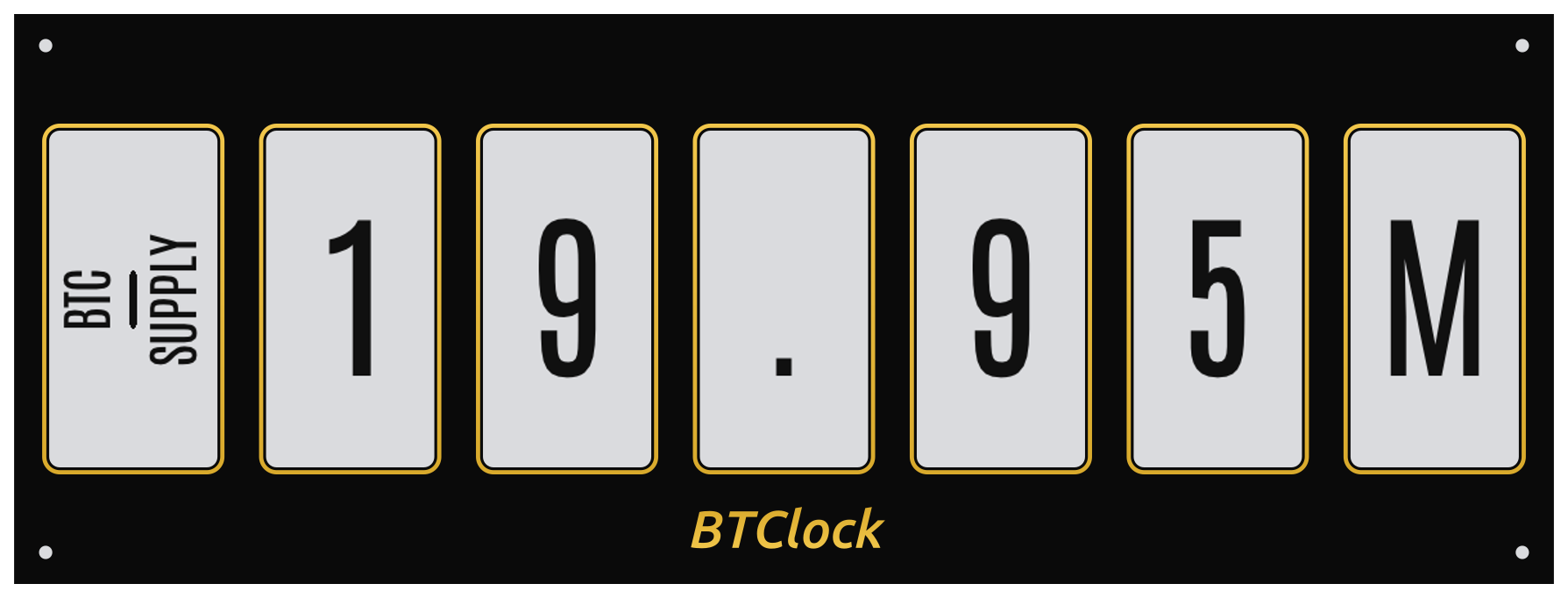
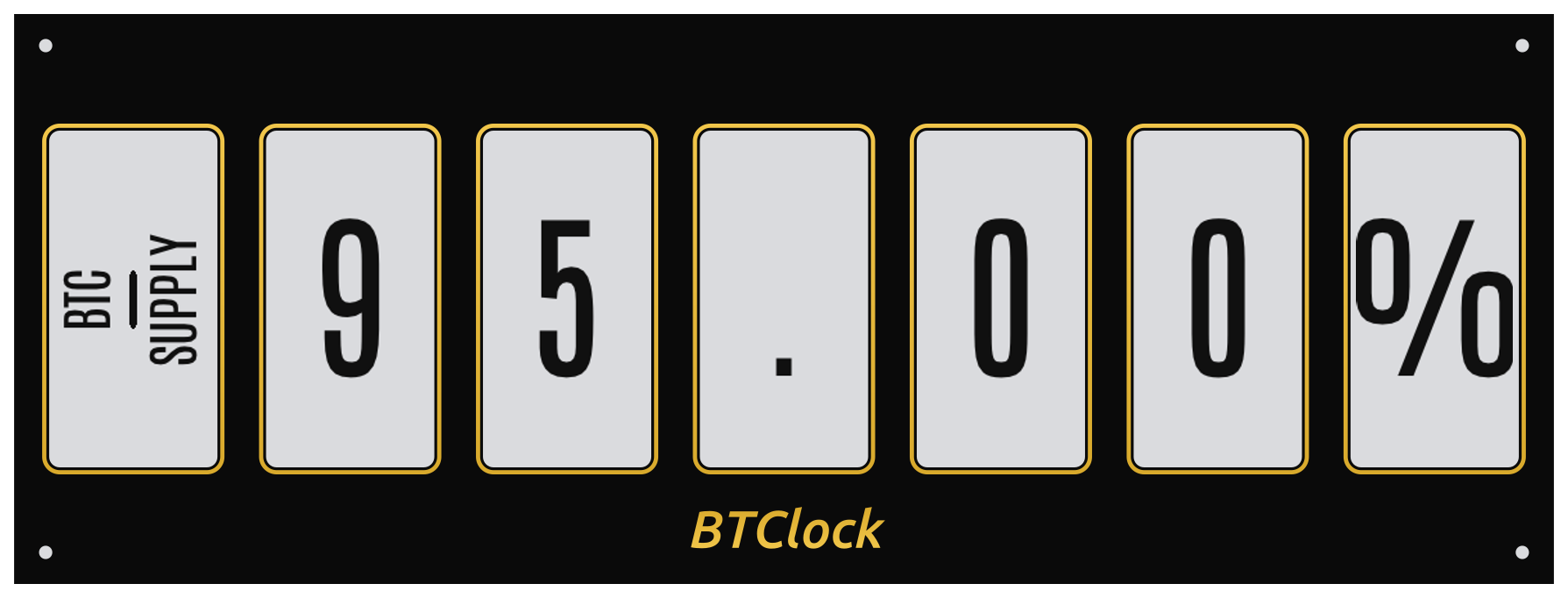
Mined BTC supply derived from the current block height. Default is
absolute ("19.9M"); set supplyPercent=true for the percentage-of-21M
form:
Affected by: mcapBigChar, supplyPercent, fontName.
Mining pool hashrate¶
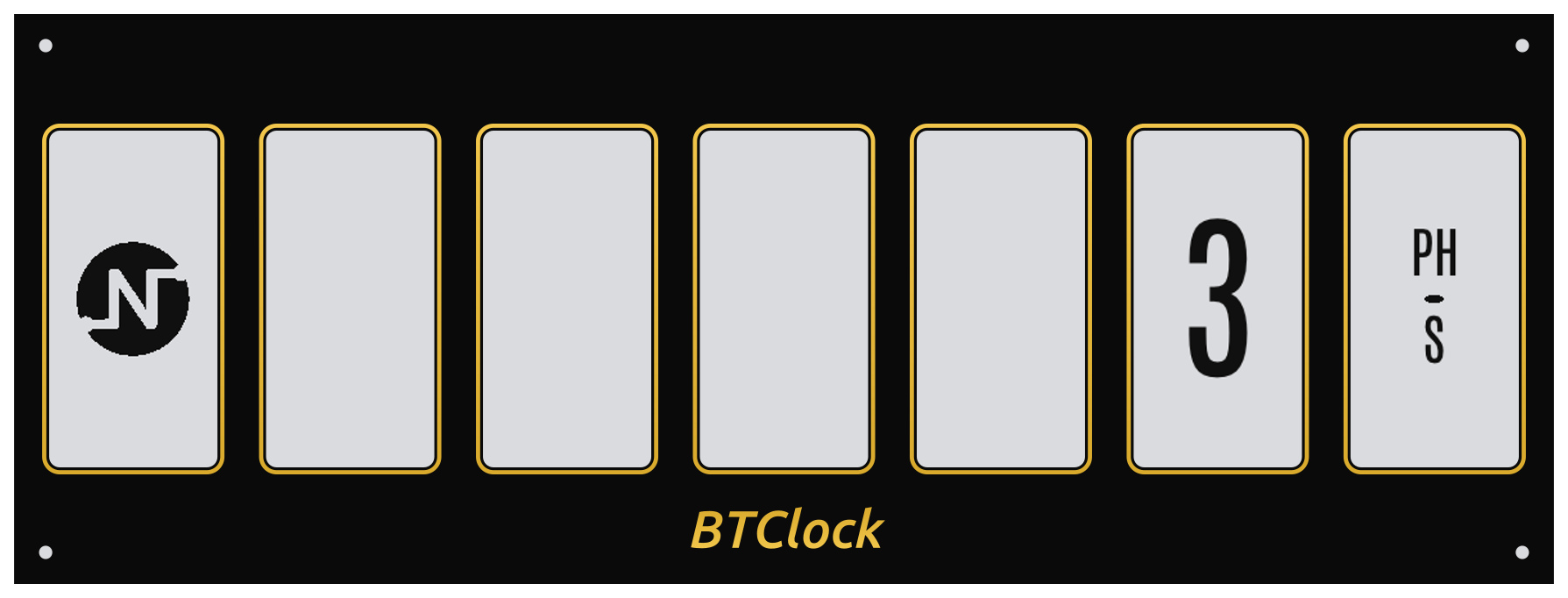
Hashrate of the configured mining pool. Panel 0 carries the pool's
logo (an MDI icon for built-in pools, or a fetched LittleFS-cached PNG
when the pool publishes one — see poolLogosUrl).
Affected by: miningPoolStats, miningPoolName, poolGlobalStats,
poolPollSec, fontName.
Mining pool earnings¶
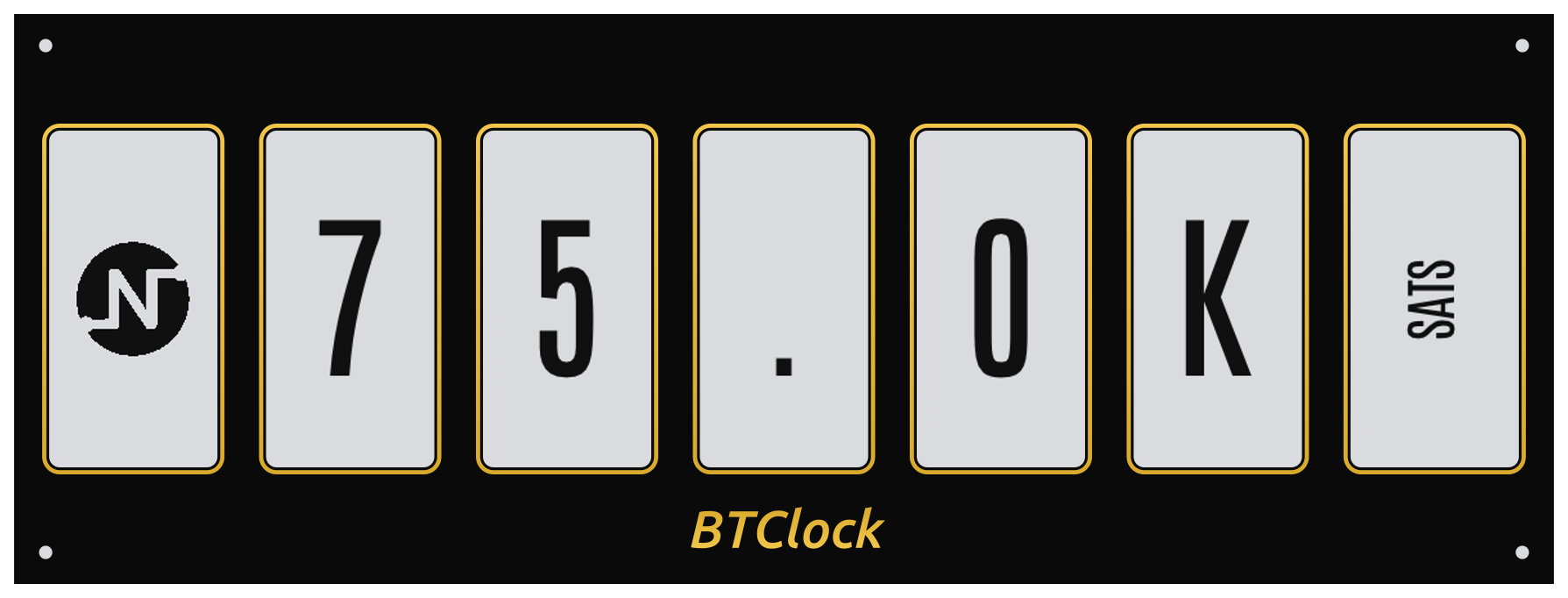
For pool/user combinations that publish per-user earnings: the day's expected sats payout. Shown in lieu of the hashrate screen when the "earnings" rotation slot is enabled.
Affected by: same as Mining pool hashrate, plus miningPoolUser.
Bitaxe hashrate¶
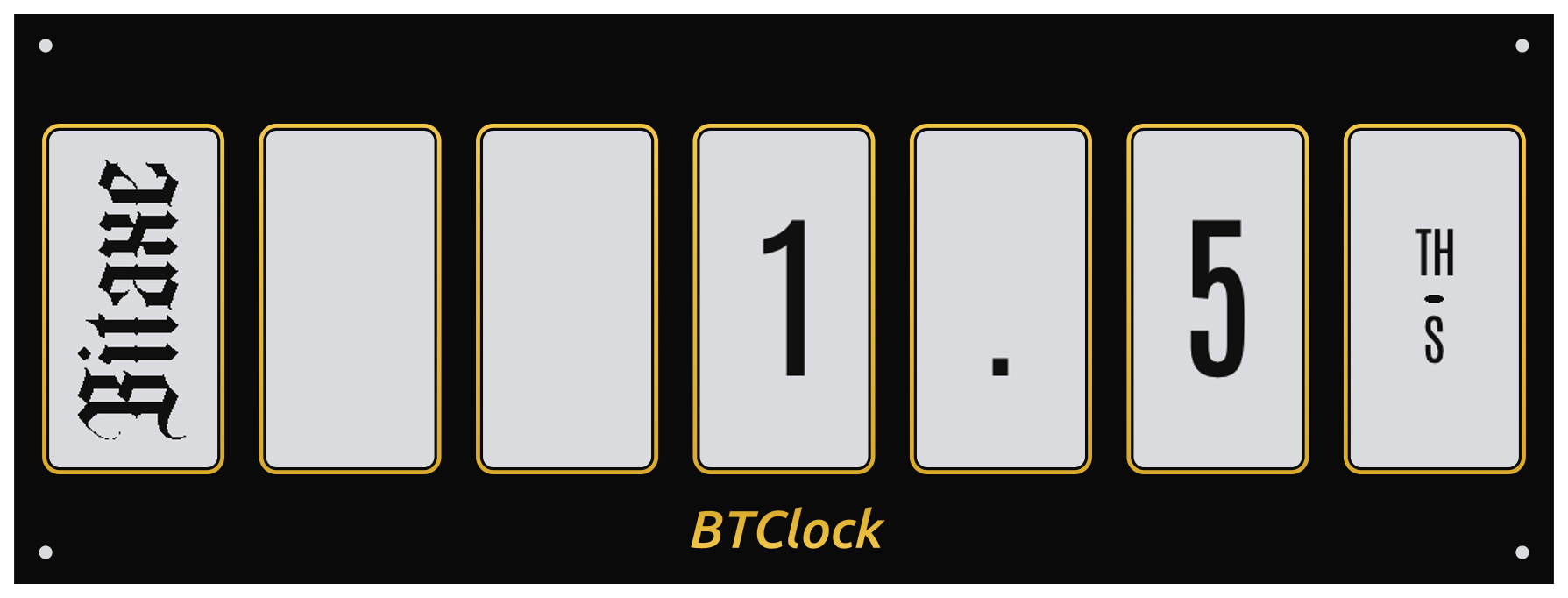
GH/s reported by the configured Bitaxe miner (HTTP poll of AxeOS). Final panel carries the unit glyph (G, T, P) with tail-aware auto-scaling.
Affected by: bitaxeEnabled, bitaxeHostname, bitaxePollSec,
fontName.
Bitaxe best difficulty¶
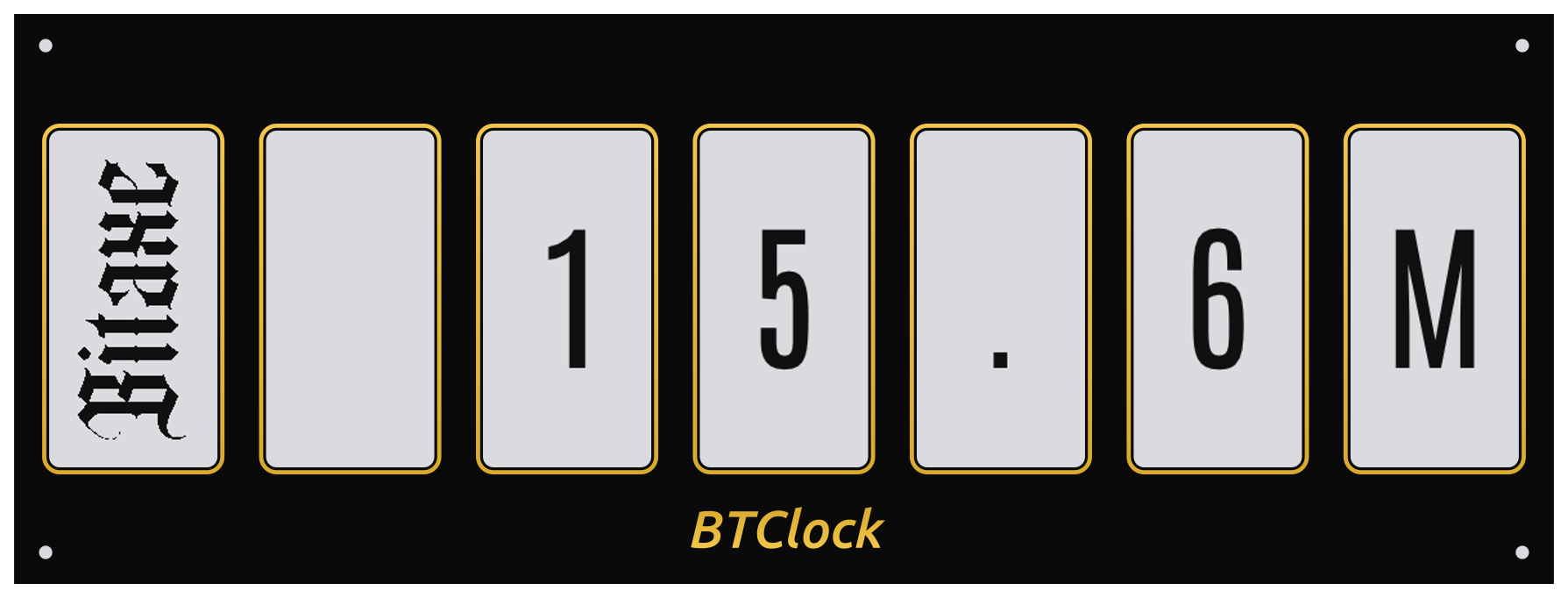
Best lifetime share difficulty from the Bitaxe — the "personal best" proof-of-work the miner has produced. AxeOS publishes a pre-formatted string ("15.6M", "1.2G"); the device renders it verbatim.
Affected by: bitaxeEnabled, bitaxeHostname, fontName.
Nostr zap (push overlay)¶
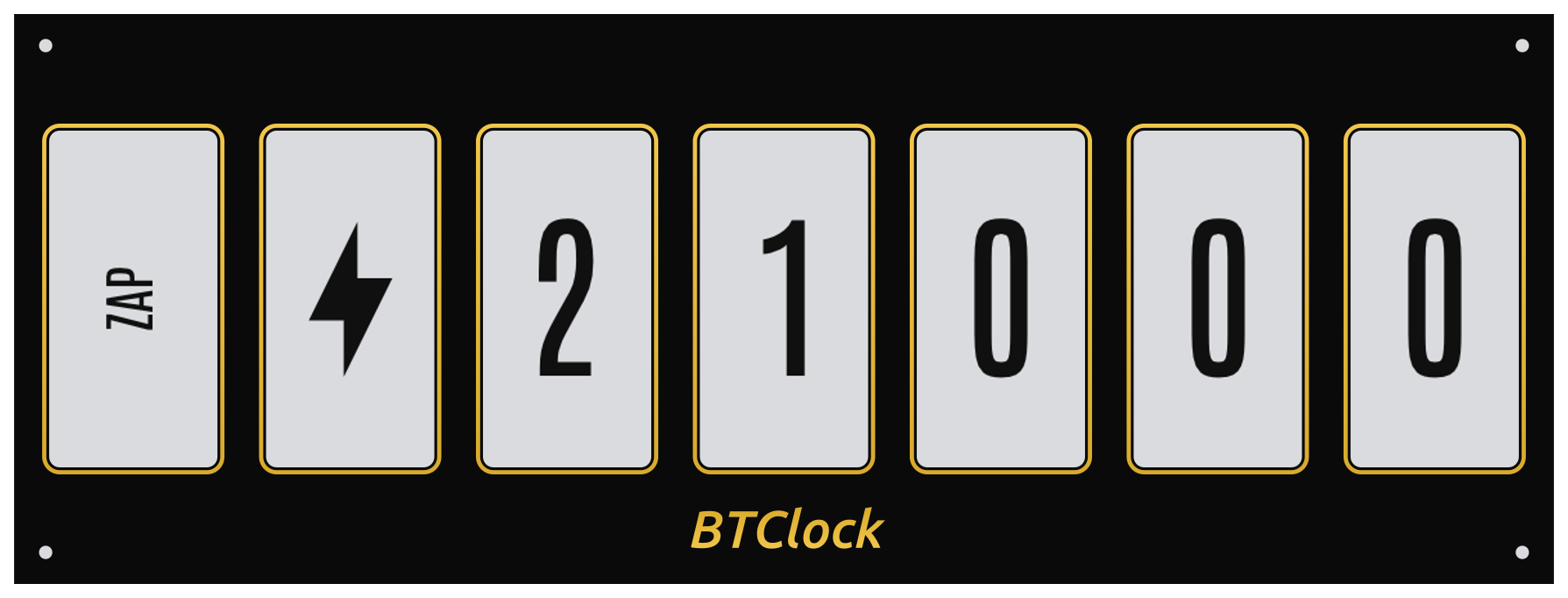
Pop-up triggered by an incoming NIP-57 zap receipt. The amount in
sats fills the digit panels, the LEDs and frontlight flash the
block-flash colour. After a short timeout (or any nav event) the
device returns to whatever screen was up before — set
scrnRestoreZap=false to leave the zap screen up instead.
Affected by: nostrZapNotify, nostrZapPubkey, ledFlashOnZap,
flFlashOnZap, scrnRestoreZap.
NWC wallet balance¶
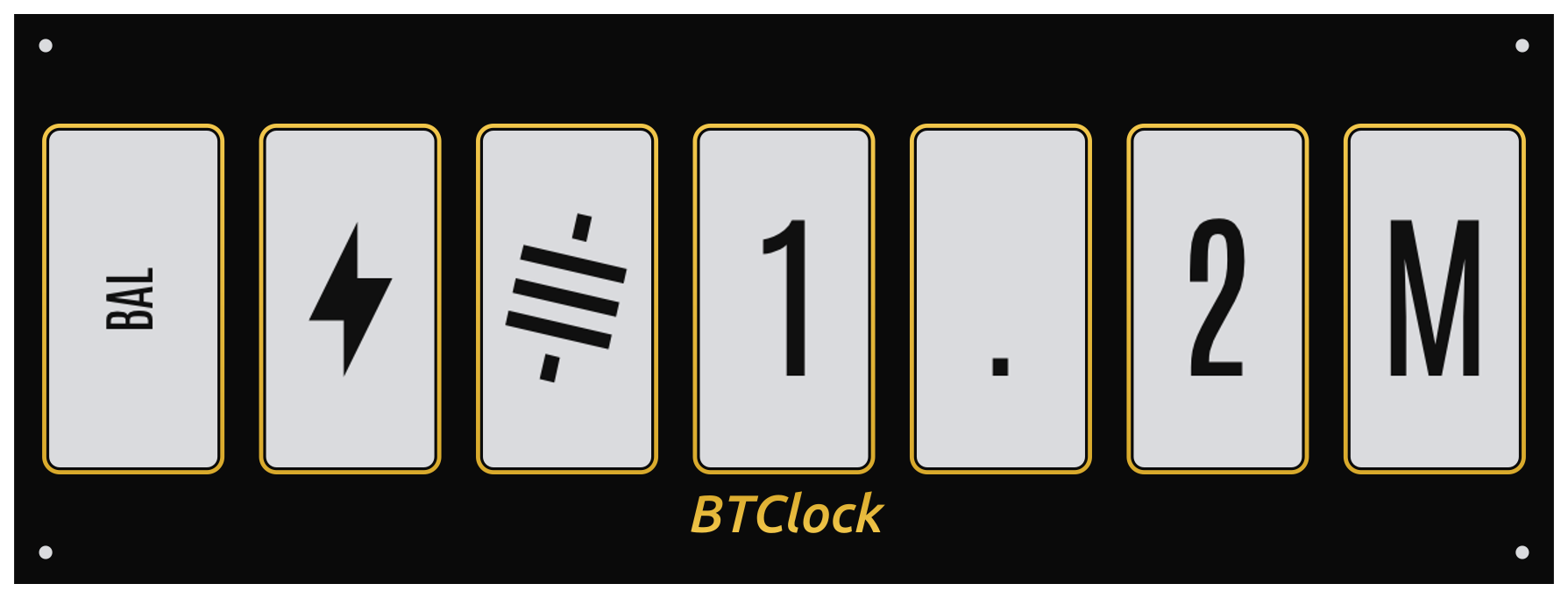
Available on devices paired with a NIP-47 Nostr Wallet Connect
wallet. Layout (left to right): a BAL label cell, an MDI
lightning-bolt brand-cue cell, then the wallet balance right-justified
into the remaining cells with the sats glyph one slot ahead of the
most-significant digit. Wallets ≥ 1 BTC switch from sats to a four-
decimal BTC form (1.0000) so the value stays legible; long balances
spill leftward through the blanks and drop the glyph when the digit
run would otherwise overflow. The render above shows the suffix path
at 1,234,567 sats (rounded to 1.2M) with the sats glyph on
(priceSymMode=1, satsVariant=6 — the U+E006 SatoshiSymbol cut);
set priceSymMode=0 to leave the slot blank.
Polled on nwcRefreshSecs (default 60 s) plus once on every payment
notification. Cached in rt/nwcLastBalSat so a reboot paints the
previous value while waiting for the first live response. The screen
is opt-in (screen90Visible=false by default — turn it on via the
Screens reorder picker if you want it in the rotation; nav buttons
can still reach it either way).
Affected by: nwcEnabled, nwcUri, nwcRefreshSecs, priceSymMode,
satsVariant, fontName.
NWC payment notification (push overlay)¶
Incoming (payment_received) |
Outgoing (payment_sent) |
|---|---|
 |
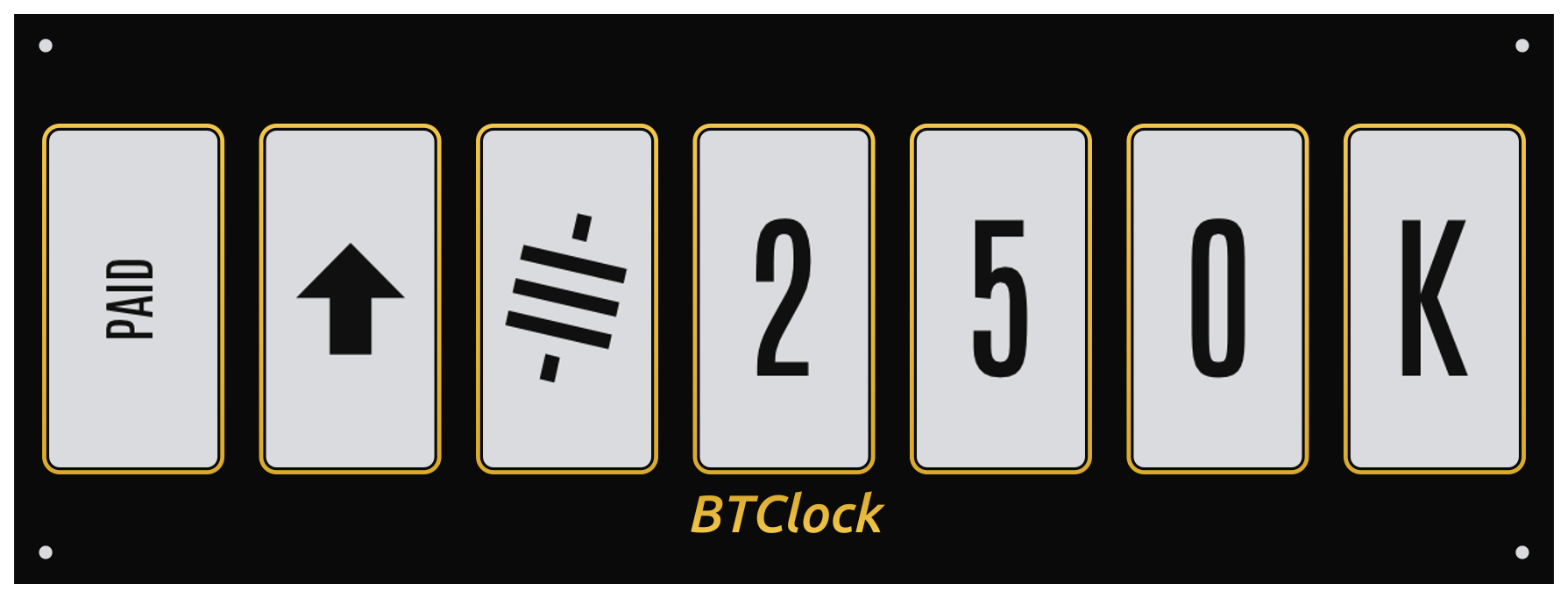 |
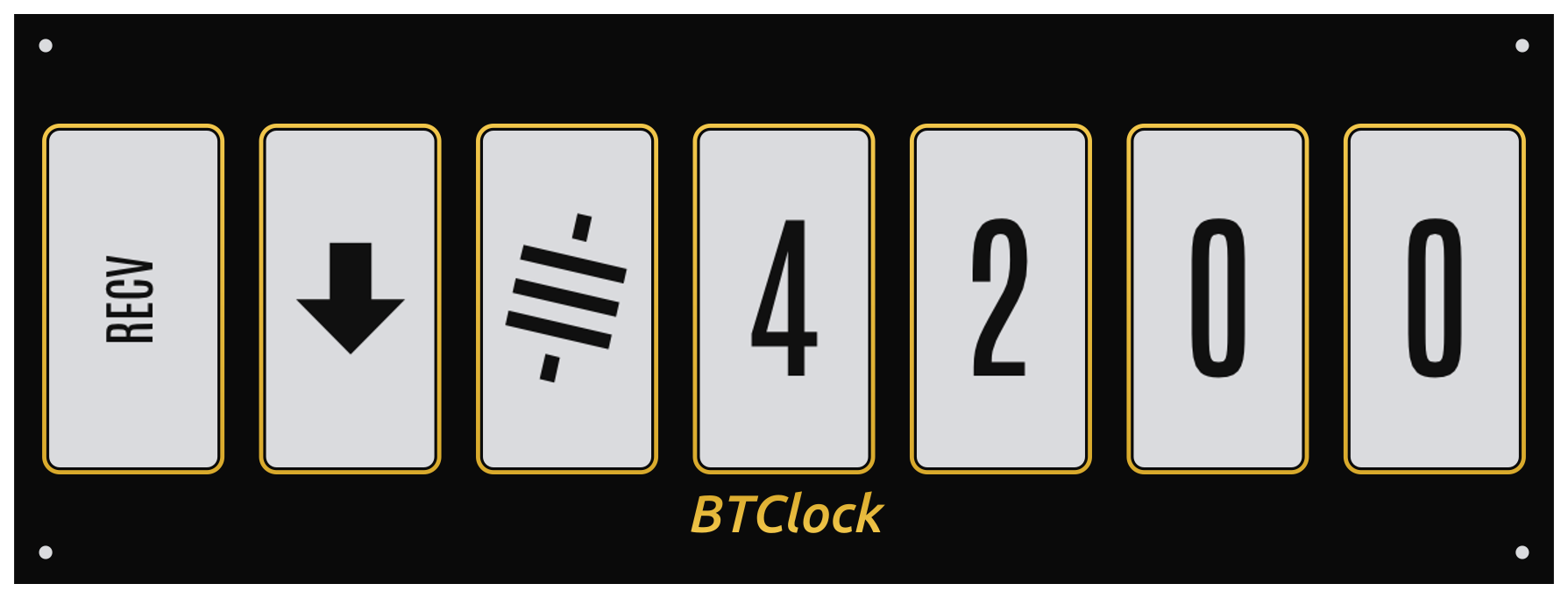
Pop-up triggered by a payment_received / payment_sent NIP-47
notification from the paired wallet. Layout matches the balance
screen so the two share a visual identity, but the label and glyph
flip with the direction:
RECV+ arrow-down for incoming paymentsPAID+ arrow-up for outgoing payments
The amount is the just-settled sats. The overlay fires the same LED
ring + frontlight pulse as the zap notification when nwcFlashOnPay
is on, and returns to the previous screen after the standard
zap-overlay timeout (or any nav event). When nwcShowNotify=false,
the overlay is suppressed entirely — the wallet balance and snapshot
mirror still update silently so a privacy-sensitive deployment can
hide payment events from bystanders without losing the balance read.
Affected by: nwcEnabled, nwcShowNotify, nwcFlashOnPay,
ledFlashOnZap, flFlashOnZap, scrnRestoreZap, priceSymMode,
satsVariant, fontName.
Custom text (push)¶
POST /api/show/text with JSON body {"t":"hello"} or mixed-case ASCII /
symbols (or POST /api/show/custom with a per-panel array) puts text on the
panels. Legacy ?t= query usage still works as a fallback. Stays up until the
next nav event. Useful for build alerts, notifications, "BACK SOON",
etc.
Debug overlay¶
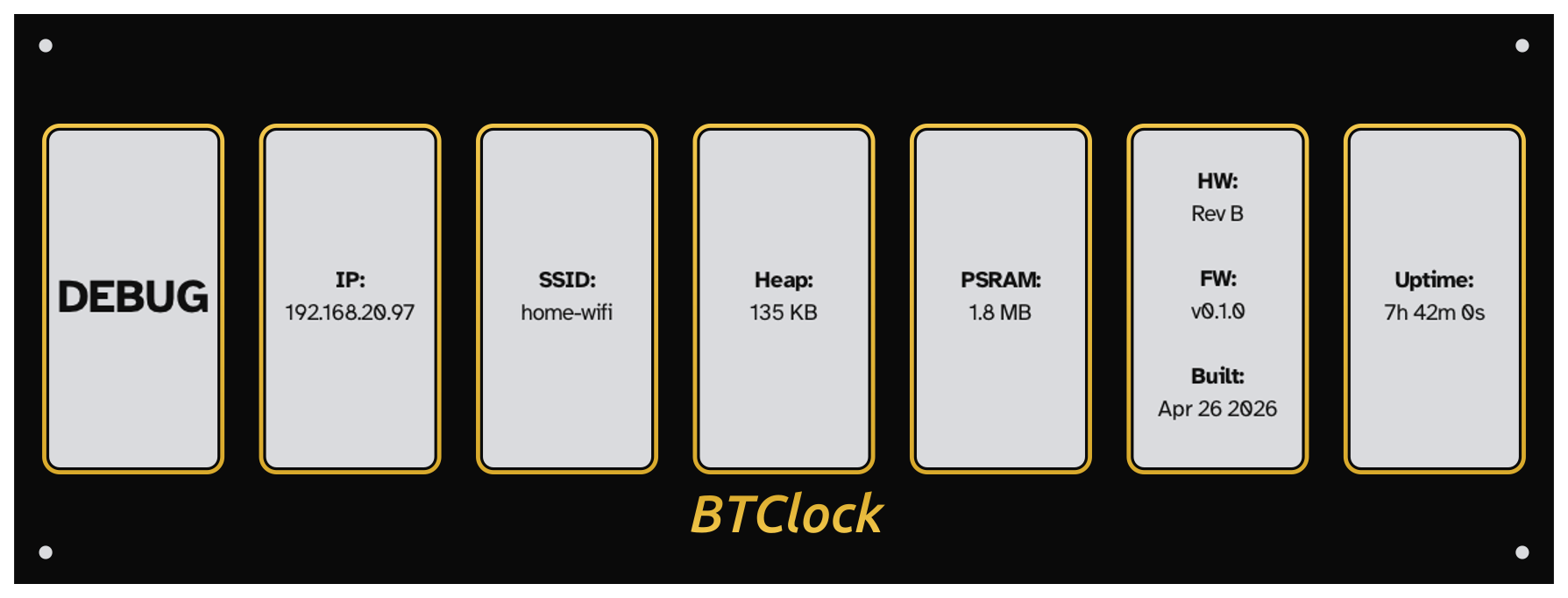
Toggled by Button-4 (a second press exits back to whatever data screen was up). One value per panel:
| Panel | Field | Notes |
|---|---|---|
| 0 | DEBUG title |
auto-fits to the panel width |
| 1 | IP: |
dotted-quad of the STA lease, or - when offline |
| 2 | SSID: |
the joined network's SSID |
| 3 | Heap: |
free MALLOC_CAP_INTERNAL (KB / MB) |
| 4 | PSRAM: |
free MALLOC_CAP_SPIRAM |
| 5 | HW: / FW: / Built: |
board variant, firmware version (tag for releases / short SHA for snapshots / -dirty suffix on uncommitted builds — see 4.1 Control card for the same string in the WebUI), and compile date |
| 6 | Uptime: |
seconds since boot, formatted Xd Yh Zm / Hh Mm Ss / Mm Ss |
| 7 (V8 only) | Exit: hint |
"press button 4 again" |
The overlay paints with RefreshKind::kFull on entry (clears any
ghosting accumulated by partial repaints) and re-paints with
RefreshKind::kPartial once a second so heap/PSRAM/uptime stay
live without visible flicker.
OTA update overlay¶
Painted while a POST /upload/firmware push is in flight. Shows
progress percentage and an upload counter; freezes the rotation timer
so a parallel data tick can't stomp the overlay mid-write.
6. Fonts¶
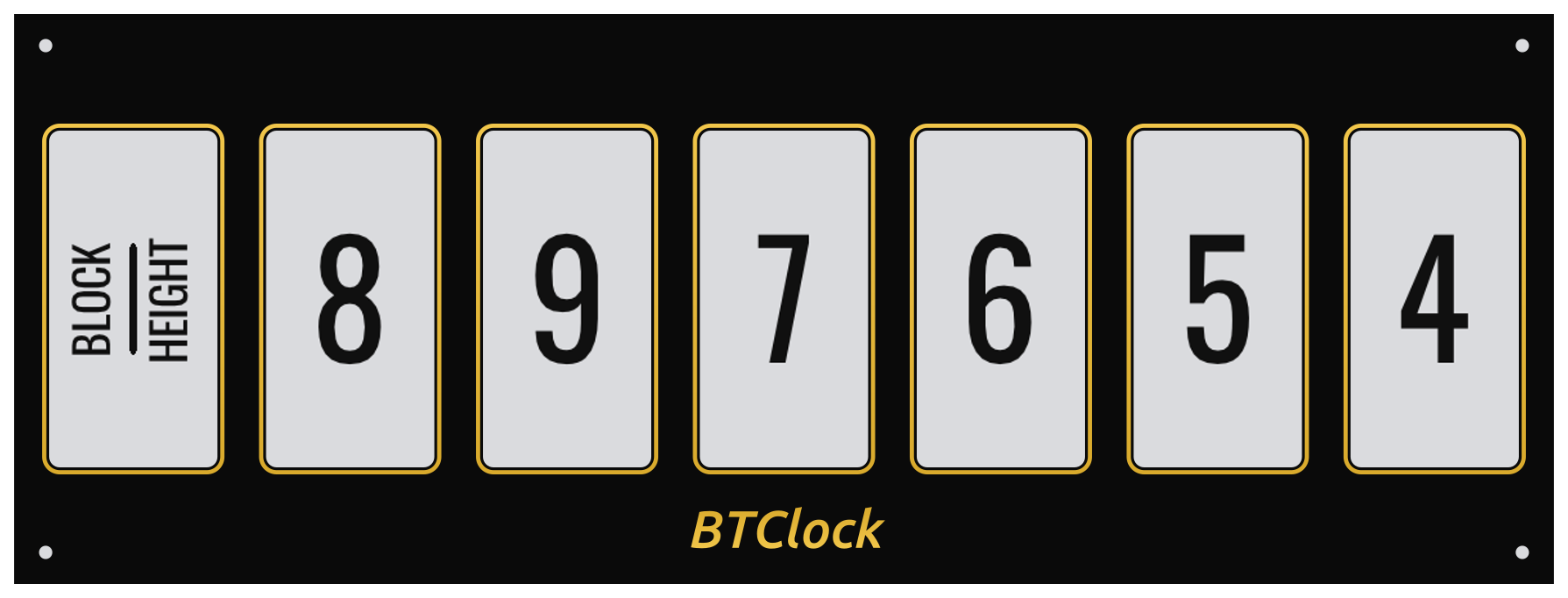
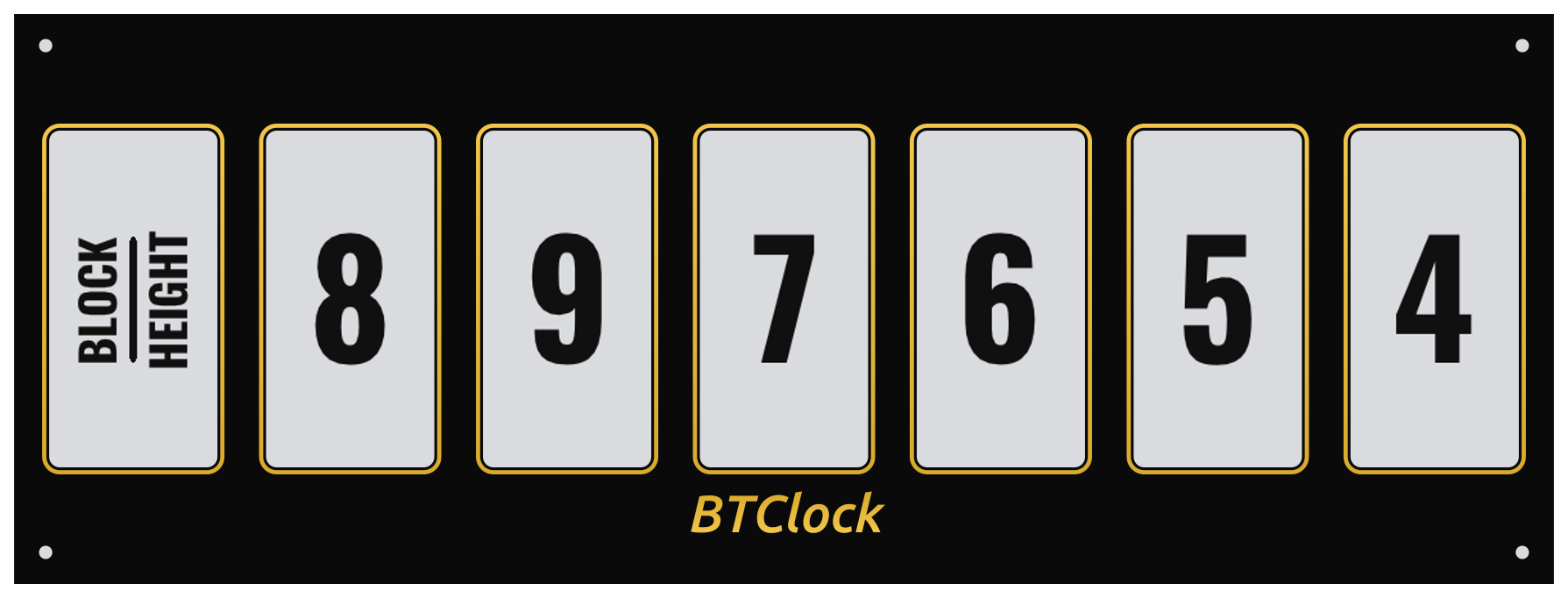
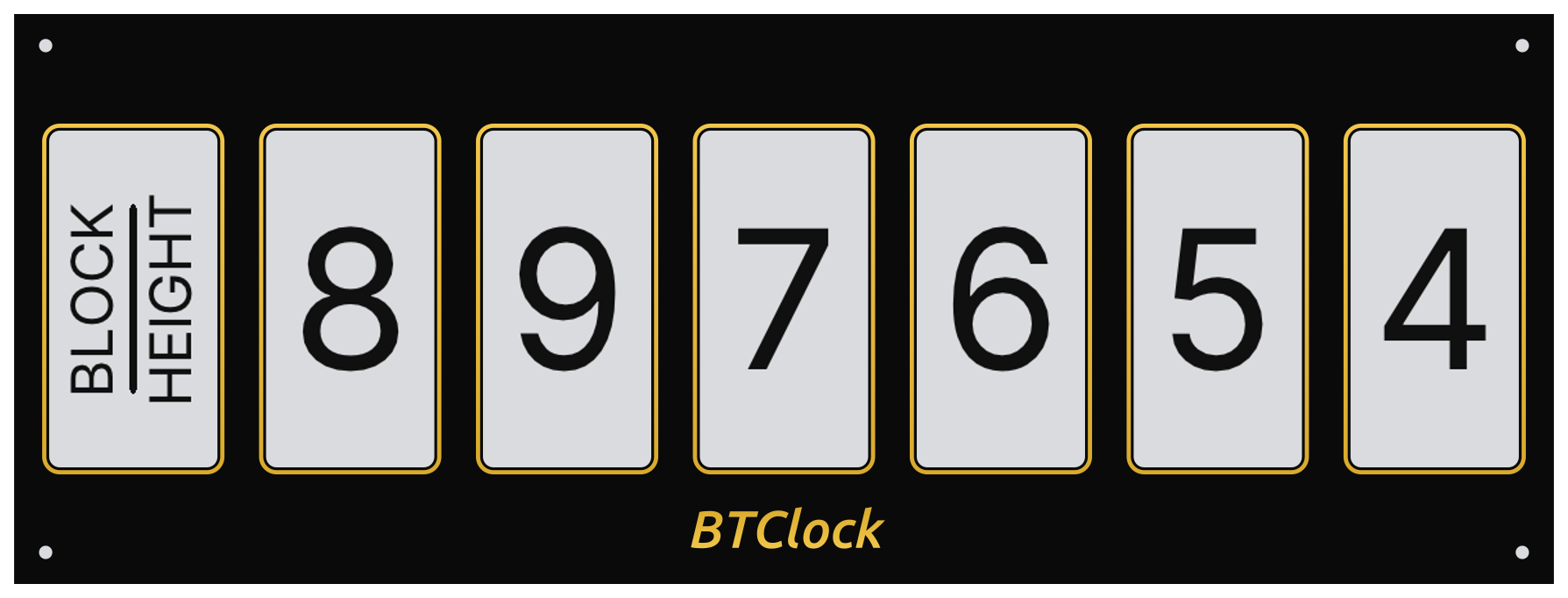
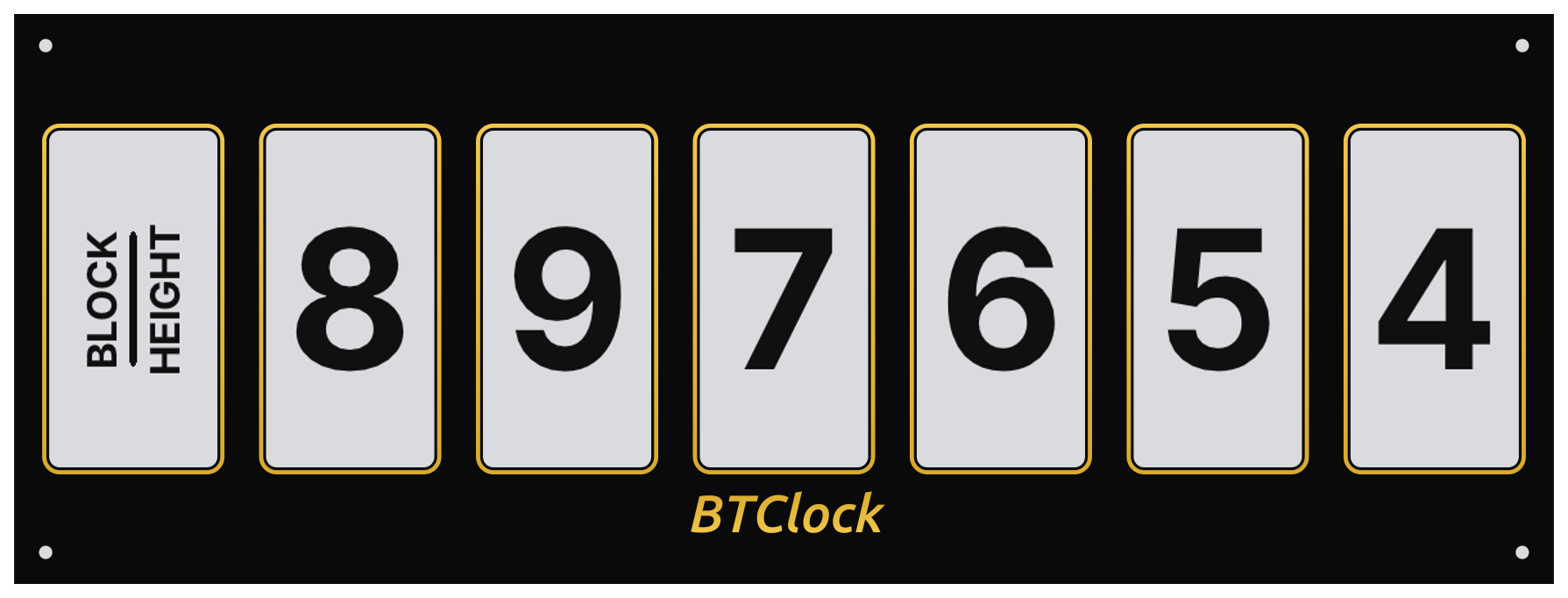
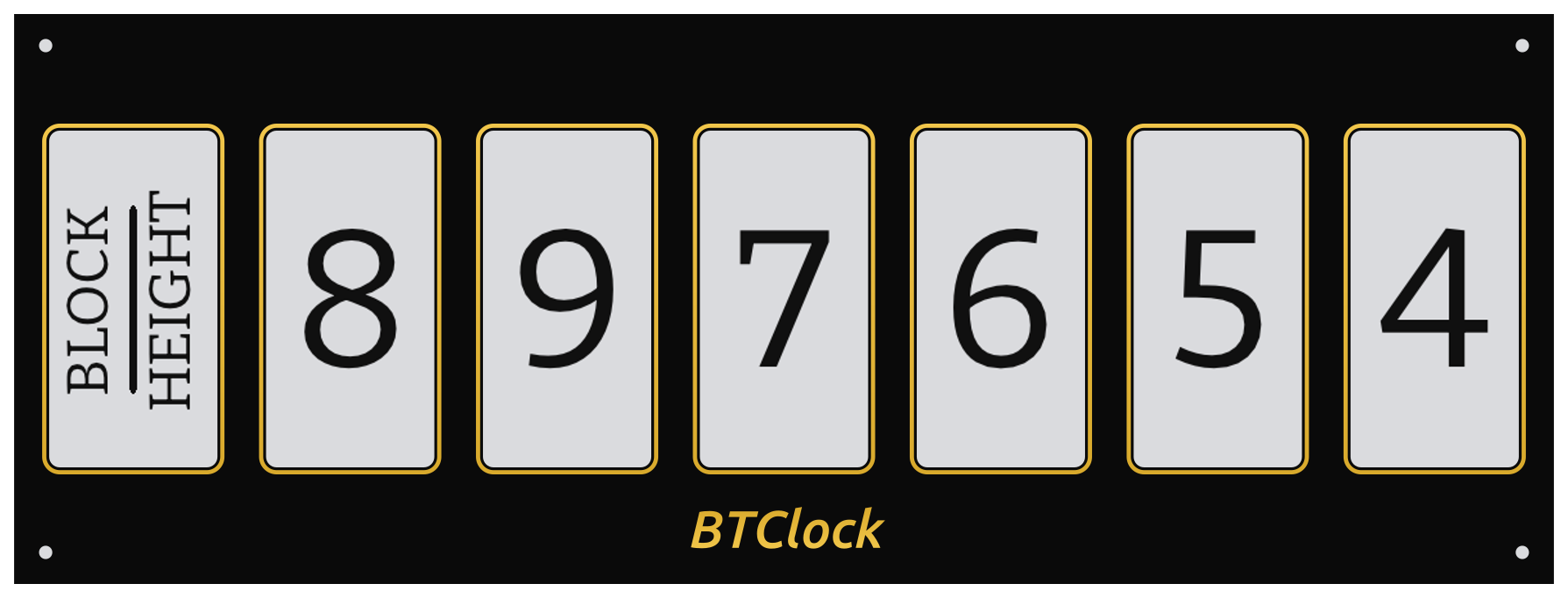
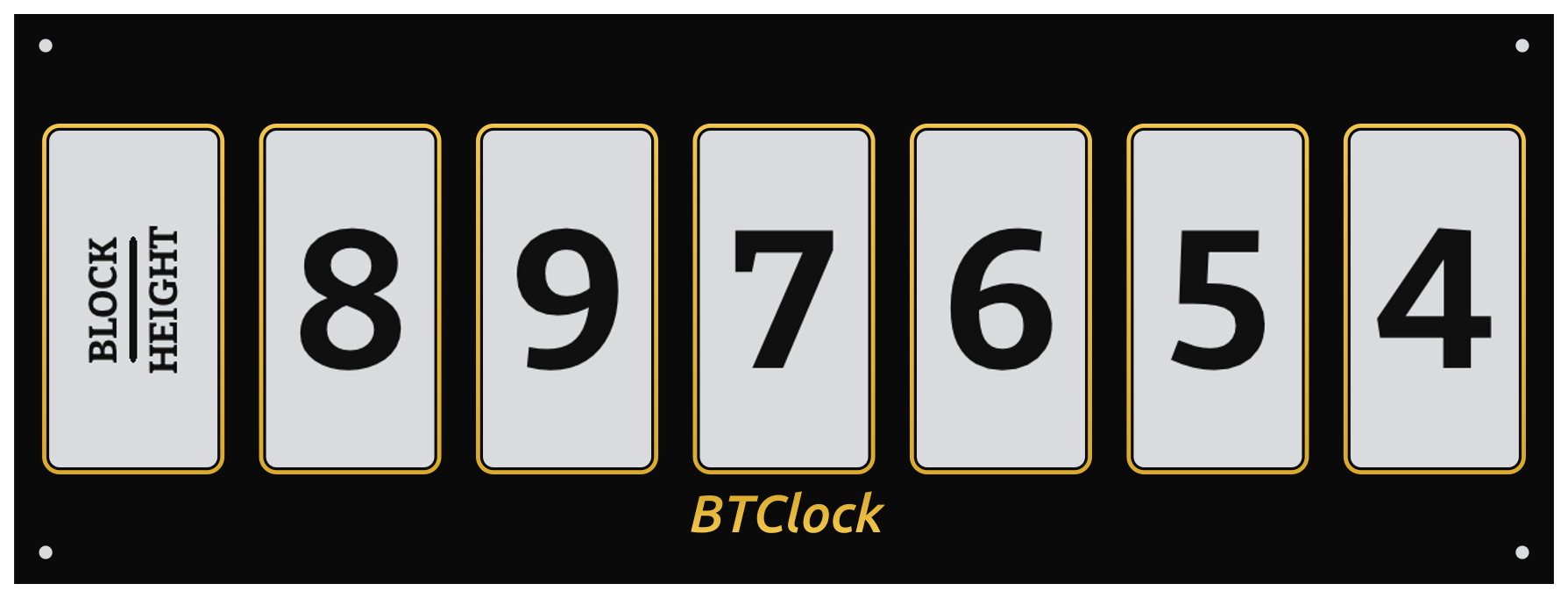
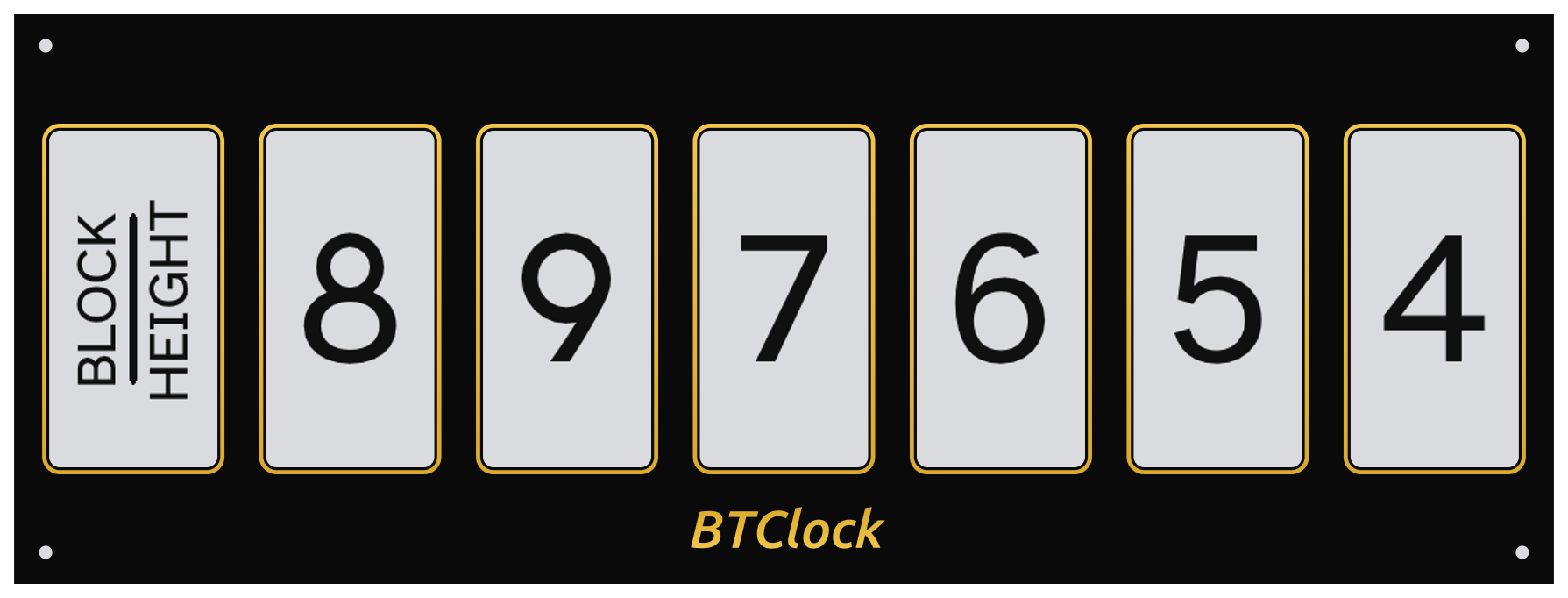
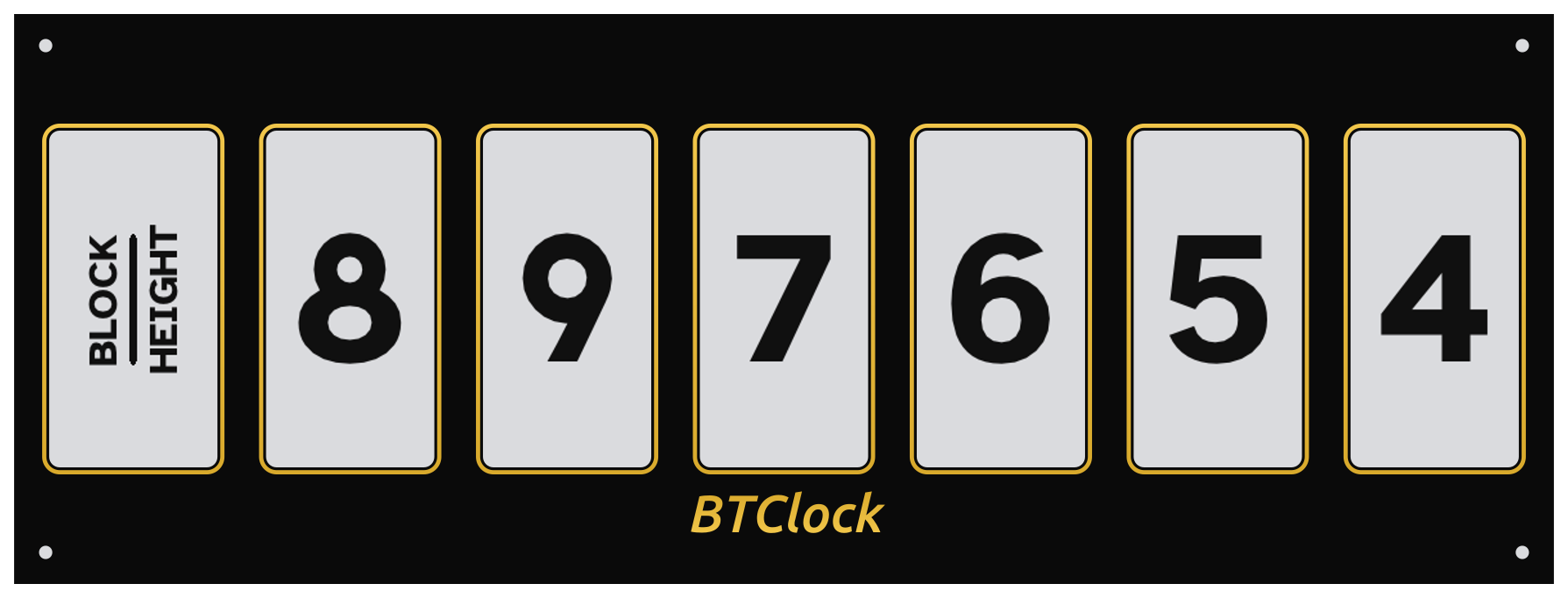
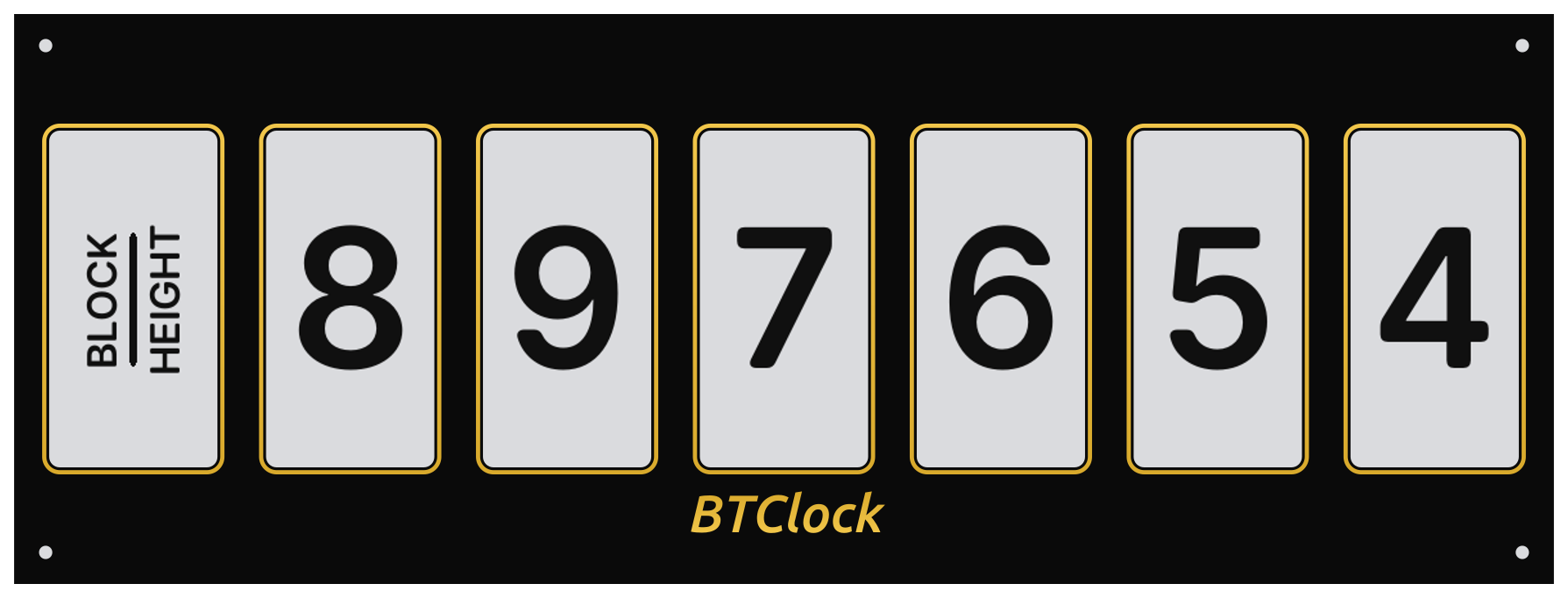
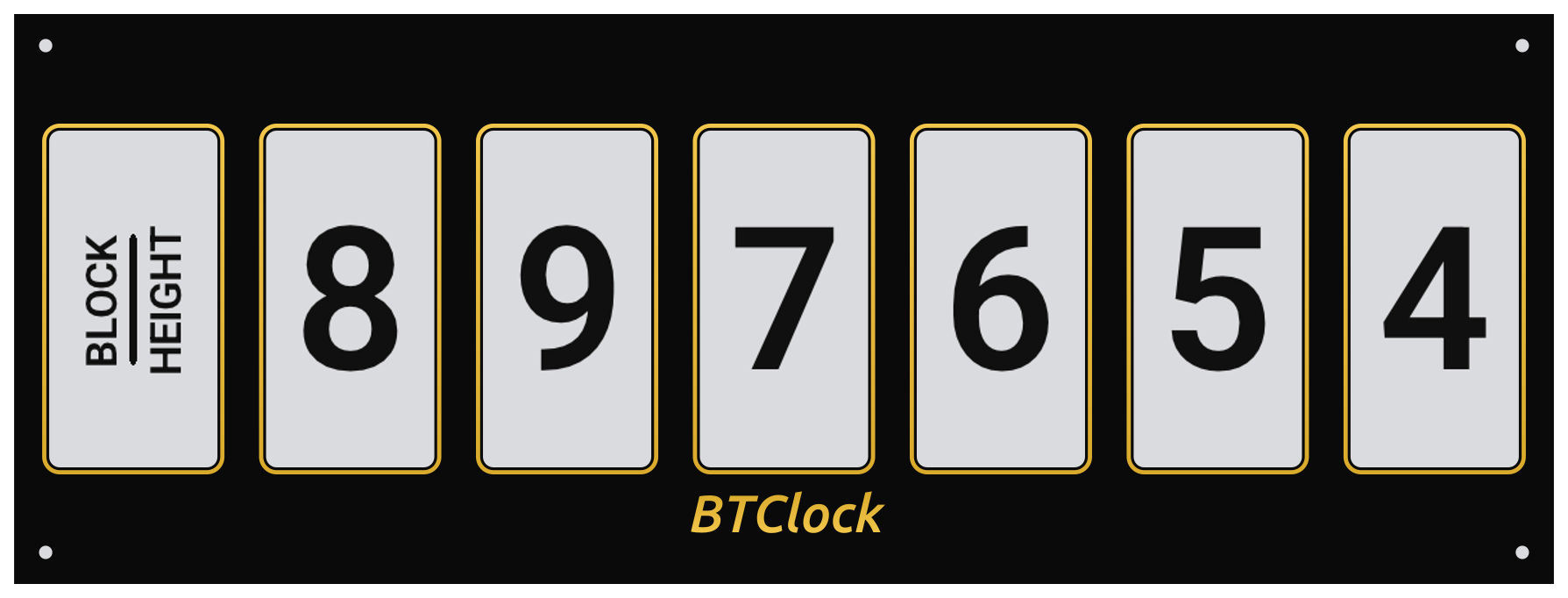
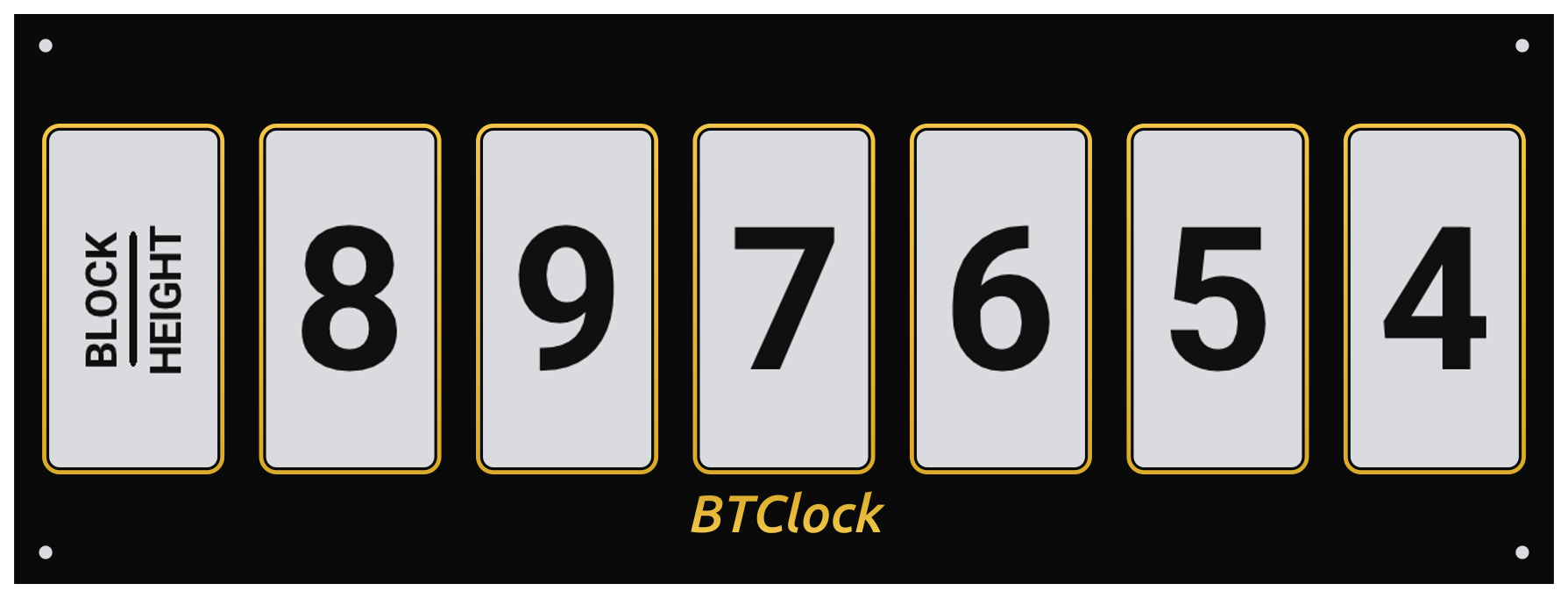
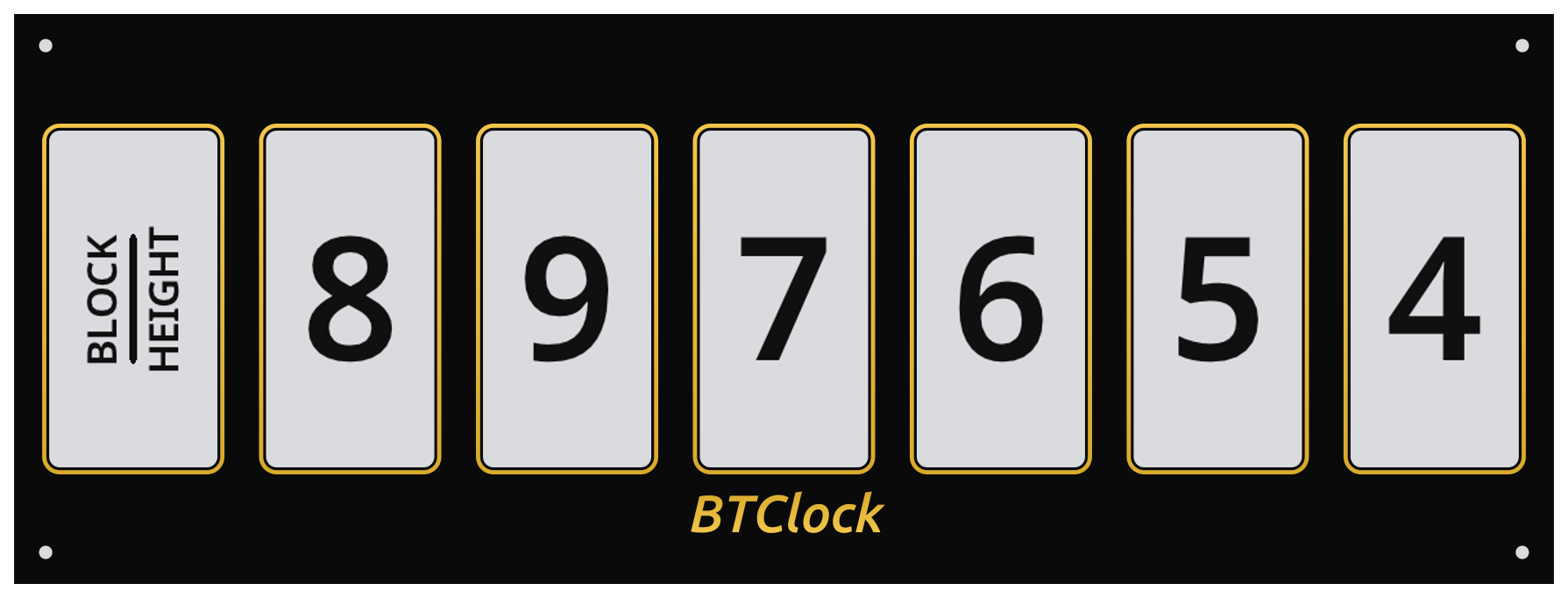
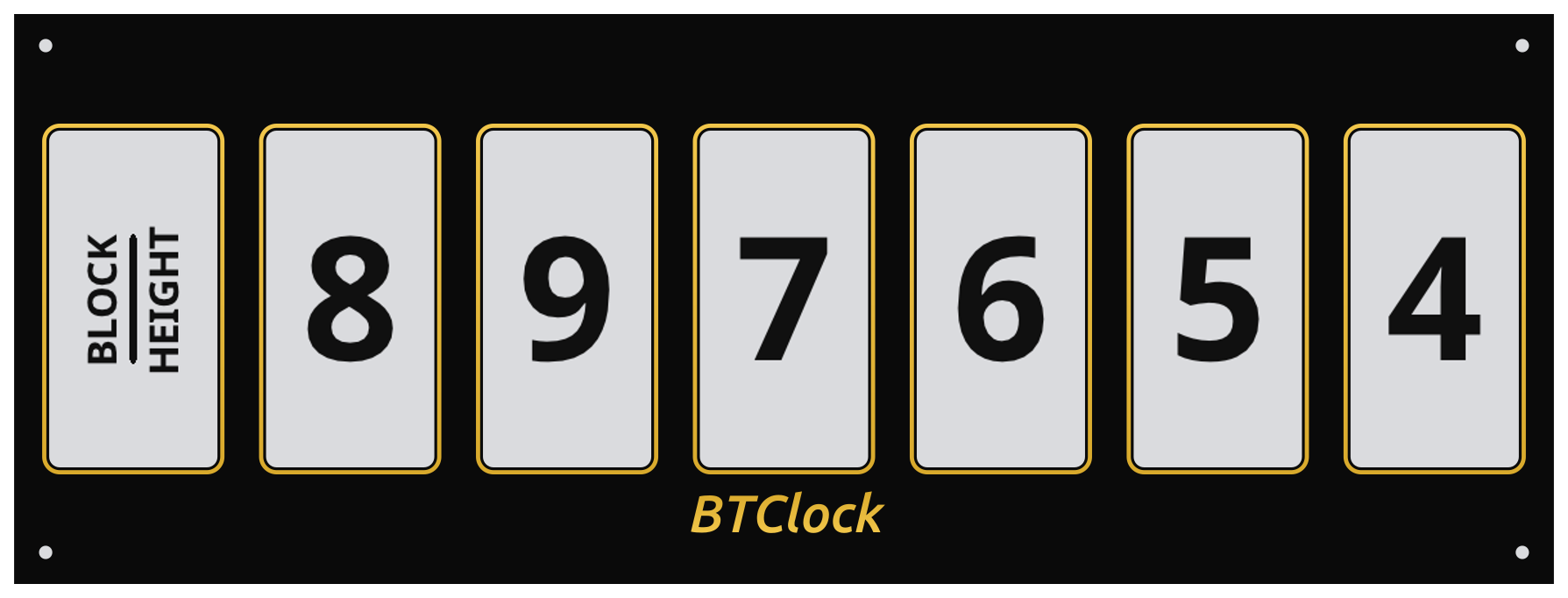
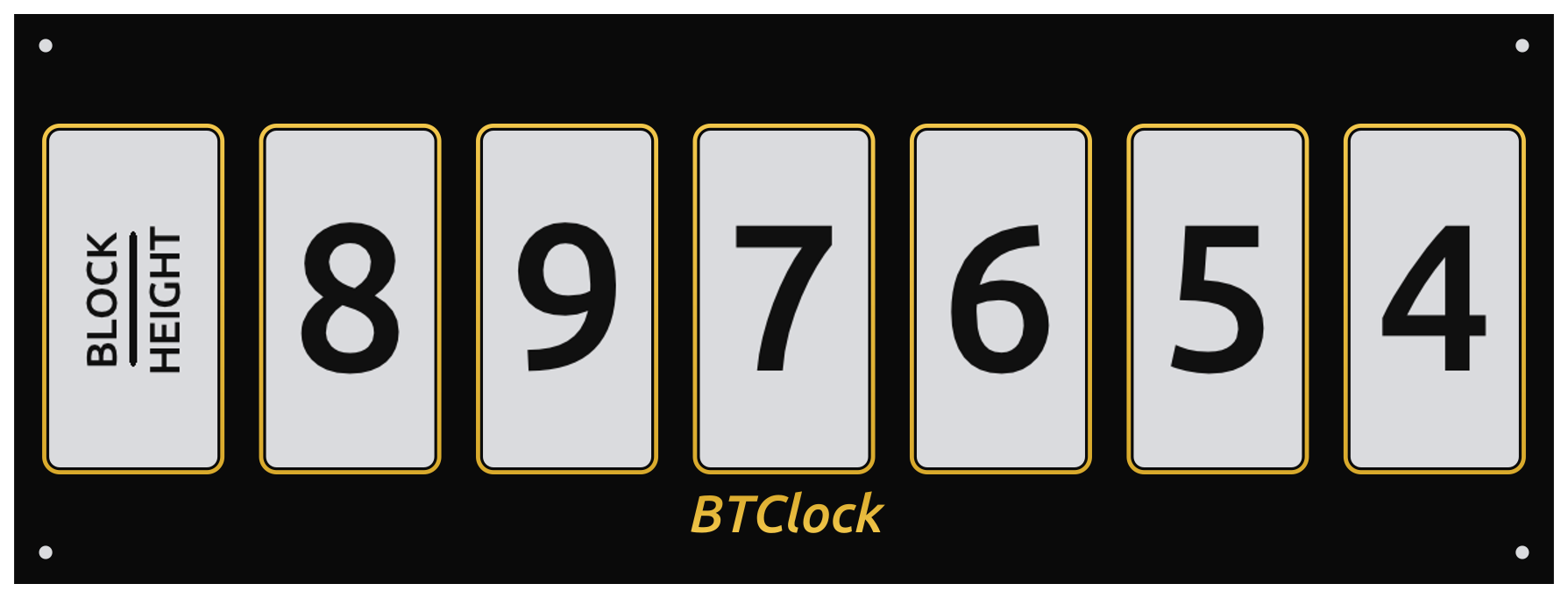
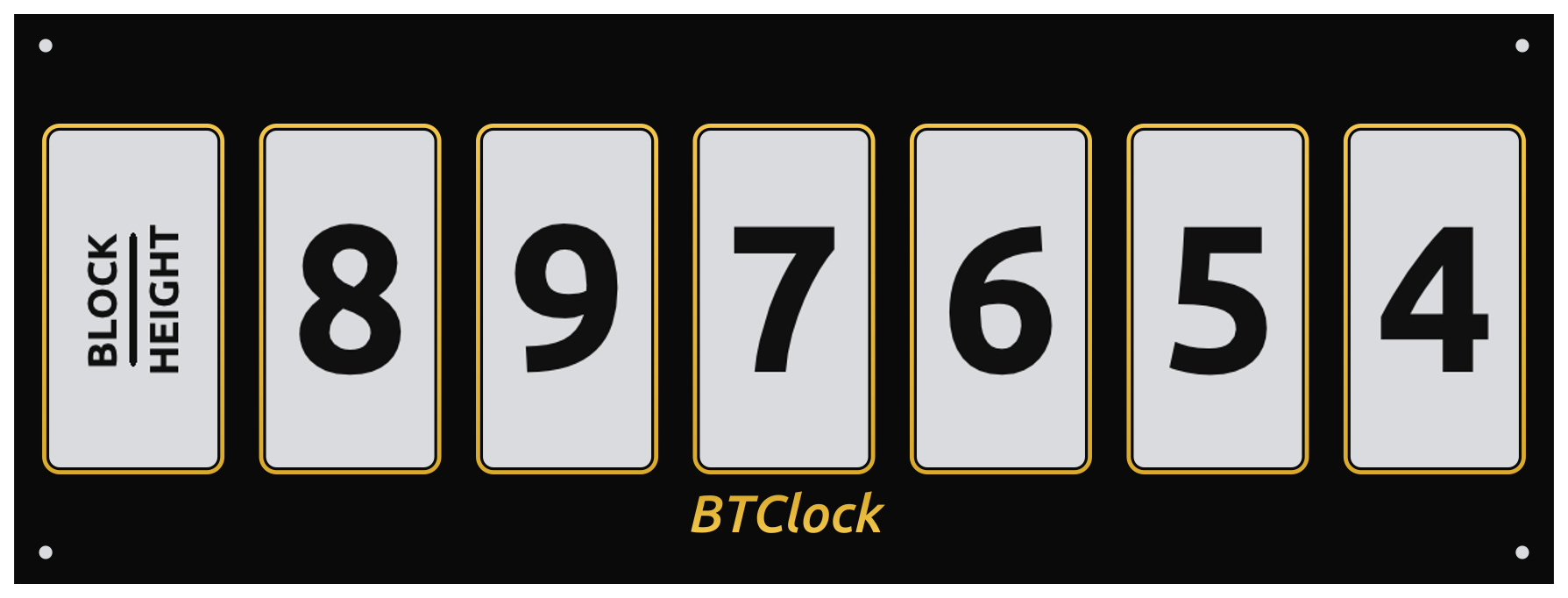
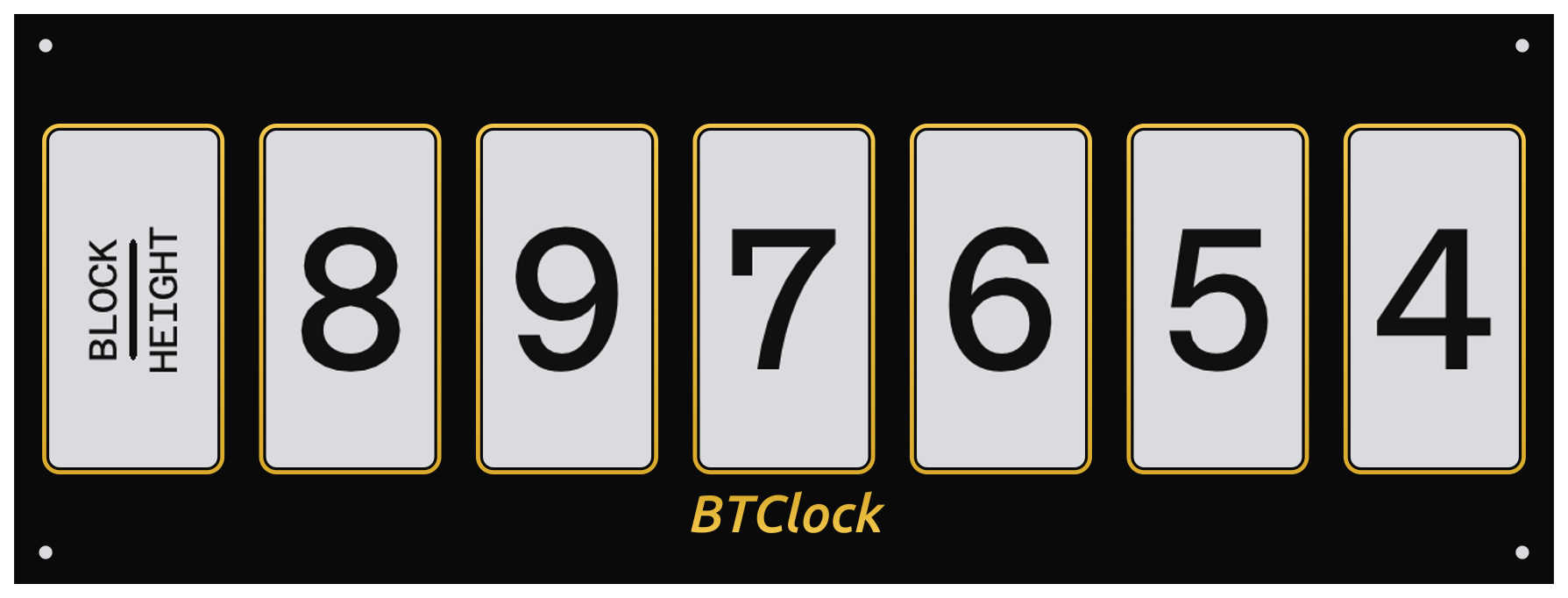
Pick the digit face under Settings → Display → Font name. The label panel always uses Oswald-bold (it's a separate slot on the font table); only the digit / suffix / unit glyphs swap.
| Font | fontName id |
Preview |
|---|---|---|
| Antonio (default) | antonio |
 |
| Antonio SemiBold | antonioSemiBold |
 |
| Antonio Bold | antonioBold |
 |
| Oswald | oswald |
 |
| Oswald Bold | oswaldBold |
 |
| Inter | inter |
 |
| Inter Bold | interBold |
 |
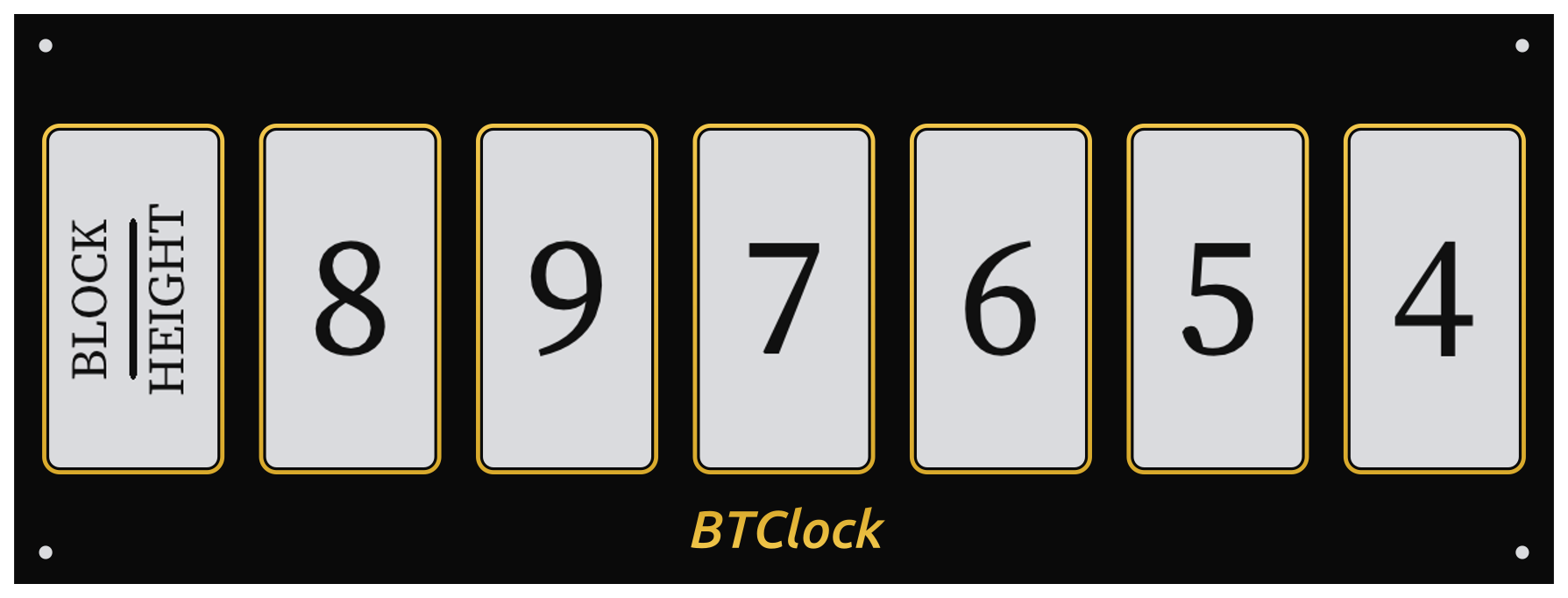
| Source Serif | sourceSerif |
 |
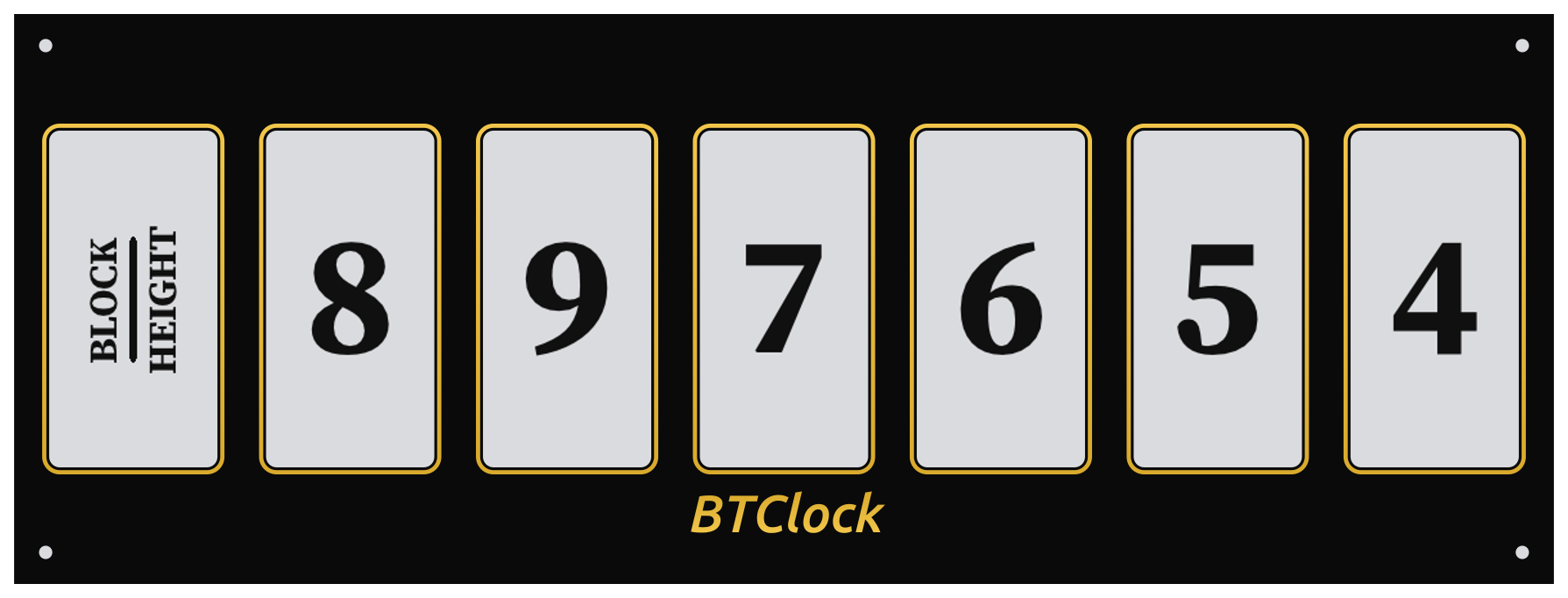
| Source Serif Bold | sourceSerifBold |
 |
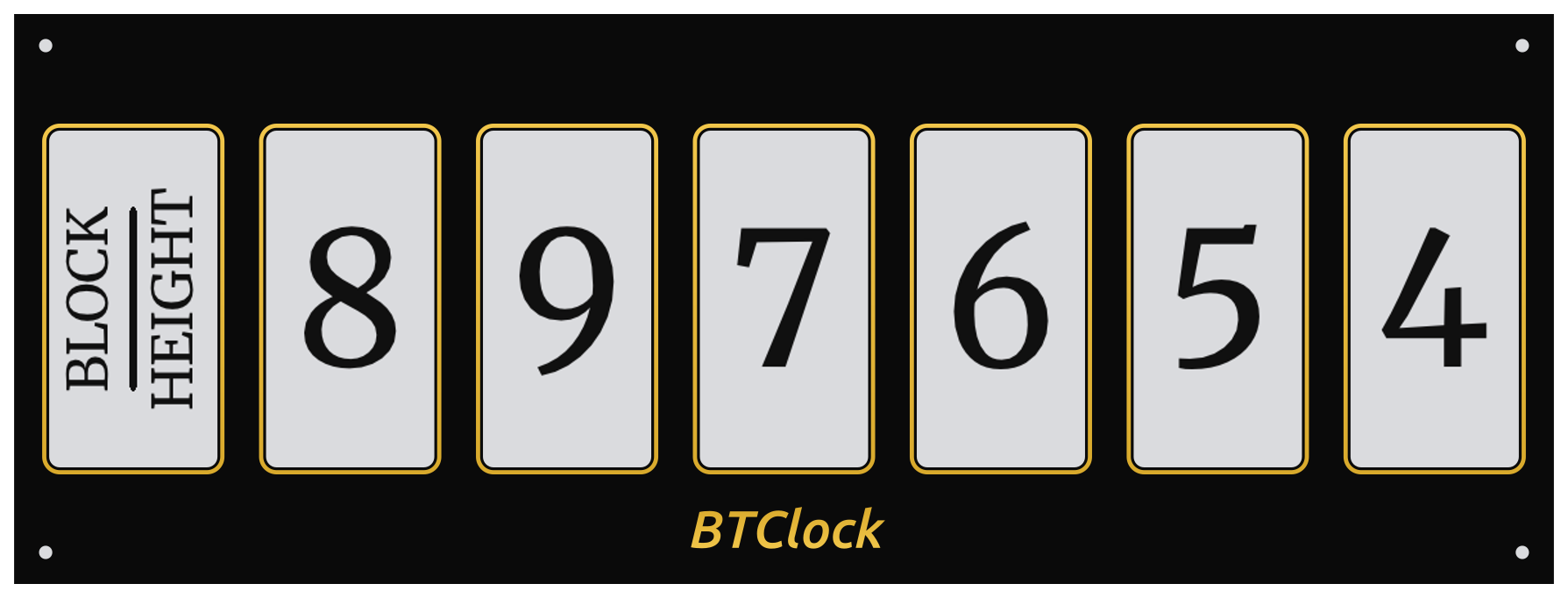
| Merriweather | merriweather |
 |
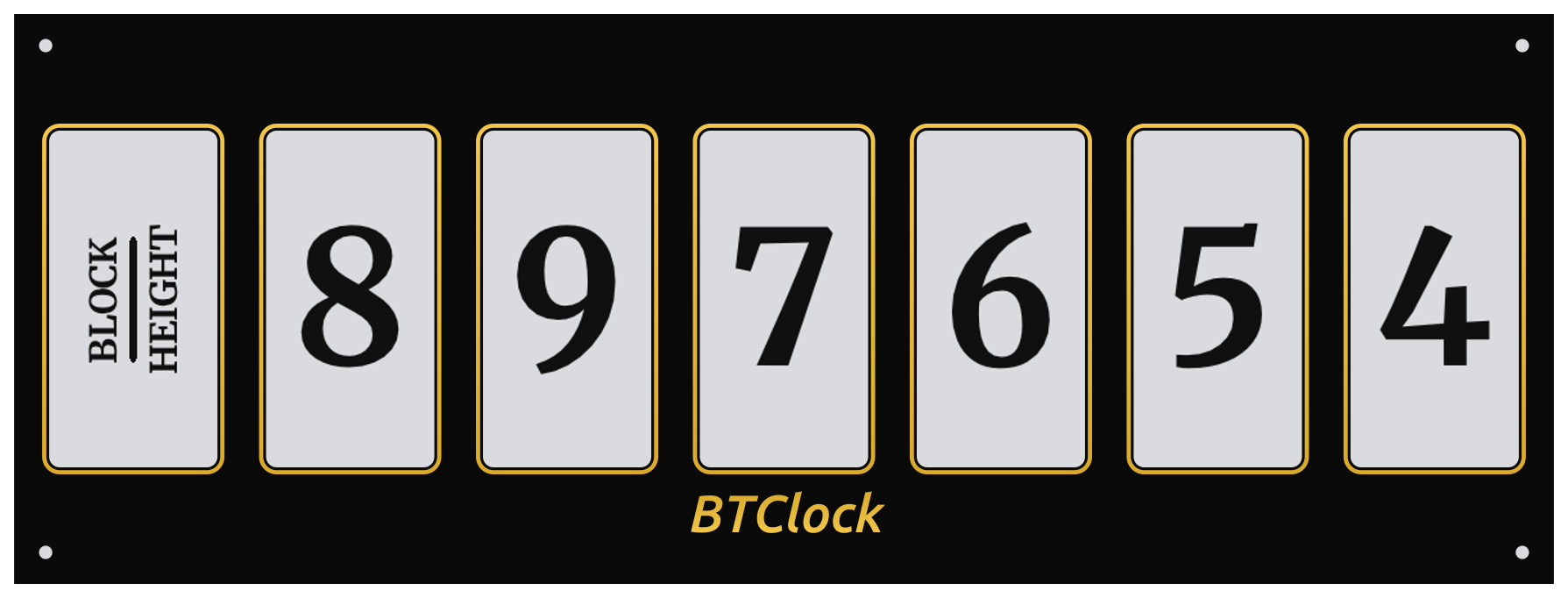
| Merriweather Bold | merriweatherBold |
 |
| Bitter | bitter |
 |
| Bitter Bold | bitterBold |
 |
| Atkinson Hyperlegible | atkinson |
 |
| Atkinson Hyperlegible Bold | atkinsonBold |
 |
| Open Runde | openRunde |
 |
| Roboto | roboto |
 |
| Roboto Bold | robotoBold |
 |
| Noto Sans | notoSans |
 |
| Noto Sans Bold | notoSansBold |
 |
| Ubuntu | ubuntu |
 |
| Ubuntu Bold | ubuntuBold |
 |
| Azeret Mono | azeret |
 |
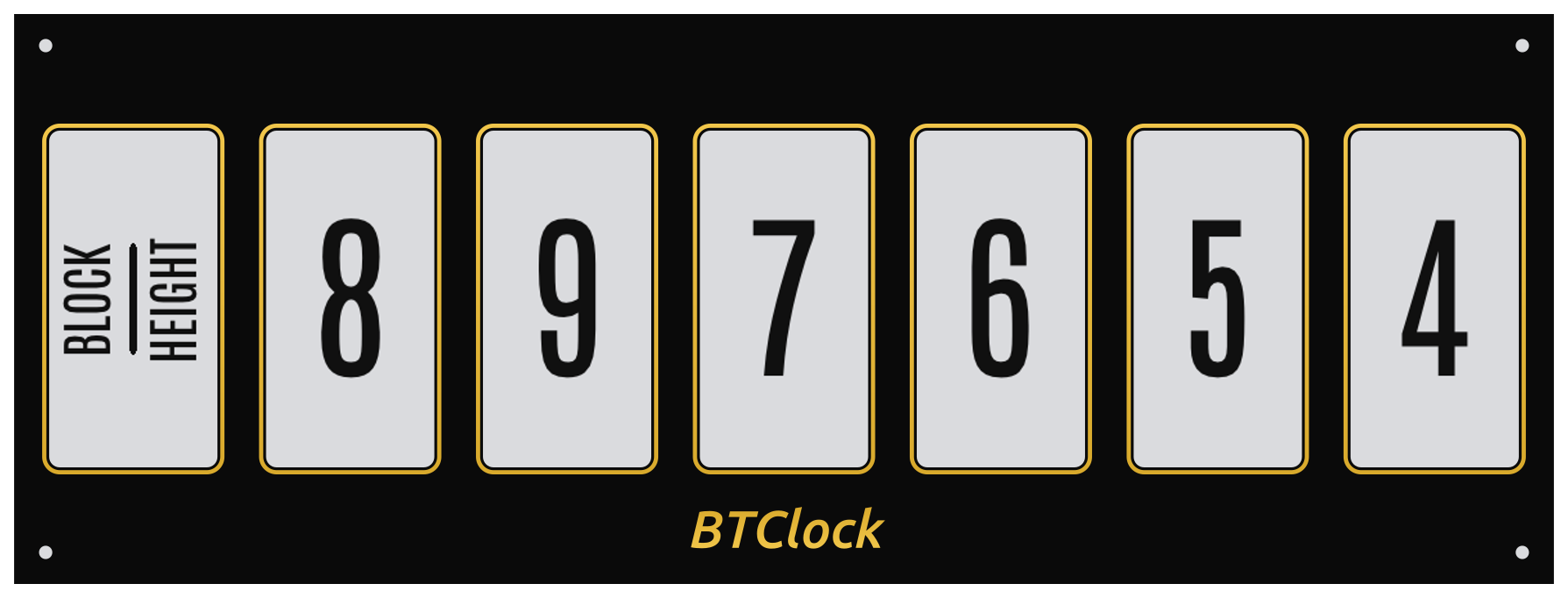
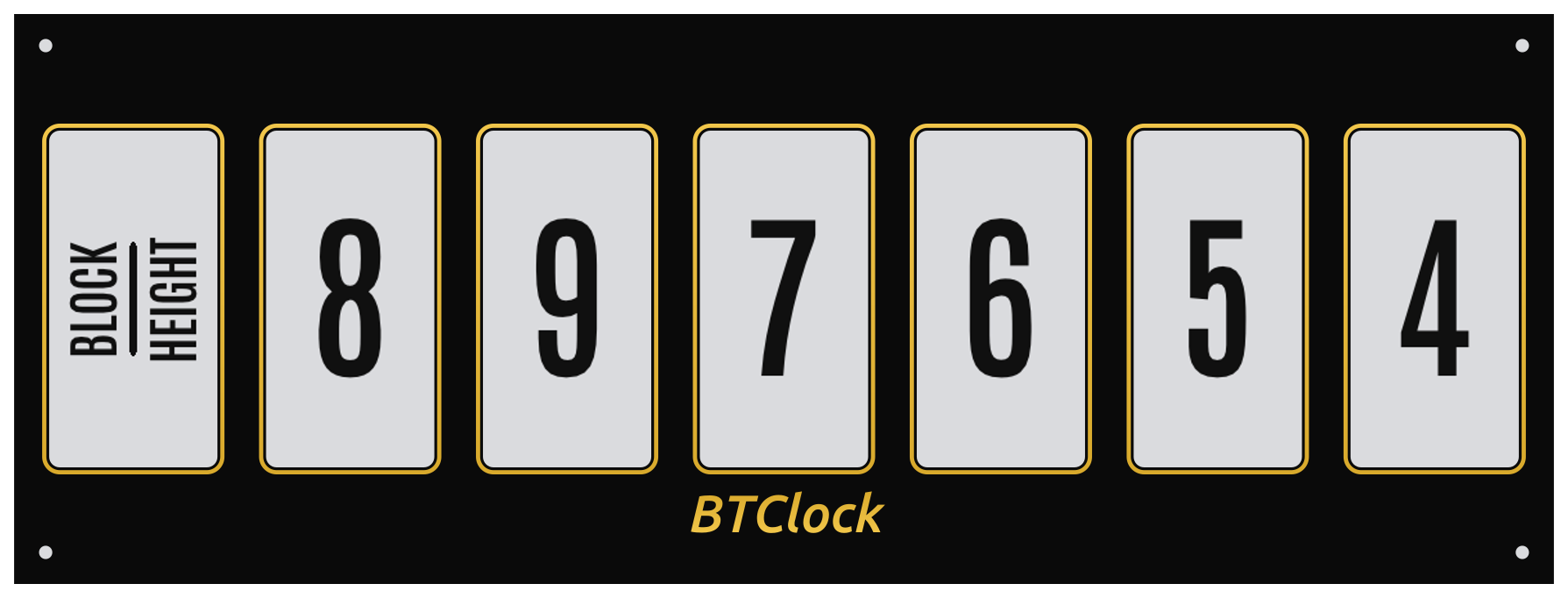
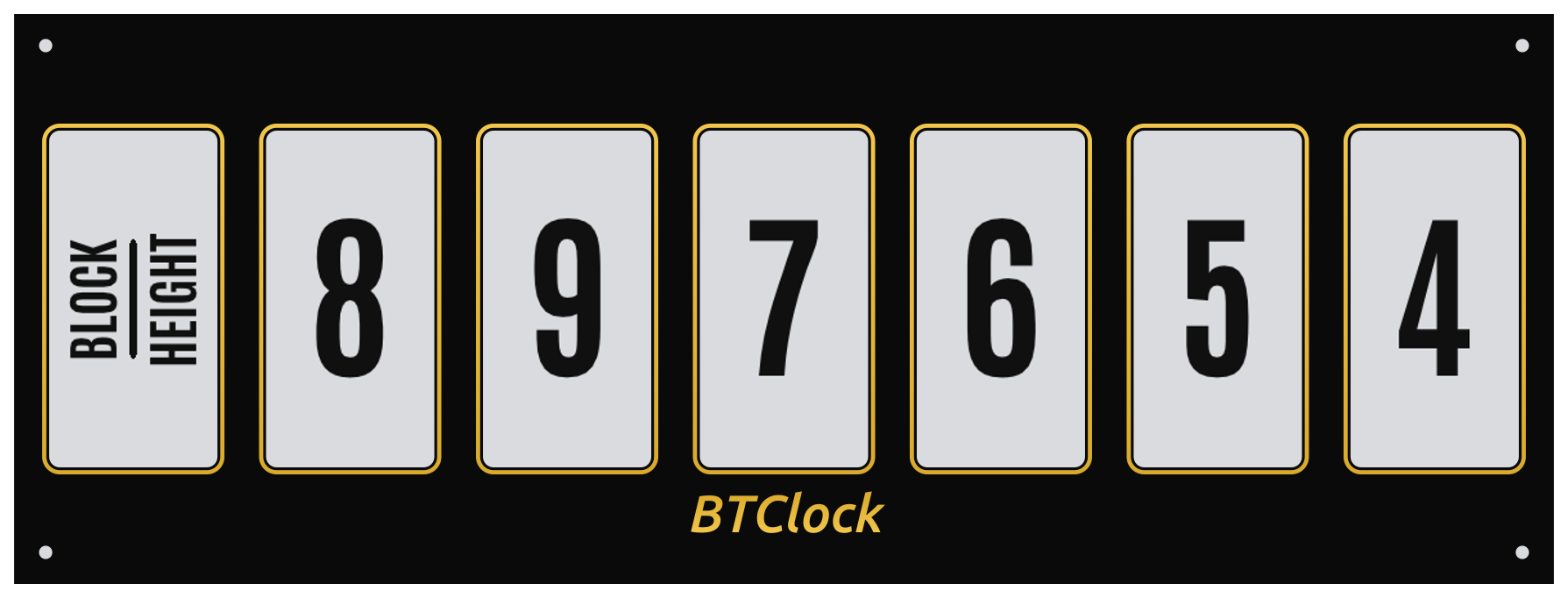
Antonio is a condensed display sans, designed for tight digit columns on the BTClock's narrow 2.13" panels. The three Antonio cuts share the same letterforms but step up in stroke weight: Regular (wght=400) → SemiBold (600) → Bold (700). Pick Antonio SemiBold when the default reads too thin in bright light or at glance distance, and Antonio Bold for maximum stroke contrast — useful when the device is mounted further from the viewer or when the e-paper panels are viewed under a frontlight.
To preview your own data live (your block height, your currency,
your mining-pool name) without flashing — open
tools/wasm/preview.html from a checkout (see
BUILD_FROM_SOURCE.md for how to build the
WASM bundle, then python3 -m http.server 8000 --directory tools/wasm).
7. Mining-pool guide¶
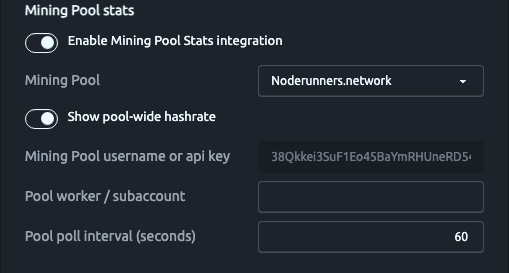
The BTClock supports 13 pools:
miningPoolName |
Display | Notes |
|---|---|---|
ocean |
Ocean | Public payout-address based stats. |
noderunners |
Noderunners | Default; works credentialless with poolGlobalStats=true. |
satoshi_radio |
Satoshi Radio | Same shape as Noderunners. |
braiins |
Braiins | Username-based. |
public_pool |
Public-Pool | Worker / address based. |
local_public_pool |
Local Public-Pool | Self-hosted instance — set localPoolHost. |
blitzpool |
Blitzpool | Public-pool fork with PPLNS / Stratum V2. Surfaces an Estimated Earnings screen on top of the regular Earnings panel. |
ckpool / eu_ckpool |
CKPool / EU CKPool | Worker name based. |
nerdminers_org / nerdminer_io |
NerdMiner.org / NerdMiner.io | BTC-address based. |
viabtc |
ViaBTC | API-key pool — miningPoolUser is a secret; GET emits miningPoolUserSet instead of the raw value. |
foundry_usa |
Foundry USA | API-key pool — same as ViaBTC. The poolWorker field is the subaccount path segment. |
A few important behaviours:
- The
miningPoolUserfield means different things per pool: payout address (Ocean, NerdMiner), Braiins username, CKPool worker, or an API key for ViaBTC / Foundry. The WebUI relabels the field per pool — see WEBUI_MINING_POOL_FIELDS.md for the labels that should appear. - For API-key pools,
GET /api/settingsdoes not return the key — onlyminingPoolUserSet: true|falseso the WebUI can show "set" / "not set" without leaking the value. - The on-demand logo fetcher pulls per-pool PNGs from
poolLogosUrland caches them on LittleFS under/lfs/pool_logos/. When the fetcher fails (no internet, TLS error), a vendored MDI icon is used as a fallback.POST /api/action/clear_pool_logoswipes the cache. - Cadence —
poolPollSeccontrols the HTTPS poll cadence (default 60 s, range 10..3600). Lower this only for self-hosted / personal pool endpoints; public APIs may rate-limit.
8. Bitaxe integration¶
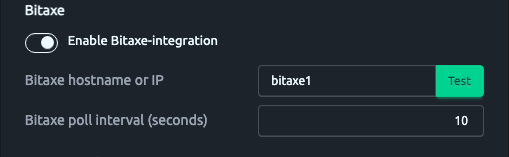
Bitaxe is an open-source ASIC miner using the BM1366/BM1368/BM1370 chip. The firmware connects via HTTP and pulls the AxeOS API:
- Bitaxe enabled — master toggle. Off = no Bitaxe screens, no polling.
- Bitaxe hostname — LAN hostname or IP of your miner (e.g.
bitaxe1.localor192.168.20.50). Defaultbitaxe1. - Bitaxe poll seconds — HTTP poll cadence. Range 5..300, default
- Be considerate to the AxeOS HTTP server.
The two Bitaxe screens — hashrate and best difficulty — appear in the
rotation only when bitaxeEnabled=true.
9. Nostr zap and Wallet Connect setup¶
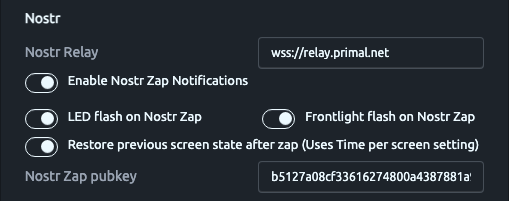
Nostr support has three facets:
- a data source — BTClock can pull block / price data over Nostr
from a
kind 30078long-form event. - a zap listener — NIP-57 zap-receipts trigger the on-screen zap overlay, LEDs, and frontlight flash.
- a NIP-47 Nostr Wallet Connect (NWC) client — pairs the device
with an external Lightning wallet so it can render the live wallet
balance + pop a
RECV/PAIDoverlay on every payment notification.
Listening for zaps doesn't require flipping dataSource to Nostr;
the zap listener lives independently:
| Setting | Description |
|---|---|
nostrRelay |
Relay URL (wss://...). Used for both the data source and the zap listener. |
nostrPubKey |
Author pubkey the data-source listener follows (only relevant when dataSource=2). |
nostrZapNotify |
Master toggle for zap pop-ups. |
nostrZapPubkey |
Pubkey whose zaps trigger the overlay. |
scrnRestoreZap |
After the zap overlay times out, restore the previous screen. |
Every incoming event — both kind 30078 (NIP-78 data) and kind 9735
(zap receipt) — is BIP-340 schnorr-verified against the recomputed
canonical id before any side effect (LED flash, overlay, snapshot
update). The verifier is the vendored libsecp256k1 in
components/secp256k1/; relay-forged frames are dropped with a
drop unverified ... warn log.
For a dev-mode test of the zap pipeline without a real relay event:
Fires the same code path as a real kind 9735 arrival (LEDs flash,
frontlight pulses, zap screen overlays).
Nostr Wallet Connect (NWC)¶
NIP-47 lets the device talk directly to a Lightning wallet over Nostr relays — no Lightning node, no LNbits intermediary. Pair once with the wallet's NWC URI and the firmware can read the balance and subscribe to payment notifications without ever holding a key on device beyond the connection secret itself.
Wallets known to emit a compatible pairing URI include Alby Hub, Mutiny, Coinos, Primal Wallet, and any LDK-Node / LNbits-NWC variant.
Setup
- In your wallet, create a new NWC connection. Grant it at least the
get_balanceandnotificationspermissions. Some wallets call the latter "subscribe to events" orlist_notifications— pick the one that streamspayment_received/payment_sentevents. - Copy the resulting
nostr+walletconnect://...?relay=wss://…&secret=…URI. - Open the BTClock WebUI → Settings → Extra features → Nostr Wallet Connect.
- Toggle Enable Nostr Wallet Connect (NIP-47) on, paste the URI into NWC pairing URI, and save. The URI is reboot-only — the firmware will tell you a reboot is required.
- Optional: adjust Balance refresh interval (15–3600 s, default
60). The device polls
get_balanceon this cadence and also refetches once on every payment notification. - Optional: toggle Show payment notifications on screen off if the display is mounted somewhere bystanders shouldn't see incoming amounts. Balance + status still update silently.
- Optional: toggle Flash LED + frontlight on payment notification to suppress the pulse on every payment (default on).
After reboot, the Status card shows a Wallet badge next to the existing connection indicators. Green = the NWC relay is up and the wallet handshake completed.
To see the live balance on the device, enable the NWC Balance
screen via Settings → Screens (the row is off by default for
privacy — visible only if you opt in). The balance also rides along
in /api/status's data[] array on the NWC-balance and
payment-notify slots so headless integrations can consume it without
scraping the screen.
Privacy
- The pairing URI carries a client secret. The device stores it in
NVS, but
GET /api/settingsnever returns it — only anwcUriSetbool and a shortnwcUriMaskedstring with the wallet pubkey prefix (so you can tell which wallet is paired) and ellipsis- redactedsecretandlud16fields. - The NWC balance screen defaults off (
screen90Visible=false). nwcShowNotify=falsesilences both the overlay and the LED / frontlight pulse but keeps the snapshot mirror current.- The device drops every relay frame whose signature doesn't verify against the wallet pubkey — relay-forged "you got paid" events can't fool the overlay.
Clear the pairing
In the WebUI use the Clear button next to the URI field, or
PATCH /api/settings with {"nwcUri":"","nwcEnabled":false}. A
reboot tears the relay socket down.
10. LEDs & frontlight¶
Both the rear LED strip (all variants) and the frontlight (Rev B only) are configured from Settings → Displays and LEDs:
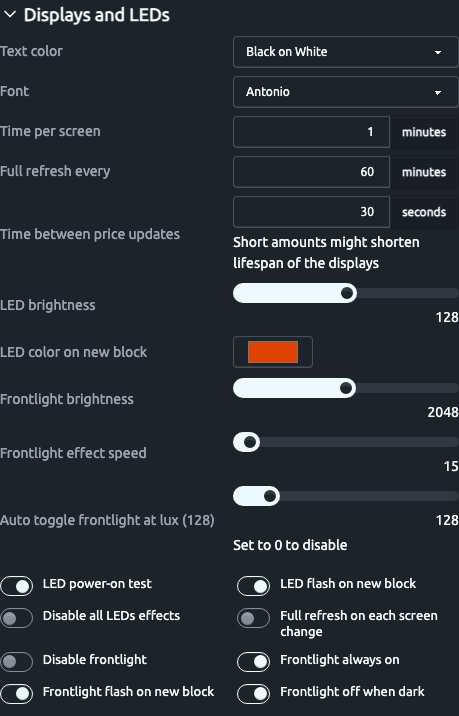
The colour swatch + "Flash" button on the Control card drive the LED strip live; everything below changes the defaults the firmware applies.
LED strip (NeoPixel, all variants)¶
The strip ships pre-mounted along the back/top of the enclosure and
defaults to BTClock orange (#E04300) flashing on every new block.
| WebUI control | Effect | NVS key |
|---|---|---|
| LED brightness slider | NeoPixel master brightness 0..255. | ledBrightness |
| LED color on new block swatch | The colour the strip pulses on a new block. Click to open the colour picker. | blockFlashColor |
| LED power-on test | Run the rainbow boot test. Off → strip goes straight to idle. | ledTestOnPower |
| LED flash on new block | Per-block pulse; off if you find it distracting. | (always on; controlled by disableLeds) |
| Disable all LED effects | Master mute. Combined with frontlight off, the device emits no visible light. | disableLeds |
For ad-hoc colours from a script:
# Set the whole strip orange
curl -X POST -H 'Content-Type: application/json' \
  -d '{"c":"E04300"}' \
  http://btclock-xxxxxx.local/api/lights/color
# Or explicitly turn it off through the same endpoint
curl -X POST -H 'Content-Type: application/json' \
  -d '{"c":"off"}' \
  http://btclock-xxxxxx.local/api/lights/color
# Mute the strip
curl -X POST http://btclock-xxxxxx.local/api/lights/off
LED status effects¶
The strip is also a status indicator. Beyond the block-flash pulse it plays a handful of patterns to communicate device state — useful when the panels can't (during boot, while connecting, when an upstream data feed drops). They're all suppressed when Disable all LED effects is on or DND is active.
| Pattern | Meaning | What to do |
|---|---|---|
| Rainbow scan, ~1.5 s, then off | Power-on self-test. | Nothing — boot is in progress. (Toggle LED power-on test off to skip it.) |
| Single cyan pixel sweeping along the strip, continuous | Connecting to WiFi. | Wait. Long sweeps point at a slow AP or a weak signal. |
| Triple green flash | WiFi connected, IP obtained. | Nothing — fires once after the spinner clears. |
| Red ↔ blue alternating, three quick flashes | Saved WiFi credentials kept failing — device is rebooting into provisioning. | Reconnect to the BTClock-XXXX SoftAP and submit fresh credentials. |
| Soft cyan breathing, continuous | Provisioning portal active (SoftAP / captive-portal mode). | Connect to the BTClock's hotspot and finish setup — see §2 Hardware tour and §4 WebUI tour. |
| Quick orange (or your chosen colour) pulse | A new Bitcoin block arrived. | Nothing. Toggle LED flash on new block off to silence it. |
| Quick bright pulse | Nostr zap received (when LED flash on zap is enabled). | Background — see §9 Nostr zap and Wallet Connect setup. |
| Slow red breath, ~2 s, repeating every ~5 s | WiFi has dropped, or both upstream data feeds are stalled. | Check your WiFi router and the device's RSSI in §4.2 Status card. |
| Two quick purple blinks every ~10 s | Block-source feed (Mempool) is stalled but WiFi is fine. | Usually self-recovers. The Status card's "Blocks" badge tells the same story. |
| Two quick amber blinks every ~10 s | Price-source feed (Kraken) is stalled but WiFi is fine. | Usually self-recovers. Mirrored in the Status card's "Price" badge. |
| Yellow-green blink | A data refresh just landed (any source). | Disable via LED flash on update if you find it distracting (ledFlashOnUpd). |
| Amber sweep ending in red brake-light | Screen rotation paused (button 1 click, or /api/pause called). |
Click button 1 again to resume — see §3 On-device controls. |
| Red handbrake → green sweep | Screen rotation resumed. | Background. |
| Soft purple fade-pulse, then strip goes dark | DND just turned ON (button-1 long-press or schedule). | Hold button 1 again to turn DND off — see §11 Do Not Disturb. |
| Warm amber fade-pulse, then strip returns to its resting colour | DND just turned OFF. | Background. |
| Solid red (re-painted every ~500 ms while held) | Button 1 is being held at boot — WiFi-reset is arming. | Keep holding for 3 s to wipe WiFi creds + reboot into the AP, or release to fall through to a normal boot. See §3 On-device controls. |
| All pixels solid red | Boot sanity failure. | Reflash via the Web flasher — the firmware never made it to a usable state. |
The fault indicators (red breath / purple / amber blinks) only fire
between user-set colours rather than overwriting them — the strip
returns to whatever you last set via the colour swatch or
/api/lights/color between pulses, so a static colour is still
visible most of the time.
Frontlight (Rev B only)¶
A row of soft-white LEDs aimed across the panel faces, driven by a PCA9685 16-channel PWM at I²C address 0x40. Without it, the panels are invisible in the dark. The card is capability-gated — hidden on Rev A and V8 (no PWM channel wired).
| WebUI control | Effect | NVS key |
|---|---|---|
| Frontlight brightness slider | Live PWM duty for the brightness slider; commits to NVS on Save. | (live preview; persisted via flMaxBrightness) |
| Frontlight always on | Bypass the ambient-driven dimming. Easiest if your BTClock always sits in a lit room. | flAlwaysOn |
| Frontlight off when dark | Turn the frontlight off below luxLightToggle lux. |
flOffWhenDark |
| Auto toggle frontlight at lux | The lux threshold that flips between "room bright" and "room dim". Hysteresis is ±1 lux. Set to 0 to disable the auto-off. | luxLightToggle |
| Frontlight effect speed | Fade-step time in ms (default 15 ≈ 225 ms full fade). | flEffectDelay |
| Frontlight flash on new block | Extra brief pulse (~150 ms) on each new block. | flFlashOnUpd |
| Frontlight off during Do Not Disturb | Fade the panel out while DND is active. Default on (matches v3). Turn off if you want the LED ring muted by DND while keeping the panel under normal user/ambient control. | flOffOnDnd |
| Disable frontlight | Master mute. | flDisable |
For a bedroom: set Off when dark = ON and Lux threshold = 2 — the frontlight goes off the moment you turn off the bedroom light.
Live control via the API¶
# Force the frontlight on / off / single flash
curl -X POST http://btclock-xxxxxx.local/api/frontlight/on
curl -X POST http://btclock-xxxxxx.local/api/frontlight/off
curl -X POST http://btclock-xxxxxx.local/api/frontlight/flash

# Per-channel manual override — flat array of 12-bit duties, one per
# panel. Bypasses DND + always_on (this is an explicit user/test
# intent). Length must equal numScreens. The next block-flash, ambient
# transition, or brightness PATCH resumes uniform fader control.
curl -X POST -H 'Content-Type: application/json' \
  -d '[2048,0,2048,0,2048,0,2048]' \
  http://btclock-xxxxxx.local/api/frontlight/set

# Read current state. /api/status also embeds the same per-channel
# duties under .frontlight.duties for at-a-glance polling.
curl http://btclock-xxxxxx.local/api/frontlight/status
11. Do Not Disturb¶
DND is a light mute, not a screen blackout — the e-paper still shows data because it consumes no power to hold an image. DND silences:
- The NeoPixel strip
- The frontlight (Rev B)
- Block / zap flash effects on both
It does NOT pause:
- Screen rotation
- Data source updates
- WebUI / API access
Manual DND (one click on the Status card)¶
The Status card has a "Do not disturb" pill next to "Screen cycle":
Click it to mute the LEDs immediately, click again to un-mute. The toggle applies optimistically — if the API call rejects, the pill snaps back to server truth and a toast surfaces the error.
You can also toggle manual DND without leaving the room: hold button 1 for ≥ 800 ms (see §3 On-device controls). The NeoPixel ring acknowledges the transition with a fade-pulse — soft purple going ON (lights "entering sleep"), warm amber going OFF (lights "waking up"). The purple cue is routed through a DND-bypass path so it's still visible even though the strip is already entering the DND blackout.
Scheduled DND (Settings → Extra features)¶
A single nightly window in the local timezone. Overnight windows wrap (e.g. 22:00 → 07:00 spans midnight). Toggle it on under Settings → Extra features:
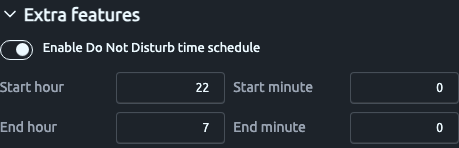
Set startHour:startMinute → endHour:endMinute, hit Save, and
the firmware compares the local clock against the window every tick.
Make sure Settings → Time zone matches your locale first — if
DND fires at the wrong time of day, that's the first thing to check.
Equivalent API¶
# Manual on/off
curl -X POST http://btclock-xxxxxx.local/api/dnd/enable
curl -X POST http://btclock-xxxxxx.local/api/dnd/disable

# Read current state
curl http://btclock-xxxxxx.local/api/dnd/status
12. HTTP API quick reference¶
Everything in this section has a click-through equivalent in the
WebUI — the API is for scripts, dashboards, and the
Home Assistant integration. The
full endpoint list with implementation status is in the in-tree
feature-parity matrix on Forgejo at
docs/FEATURE_MATRIX.md.
Here are the endpoints you'll most often want from a script.
# What's the device showing right now?
curl http://btclock-xxxxxx.local/api/status

# Push three letters to the panels
curl -X POST -H 'Content-Type: application/json' \
  -d '{"t":"HEY"}' \
  http://btclock-xxxxxx.local/api/show/text

# Push a per-panel custom layout
curl -X POST -H 'Content-Type: application/json' \
  -d '{"cells":["1","2","3","4","5","6","7"]}' \
  http://btclock-xxxxxx.local/api/show/custom

# Jump to the BTC ticker
curl -X POST -H 'Content-Type: application/json' \
  -d '{"s":20}' \
  http://btclock-xxxxxx.local/api/show/screen

# Switch active price currency
curl -X POST -H 'Content-Type: application/json' \
  -d '{"c":"USD"}' \
  http://btclock-xxxxxx.local/api/show/currency

# Pause / resume rotation
curl -X POST http://btclock-xxxxxx.local/api/action/pause
curl -X POST http://btclock-xxxxxx.local/api/action/timer_restart

# Set the LED strip to all-orange
curl -X POST -H 'Content-Type: application/json' \
  -d '{"c":"E04300"}' \
  http://btclock-xxxxxx.local/api/lights/color

# Set frontlight max brightness (Rev B only)
curl -X POST -H 'Content-Type: application/json' \
  -d '{"b":12345}' \
  http://btclock-xxxxxx.local/api/frontlight/brightness

# Start heap tracing with optional capture limit
curl -X POST -H 'Content-Type: application/json' \
  -d '{"cap":256}' \
  http://btclock-xxxxxx.local/api/diag/heap_trace/start

# Trigger a named LED effect (blink / blink_success / blink_error /
# rainbow / breathe / breathe_error / zap / identify / heartbeat /
# off / idle). Effects honour DND, disableLeds, and the global
# suppressor — the call returns 200 even when the effect is muted.
curl -X POST -H 'Content-Type: application/json' \
  -d '{"name":"rainbow"}' \
  http://btclock-xxxxxx.local/api/lights/effect

# Force a full refresh (clears EPD ghosting)
curl -X POST http://btclock-xxxxxx.local/api/full_refresh

# Patch a setting (live)
curl -X PATCH -H 'Content-Type: application/json' \
  -d '{"timePerScreen": 1}' \
  http://btclock-xxxxxx.local/api/settings

# Pair a Nostr Wallet Connect (NIP-47) wallet (reboot required)
curl -X PATCH -H 'Content-Type: application/json' \
  -d '{"nwcEnabled":true,"nwcUri":"nostr+walletconnect://<pubkey>?relay=wss://relay.example.com&secret=<hex>"}' \
  http://btclock-xxxxxx.local/api/settings

# Clear a paired NWC wallet
curl -X PATCH -H 'Content-Type: application/json' \
  -d '{"nwcUri":"","nwcEnabled":false}' \
  http://btclock-xxxxxx.local/api/settings

# Live SSE event stream (status, screen rotations, lights, DND, …)
curl -N http://btclock-xxxxxx.local/events

# Pull the panic backtrace from the previous run (Rev B / V8 only;
# 404 if there isn't one). Decodes with espcoredump.py:
curl -o dump.elf http://btclock-xxxxxx.local/api/coredump
espcoredump.py info_corefile -c dump.elf build-rev-b/btclock_v4.elf

# Clear the coredump partition once you've decoded it
curl -X DELETE http://btclock-xxxxxx.local/api/coredump
When httpAuthEnabled=true add -u user:pass to every /api/* call.
13. Home Assistant integration¶
A custom Home Assistant integration (maintained alongside the firmware,
same author) ships every /api/settings entity — mining-pool / font /
currency selectors, Bitaxe & DND switches, LED + frontlight controls,
firmware Update entity, and more — as Home Assistant devices. The full
walkthrough (install, configuration flow, per-section entity catalogue
with screenshots, firmware update flow, services, and auth/discovery
details) lives in HOMEASSISTANT.md.
Quick start:
- HACS → Custom repositories → add git.btclock.dev/btclock/homeassistant-btclock as an Integration → install → restart HA.
- Settings → Devices & Services → the BTClock should already appear
under Discovered (mDNS auto-detect on
_http._tcp.local.); if not, Add integration → BTClock and enter the device's IP.
The integration auto-detects firmware variant (legacy ≤3.3, v3.4, v4) and gates the v4-only entities accordingly.
14. Web flasher¶
web-flasher.btclock.dev — Chrome / Edge / Brave only (WebSerial is required). Plug the BTClock into your computer over USB-C, click "Connect", pick the matching board variant (Rev A / Rev B / V8) and the latest release, and the flasher streams firmware + LittleFS in one shot. No toolchain, no command-line.
Use this when:
- You're a first-time user just trying the BTClock — don't bother with ESP-IDF.
- A bad firmware made the WebUI unreachable (the web flasher uses USB so it doesn't need network access).
- You want the latest stable release without clicking through release
ZIPs and
esptoolinvocations.
If you need a development build or a custom variant, see
BUILD_FROM_SOURCE.md.
15. Firmware updates¶
Three update paths, in order of convenience:
Web flasher (USB)¶
See Web flasher above. Reflashes both firmware and WebUI image in one click. Only works for tagged releases.
WebUI upload (OTA)¶
The Control card has a dedicated Firmware update card at the bottom (visible in the Control card screenshot above).
- Open the WebUI, scroll to Firmware update at the bottom of the Control card.
- Click Choose File under Firmware file, pick the
btclock_v4.binfrom the release ZIP for your variant (Rev A / Rev B / V8). - Click Update firmware. A progress overlay paints on the panels while the upload runs (~15 s for ~1.5 MiB), and the device reboots into the new slot once the SHA-256 verifies.
- To reflash the WebUI bundle the same way, use WebUI file →
Update WebUI below it (
storage.binfrom the release ZIP).
The WebUI auto-detects the active hardware variant and surfaces a
warning if the firmware filename doesn't match — so you can't
flash a Rev B .bin onto a Rev A board.
Headless equivalent:
curl -X POST -H 'Content-Type: application/octet-stream' \
  --data-binary @btclock_v4.bin \
  http://btclock-xxxxxx.local/upload/firmware
# WebUI bundle uses /upload/webui with the same body shape.
When otaPass is set, add -u user:pass to either upload (the OTA
password is separate from the HTTP-auth password).
Factory reset¶
For most "WiFi changed" or "AP doesn't appear" cases, the on-device button-1 boot-hold (3 s) is the right tool — it only resets the STA credentials and keeps everything else (timezone, currencies, screen order, LED colours, NWC, Nostr, mining-pool, Bitaxe). See §3 On-device controls.
A full NVS wipe (every setting back to default, device reboots into the provisioning AP) is only reachable via the HTTP API today — there's no button for it in the WebUI. The JSON body is mandatory so an auto-completed curl from shell history can't trigger it by accident:
curl -X POST -H 'Content-Type: application/json' \
  -d '{"confirm":"factory_reset"}' \
  http://btclock-xxxxxx.local/api/factory_reset
Use the full wipe when:
- You want a clean slate for testing,
- A bad PATCH from a script left the device in an unusable state,
- You're handing the device to someone else.
If the device is unreachable on the network entirely, USB-flash with
esptool erase_flash is the offline equivalent — wipes the NVS
partition along with the firmware, then re-flash.
16. Troubleshooting¶
| Symptom | What's happening | Fix |
|---|---|---|
Can't reach the WebUI on http://btclock-xxxx.local/ or its IP |
Your client and the device aren't sharing a layer-2 segment, or the client's traffic is being shipped elsewhere. | Make sure your phone/laptop is on the same Wi-Fi network the device joined (not a Guest SSID, not a separate VLAN). Disable any VPN on the client — split-tunnel routing usually sends LAN ranges over the tunnel and mDNS broadcasts never reach the device. In your router, disable "Client / AP / Guest Isolation" (sometimes labelled "Wireless Isolation" or "AP Isolation") — that setting blocks station-to-station traffic and the device becomes invisible to other clients on the same SSID. mDNS resolution (*.local) additionally needs UDP/5353 multicast forwarding to be on. |
| AP won't appear | Booted into STA mode but the credentials are bad. | Hold button 1 during boot for 3 s to wipe just the WiFi creds and reboot into the AP — keeps every other setting. Or wait wpTimeout (default 15 min) for the auto-reboot. Last resort: USB-flash + /api/factory_reset (full NVS wipe). |
| WebUI loads but screens are stale | Data source disconnected. | Status card shows "BTClock data-source connection" red — try Settings → Data sources, swap to mempool.space (dataSource=1) and restart. |
| Panels show the same content forever | Rotation is paused. | Click "Resume" on the Status card, or press Button-1. |
| "Firmware version different from WebUI" warning | OTA stopped halfway and only reflashed firmware (or WebUI). | Re-flash the missing half (firmware via /upload/firmware, WebUI via /upload/webui). The Web flasher does both at once. |
| Frontlight stays on with the bedroom dark (Rev B) | flAlwaysOn=true or flOffWhenDark=false. |
Settings → Light & LEDs → Frontlight → Always on = OFF, Off when dark = ON, Lux toggle threshold = 2. |
| Ghost text on panels | Partial-refresh accumulated drift. | "Force full refresh" on the Control card, or wait for the next fullRefreshMin tick. |
| OTA fails with "Failed to connect" | USB-JTAG contention with the running firmware. | Hold BOOT, tap RESET, release BOOT to force the bootloader; retry esptool. Or use the OTA path. |
| Buttons feel reversed | The BTClock is mounted upside-down or you're standing on the wrong side. | Settings → Light & LEDs → Inverse buttons flips the polarity. |
"Failed to load WASM module" on tools/wasm/preview.html |
The WASM bundle hasn't been built yet, or you're opening the file via file://. |
Run tools/wasm/build.sh, then serve the directory: python3 -m http.server 8000 --directory tools/wasm. |